
It’s easy to set up and manage your workflows with the Workflows app in Microsoft Teams. Create, find, and manage your workflows quickly to efficiently automate your everyday tasks.
Note
The Workflows app in Microsoft Teams is available as part of the public preview program and might undergo further changes before being released publicly. To get access to this and other upcoming features, switch to Teams public preview.
Add the Workflows app
There are several ways to add the Workflows app in Teams.
On the left side of Teams, select View more apps
 . Search "Workflows" and select Add.
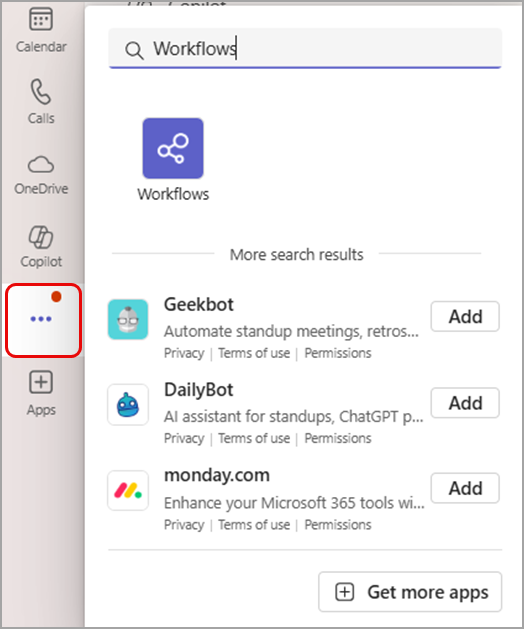
To pin the Workflows app for easy access, right-click the app and select Pin
 . To open it in a separate window, select Open in new window
 .
.
Note
If you don't see the Workflows app, your org may not have enabled it. Contact your admin for more information.
Access workflows through chats or channels
- In Teams, navigate to any chat or channel you want to set up a workflow for.
- Select More options
next to the chat or channel name.
- Select Workflows
 .
.
Access workflows through a message
- Select More options
next to any message you want to set up a workflow for.
- Select More actions > Create new action to open the Workflows app.
Access workflows through the compose box
- Navigate to a chat or channel in Teams.
- Select Actions and apps
 next to the compose box and select Workflows
.
next to the compose box and select Workflows
.
Create a workflow
Create workflows from templates or build them from scratch.
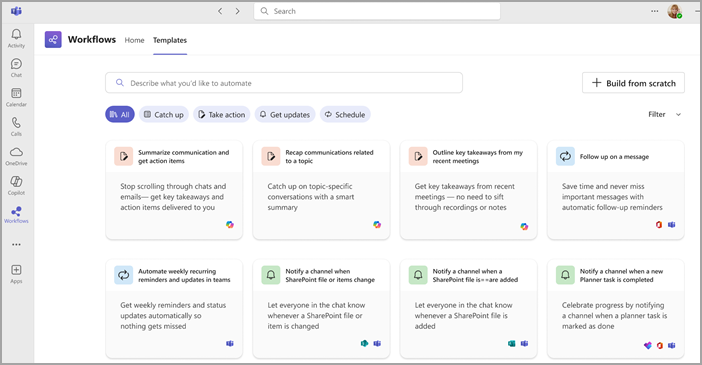
From a template:
- Open the Workflows app.
- Select a template from the home page carousel or choose All templates to browse the full catalog.
- Follow prompts and fill out required fields, then select Save to activate your workflow.
Tip
You can also find templates by using the search bar at the top of the Home or Templates page. Enter a few keywords describing the workflow you need and select from the suggestions.
From scratch:
- Select Build from scratch
in the Workflows app.
- Choose a trigger and an action for your workflow. You can update these at any time.
- Complete the required fields and select Save.
See all your workflows
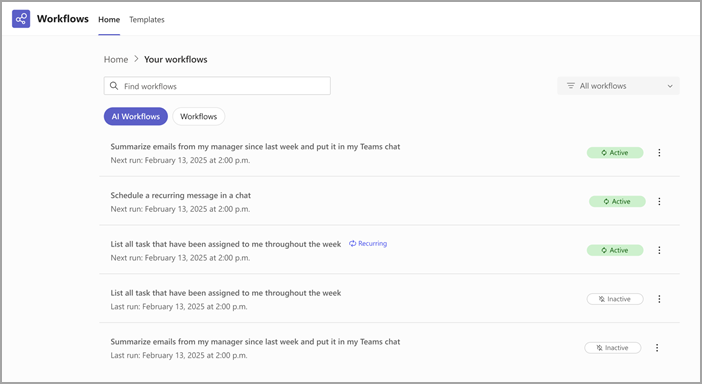
- Go to Your workflows from the app home page to view your five most recent workflows.
- Select See all to open the full list of workflows across Teams, SharePoint, Power Automate, and Copilot.
- Use the search bar to filter workflows by keyword.
- Switch between the Workflows (standard actions) and AI workflows views.
Manage your workflows
Edit a workflow:
- In the Workflows app, find the workflow you want to edit in the Your workflows section.
- Select More actions
 > Edit.
 - Update fields as needed and select Save.
Turn a workflow on or off:
- In Your workflows, select More actions
> Turn on or Turn off next to a workflow.
View details of a workflow:
- Select More actions
> Details to see more information about any of your workflows.
Delete a workflow:
- In Your workflows, select More actions
> Delete next to a workflow. In the conformation window, select Delete again to permanently remove the workflow.
Add a co-owner:
- Open the workflow details page, scroll to Owners, and add a co-owner by typing their name and selecting it from the list.