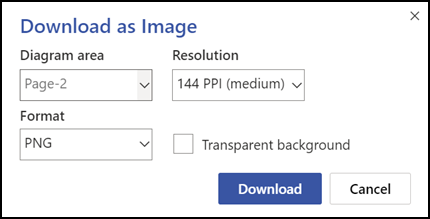
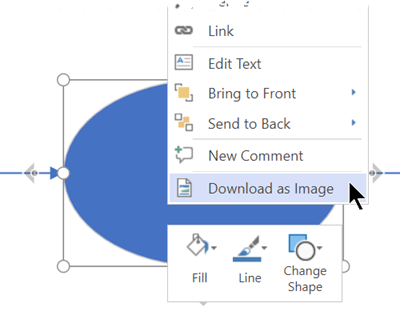
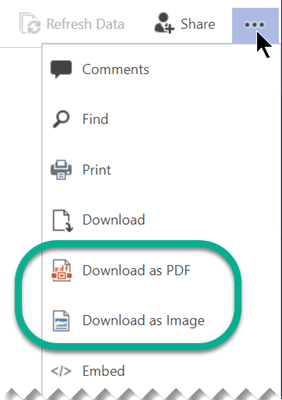
In Visio, you can save a diagram in PDF format. Or you can save it as an image file (JPEG, PNG, SVG, or other format) for use elsewhere.
Save a diagram as a PDF
Select File > Export.
Under Export, select Create PDF/XPS Document.
Under Create PDF/XPS Document, select Create PDF/XPS.
Click Save As.
Select Options to determine which page or pages to include in the PDF file.
- By default, all pages will be included in the PDF. To change that, select an option under Page Range.
- The PDF will conform to the page layout in the Visio file.
- For information on the other options, see More about PDF options.
Navigate to the folder where you want to save the file, and then select Publish.
Save a diagram as a PNG, JPG, SVG or EMF image
Select File > Export.
Under Export, select Change File Type.
Under Save Drawing, in the Graphic File Types section, select the type of image file you want (PNG, JPG, EMF, or SVG).
Select Save As.
Navigate to the folder where you want to save the file, and then select Save.
(If you've selected PNG or JPEG format) Additional options are shown to you, based on the image format you've selected:
- Read about PNG output options
- Read about JPG output options
Save a diagram in another image-file format
Other image-file formats are available: .gif, .tif, .bmp, and .wmf.
Select File > Export.
Under Export, select Change File Type.
Under Save Drawing, in the Other File Types section, select select Save As Another File Type.
Select Save As.
In the dialog box, open the Save as type list, and select the format you want.
Navigate to the folder where you want to save the file, and then select Save.
Additional options are shown to you, based on the image format you've selected:
- Read about TIFF output options
- Read about GIF output options
- Read about BMP output options
Error 920
Some folks encounter error 920 when trying to save as an image. This likely is caused by one of two things:
- One or more objects are outside the Visio workspace, and Visio is unable to adequately fit them into the viewing in order to render them in the image.
- The resolution of the image is set higher than Visio can handle.
Here are two articles that discuss the error: