

Microsoft is modernizing the activation experience for perpetual licenses. Beginning December 3, 2025, the traditional telephone-based product activation automation process has been moved from telephone to online. Customers will instead use the Product Activation Portal:
The new digital workflow provides a more secure, reliable, and user‑friendly activation experience and helps prevent fraud. While the process has been updated, offline activation capabilities remain supported. Customers who rely on traditional offline activation can continue using it without changes to their environment.
The Product Activation Portal enables activation for a wide range of perpetual Microsoft products and supports both connected and non‑connected devices. This evolution ensures activation remains simple, flexible, and dependable while offering a modern, streamlined interface for all users.
This article describes the Product Activation portal and explains how it supports activation for perpetual Microsoft products.
Sign-in to Product Activation Portal
To access the Product Activation Portal, a human operator must complete a CAPTCHA and authenticate with a supported account type. The following account types are supported:
- Personal Microsoft accounts
- Work or school accounts
- Microsoft Entra ID accounts
- Azure Government tenant accounts
Important
By logging in with your account, it will not associate the account to the product license. It is used only to validate secure portal access.
Sign-in steps for personal, work, and school accounts
Open Product Activation portal, or go to https://visualsupport.microsoft.com.
Complete the Captcha.
Select Proceed to Sign In.
Enter your personal, work, or school account, and then select Next.
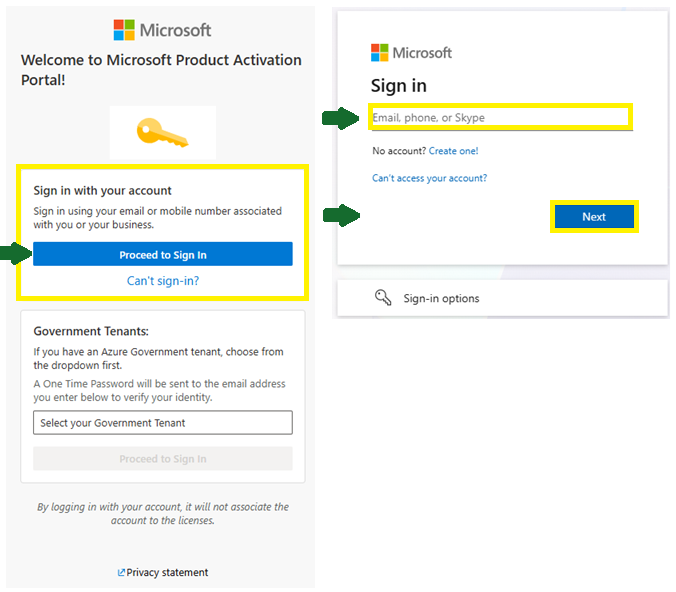
If your account is already registered: You will be guided through the standard verification process associated with your account.
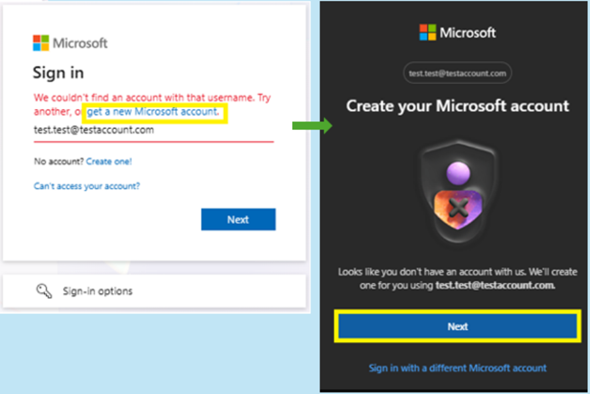
If your account is not registered: You may receive an error if:
- The account is not yet a Microsoft account, or
- The account is configured as an Azure Government tenant (in this case, follow the steps in the Azure Government tenants below)
To register the account:
Select Get a new Microsoft account.
Complete the Captcha.
You will be redirected to the Create your Microsoft account experience.
Confirm the displayed email address, select Next, and complete the setup.
Note
To create a new personal Microsoft account (for example, @outlook.com), select Create one!.
Sign-in steps for Azure Government Tenants
Follow the below steps to sign in:
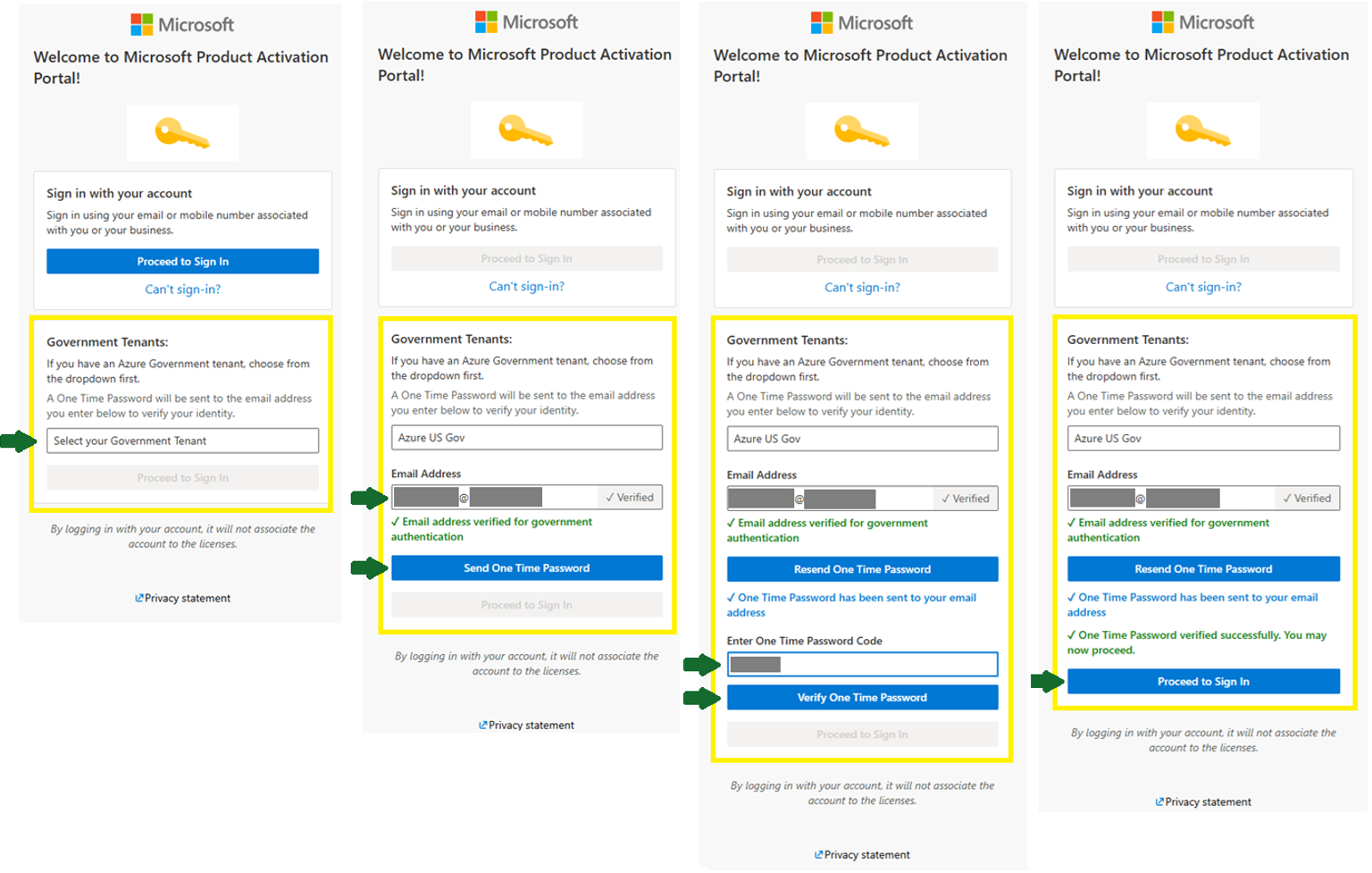
Open Product Activation portal, or go to https://visualsupport.microsoft.com
In the Government Tenants section, select the relevant tenant.
Enter your Microsoft Azure Government account's email address. It will automatically verify it.
Select Send One Time Password. This will send the password to the email account entered. The verification email will be sent from maccount@microsoft.com.
Collect the password from your email account, return to the Product Activation Portal, then enter one time password code and select Verify One Time Password.
Once successfully verified, select Proceed to Sign In.
Product Activation Options
After signing in, select the option that best matches what you need help with.

Activate a Microsoft Product
We recommend first attempting to activate your product online using an internet connection for the best activation experience.
If the device cannot connect to the internet, or online activation is unsuccessful, use the Product Activation portal for offline activation.
Note
Downloading, installing, and configuring your product are separate from activation. If you haven't completed these steps, refer to the appropriate installation or setup resources first. Once your product is installed and ready to activate, return to the Product Activation Portal if you need activation assistance.
To continue using the Product Activation portal, select Activate a Microsoft Product. Then, select the product and the product version.

The following license types are supported:
- Retail
- Original Equipment Manufacturer (OEM)
- Volume License and Cloud Solution Provider.
Volume License Key Management
We recommend accessing Microsoft 365 admin center when you need help managing your volume license keys.
If additional assistance is needed, then go the Product Activation Portal and select Volume License Key Management to:
- Locate, assign your active Volume Licensing Agreements' Volume License Key (s).
- Locate license details
- Help navigate your Microsoft 365 admin center to locate your volume license keys and volume license software.
- Increase key limit, or MAK or KMS activation exceptions.
Note
If you are activating your volume license product, instead select Activate a Microsoft Product.
Contact Support
If additional assistance is required and your scenario qualifies, the portal will connect you with via Live chat.