
Important
The Actions feature is retired in Office 2024.
Note
This feature is only available in the following releases of Office:
Microsoft 365
Office LTSC Professional Plus 2021
Office LTSC Standard 2021
Office Professional Plus 2016, 2019
Office Standard 2016, 2019
Actions make it easier for you to complete common tasks from within your Microsoft 365 documents. For example, you might want to send an email message to a contact from your address book who is mentioned by name in a Word document. You can use an action to do that.
Choose the actions you want to use
Which application are you using?
Word
To activate an action, on the File tab, click Options, and then click Proofing.
At the top of the Options box, click AutoCorrect Options, and click the Actions tab.
If you haven't already, check the Enable additional actions in the right-click menu box.

Under Available Actions, put a check mark next to each action you want your Office document to recognize, and then click OK.
Outlook
To activate an action, on the File tab, click Options, and then click Mail.
At the top of the Options dialog box, click Editor Options.
In the Editor Options dialog box, click AutoCorrect Options.
Click the Actions tab in the AutoCorrect dialog box.
If you haven't already, check the Enable additional actions in the right-click menu box.
Use actions as you work
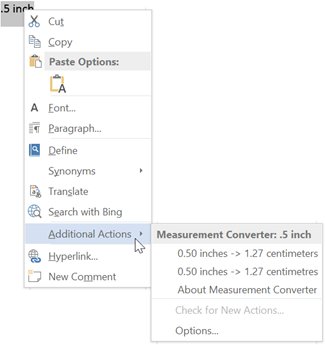
As you work in your document, you can right-click the segment or value that serves as a trigger for the action. For example, as illustrated below, you can right-click an instance of .5 inch, point to Additional Actions, and a pop-up list of measurement options appears so you convert the measure to metric units.
Available actions
The following are actions that are built into Office:
- Address (English): Support for Smart Tags in earlier versions of Office prior to Office 2010 only.
- Date (XML): Allows you to schedule a meeting or see the contents of your Outlook calendar on a given date.
- Financial Symbol (XML): Allows you to see information about a stock symbol.
- Instant Messaging Contacts (English): Allows you to send an instant message to someone from within your Office document.
- Measurement Converter: If your document originated in another country, you can insert this action to help you convert inches to centimeters on the fly.
- Person Name (English): Allows you to see the Outlook contact information associated with a name.
- Place (XML): Support for Smart Tags in earlier versions of Office prior to Office 2010.
- Telephone Number (XML): Support for Smart Tags in earlier versions of Office prior to Office 2010.
- Time (XML): Support for Smart Tags in earlier versions of Office prior to Office 2010.