Change or delete the header or footer from the first page
Double-click the first page header or footer area.
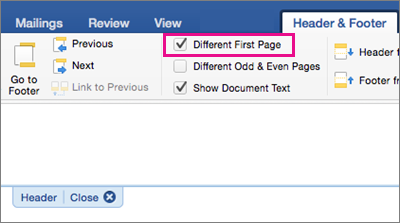
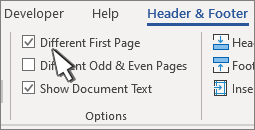
Check Different First Page to see if it's selected. If not:
- Select Different First Page.
- Content of the header or footer on the first page is removed.
Note
Different First Page is a toggle, so be sure you're turning it on.
Add your new content into the header or footer.
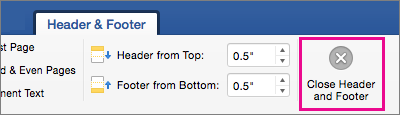
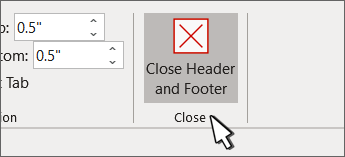
Select Close Header and Footer or press ESC to exit.
Change or delete a header or footer from another single page
To delete or change headers and footers on individual pages within a document, start by inserting a section break.
Important
Section breaks are different from page breaks. If you already have a page break before the page where you want to change the header or footer, remove a page break and replace it with a section break as shown below.
Click or tap where you want to start a new page without the header or footer.
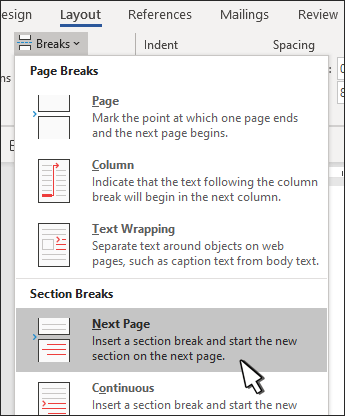
Go to Layout > Breaks > Next Page to create a section break.
Double-click the header or footer area to open the Header & Footer tab.
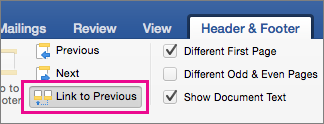
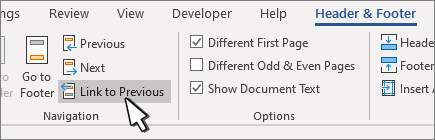
Select Link to Previous to turn off the link between the sections.
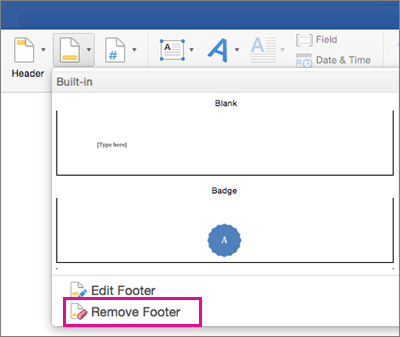
Select Header or Footer and do one of the following:
- Choose Remove Header or Remove Footer .
- Add or change the content in the header or footer.
(You’ll need to repeat steps 3-5 if you want to delete or change both the header and the footer.)
To return to the body of your document, select Close Header and Footer or press ESC.