

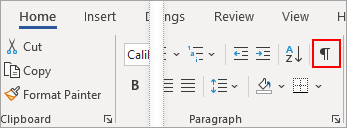
To convert text to a table or a table to text, start by clicking the
 Show/Hide paragraph mark on the Home tab. This lets you see how text is separated in your document.
Convert text to a table
Insert separator characters—such as commas or tabs—to indicate where to divide the text into table columns.
Note
If you have commas in your text, use tabs for your separator characters.
Use paragraph marks to indicate where you want to begin a new table row.
In this example, the tabs and paragraph marks will produce a table with 3 columns and 2 rows:

Select the text that you want to convert, and then click Insert > Table > Convert Text to Table.
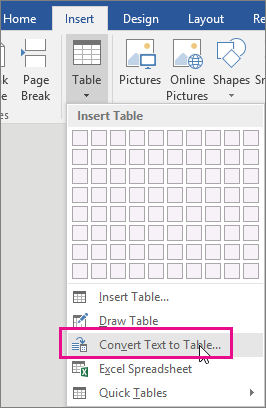
In the Convert Text to Table box, choose the options you want.
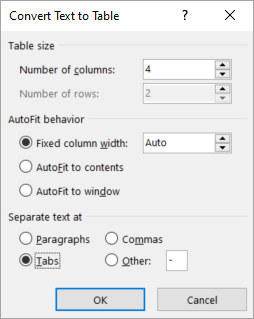
Under Table size, make sure the numbers match the numbers of columns and rows you want.
Under AutoFit behavior, choose how you want your table to look. Word automatically chooses a width for the table columns. If you want a different column width, choose one of these options:To do this Choose this option Specify a width for all the columns In the Fixed column width box, type or select a value. Resize the columns to fit the width of the text in each column AutoFit to contents Resize the table automatically in case the width of the available space changes (for example, web layout or landscape orientation) AutoFit to window Under Separate text at, choose the separator character you used in the text.
Click OK. The text converted to a table should look something like this:

Convert a table to text
- Select the rows or table you want to convert to text.
- On the Layout tab, in the Data section, click Convert to Text.

- In the Convert to Text box, under Separate text with, click the separator character you want to use in place of the column boundaries. Rows will be separated by paragraph marks.
- Click OK.