

You can easily insert a check mark (also known as a "tick mark") in Word, Outlook, Excel, or PowerPoint.
These marks are static symbols. If you're looking for an interactive check box that you can click to check or uncheck, see: Add a check box or option button (Excel) or Make a checklist in Word.
In your file or message, place the cursor where you want to insert the symbol.
Open the Symbol dialog box:
- Word or Outlook: Insert, select
 Symbol then
More Symbols
Symbol then
More Symbols - Excel: Insert, select
Symbols > Symbol
- PowerPoint: Insert, select
Symbols > Symbol
- Word or Outlook: Insert, select
In the Font box, select Wingdings.
In the Character code box at the bottom, enter:
252
In the grid of symbols, the check mark is selected. Another check-mark option
 is available two squares away from it (character code 254).
Select the check mark you want. Select Insert, then select Close to dismiss the dialog box.
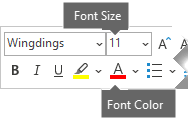
Once the check mark has been inserted, you may change its size or color. Select the check mark, right-click it, and make your desired changes by using the floating toolbar:
More check marks to choose from
Another font, Segoe UI Symbol, has three checkmark options. You can opt for this font in step 3 of the procedure above, and you can substitute one of the following character codes in step 4.
| Symbol | Character code |
|---|---|

|
2705 |

|
2713 |

|
2714 |