

Once you connect a data source to your document, you can use merge fields to personalize the document with information from the data source. Merge fields come from the column headings in the data source.
Here’s an example of how the Address Block and Greeting Line fields can pull data from an Excel spreadsheet into a form letter.

The Address Block and Greeting Line contain multiple merge fields.
Note
If the merge field commands appears dimmed, click Select Recipients and choose the kind of mailing list you’re using. If you don’t have a mailing list yet, click Type New List to create your list in Word.
Add an Address Block
- Click or tap where you want to add the address block in your document.
- On the Mailings tab, select Address Block
Word gives you options for choosing the formality of the name in the address.
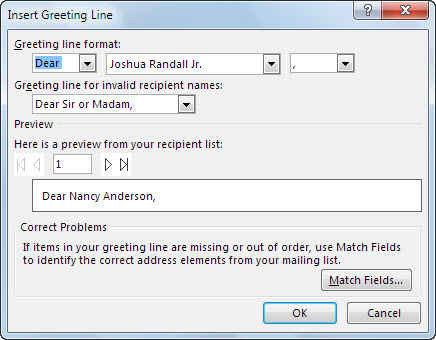
Add a Greeting Line
- Click or tap where you want to add the greeting in your document.
- Choose Greeting Line.
- Choose the name style that you want to use, and set other options.
Add individual merge fields
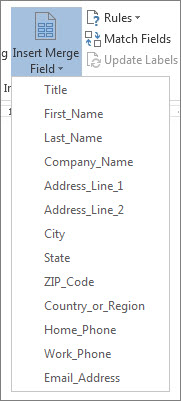
To include information such as phone numbers or email addresses, insert the corresponding merge field from your data source. For example, to personalize the document with each recipient’s first name, insert the First_Name merge field on its own.
- Click or tap where you want the merge field.
- Choose the down-arrow under Insert Merge Field, and select a field.
Note
If some of the numbers, currencies, or dates aren’t formatted correctly, see Prepare your Excel data source for a Word mail merge.
Use rules for more sophisticated personalization
You can use rules to personalize your mail merge based on information in your data source. For example, you can use a rule to add "Past due" when a recipient's Due Date is in the past.
Set up rules after you select the recipients for the mail merge and insert the merge fields in your document. On the Mailings tab, in the Write & Insert Fields group, choose Rules, and select the kind of rule you want to add.
For more information about how you can use mail merge rules, see Set the rules for a mail merge.