Using the thesaurus, you can look up synonyms (different words with the same meaning) and antonyms (words with the opposite meaning).
Tip
In the desktop versions of Word, PowerPoint, and Outlook, you can get a quick list of synonyms by right-clicking a word and choosing Synonyms. The Office Online apps don't include a synonym finder.
Word
Click the word in your document that you want to look up.
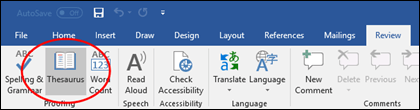
On the Review tab, click Thesaurus.
To use one of the words in the list of results or to search for more words, do one of the following:
- To replace your selected word with one of the words from the list, point to it, click the down arrow, then click Insert.
- To copy and paste a word from the list, point to it, click the down arrow, then click Copy. You can then paste the word anywhere that you like.
- To look up additional related words, click a word in the list of results.
Tip
You can also look up words in the thesaurus of another language. If, for example, your document is in French and you want synonyms, on the Review tab, click Thesaurus. At the bottom of the Thesaurus task pane, select a language from the drop-down list.
Click the word in your workbook that you want to look up.
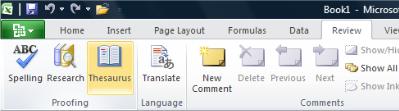
On the Review tab, click Thesaurus.
To use one of the words in the list of results or to search for more words, do one of the following:
- To replace your selected word with one of the words from the list, point to it, click the down arrow, then click Insert.
- To copy and paste a word from the list, point to it, click the down arrow, then click Copy. You can then paste the word anywhere that you like.
- To look up additional related words, click a word in the list of results.
Tip
You can also look up words in the thesaurus of another language. If, for example, your workbook is in French and you want synonyms, on the Review tab, click Thesaurus. At the bottom of the Thesaurus task pane, select a language from the drop-down list.
Select the word in your notebook that you want to look up.
On the Review tab, click Thesaurus.
To use one of the words in the list of results or to search for more words, do one of the following:
- To replace your selected word with one of the words from the list, point to it, click the down arrow, then click Insert.
- To copy and paste a word from the list, point to it, click the down arrow, then click Copy. You can then paste the word anywhere that you like.
- To look up additional related words, click a word in the list of results.
Tip
You can also look up words in the thesaurus of another language. If, for example, your text is in French and you want synonyms, on the Review tab, click Research. Click Research options in the Research task pane, and then under Reference Books, select the thesaurus options that you want.
Click the word in your Outlook item that you want to look up.
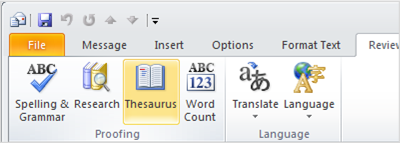
Click the Review tab, then click Thesaurus.
Note
In Microsoft Outlook, the Thesaurus or Research task pane is available in any new Outlook item -- such as a message, or a calendar item -- but not from the main Outlook window.
To use one of the words in the list of results or to search for more words, do one of the following:
- To replace your selected word with one of the words from the list, point to it, click the down arrow, then click Insert.
- To copy and paste a word from the list, point to it, click the down arrow, then click Copy. You can then paste the word anywhere that you like.
- To look up additional related words, click a word in the list of results.
Tip
You can also look up words in the thesaurus of another language. If, for example, your text is in French and you want synonyms, on the Review tab, click Thesaurus. At the bottom of the Thesaurus task pane, select a language from the drop-down list.
Click the word in your presentation that you want to look up.
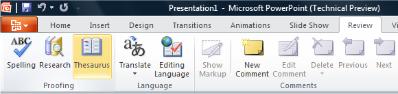
On the Review tab, click Thesaurus.
To use one of the words in the list of results or to search for more words, do one of the following:
- To replace your selected word with one of the words from the list, point to it, click the down arrow, then click Insert.
- To copy and paste a word from the list, point to it, click the down arrow, then click Copy. You can then paste the word anywhere that you like.
- To look up additional related words, click a word in the list of results.
Tip
You can also look up words in the thesaurus of another language. If, for example, your document is in French and you want synonyms, on the Review tab, click Thesaurus. At the bottom of the Thesaurus task pane, select a language from the drop-down list.
Click the word in your publication that you want to look up. On the Review tab, click Thesaurus.
To use one of the words in the list of results or to search for more words, do one of the following:
- To replace your selected word with one of the words from the list, point to it, click the down arrow, then click Insert.
- To copy and paste a word from the list, point to it, click the down arrow, then click Copy. You can then paste the word anywhere that you like.
- To look up additional related words, click a word in the list of results.
Tip
You can also look up words in the thesaurus of another language. If, for example, your publication is in French and you want synonyms, on the Review tab, click Research. Click Research options in the Research task pane, and then under Reference Books, select the thesaurus options that you want.
Click the word in your diagram that you want to look up.
On the Review tab, click Thesaurus.
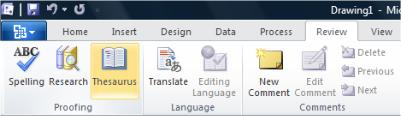
To use one of the words in the list of results or to search for more words, do one of the following:
- To replace your selected word with one of the words from the list, point to it, click the down arrow, then click Insert.
- To copy and paste a word from the list, point to it, click the down arrow, then click Copy. You can then paste the word anywhere that you like.
- To look up additional related words, click a word in the list of results.
Tip
You can also look up words in the thesaurus of another language. If, for example, your diagram is in French and you want synonyms, on the Review tab, click Thesaurus. At the bottom of the Thesaurus task pane, select a language from the drop-down list.
See Also
Editor - your writing assistant
Check spelling and grammar in Office
What happened to English Assistance?

