
When you insert or draw a table, Word automatically adds black borders. You can change the borders or remove them.
Note
This content applies to the desktop version of Word for Mac. Some table features may not be available in Word for the web or mobile apps.
Remove all borders
Click anywhere in the table.
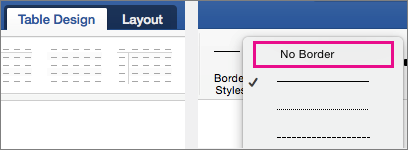
The Table Design tab appears.On the Table Design tab, click the arrow next to Borders and then click No Border.
Tip
Be sure to click Borders not Border Styles.

Remove only some borders
- Select the cells where you want to remove some borders.
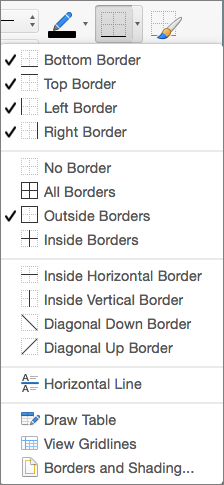
- On the Table Design tab, click the arrow next to Borders and select the options you want.
Remove individual borders
- Click anywhere in the table.
- On the Table Design tab, select Eraser. Your pointer changes so you can remove individual borders.
- Click the borders you want to erase.
- When you're done, press Esc to turn off the Eraser tool.