

Microsoft Edge has an improved way to copy and paste paste web URLs from the address bar into your content. This feature copies and pastes a URL as a hyperlinked title instead of as a web address.
Using the improved copy and paste
Using the improved copy and paste for address bar URLs is simple. The default behavior is for the link to paste as a hyperlinked title:
In Microsoft Edge, copy the URL you want from the address bar by either right-clicking it and selecting Copy from the context menu or by selecting the address and pressing Ctrl + C.
In an app, press Ctrl + V to use the default paste, which adds a link with the title of the page as the link text.

If you're pasting into an app or website in Microsoft Edge, you can also right-click, select Paste as on the context menu, and then select Link (Default) from the sub-menu.
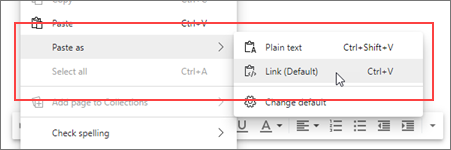
Alternately, you can paste the URL as a web address instead of a hyperlinked title:
In Microsoft Edge, copy the URL you want from the address bar by either right-clicking it and selecting Copy from the context menu or by selecting the address and pressing Ctrl + C.
In an app, press Ctrl + Shift + V to paste the web address.

If you're pasting into an app or website in Microsoft Edge, you can also right-click, select Paste as on the context menu, and then select Plain text from the sub-menu.
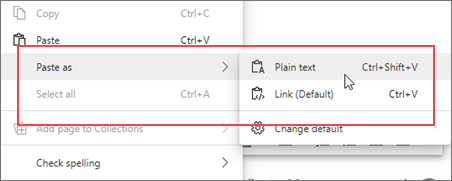
Note
- Some apps may override the enhanced copy and paste feature and allow pasting only the web address or will paste using their own formatting.
- When you paste into an app outside Microsoft Edge, such as Word for desktop, Ctrl + V pastes in whatever format is chosen in the app settings. When you right-click, the app may bring up its own context menu, not the one for enhanced copy and paste.
Change the default behavior
Rather than have the default paste result in a hyperlinked title, you can change the default so that Ctrl+ V pastes a web address instead and offers a linked title as the alternative in the context sub-menu.
In Microsoft Edge, select Settings and more
 , and then select Settings
  .
.In the left menu, select Appearance > Browser behavior and features.
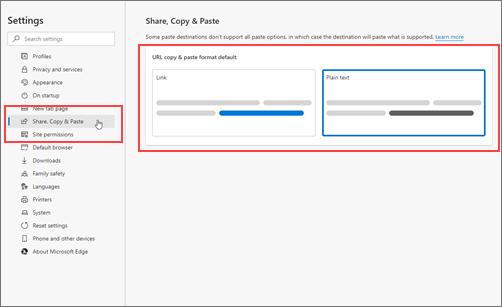
Under URL formatting, select Change URL copy and paste format and select one of the below:
To paste the URL as a hyperlinked title, select Link.
To paste the URL as a web address, select Plain text.
Now, when you right click, select Paste as on the context menu, then Plain text (Default) is the default option and Link is the alternative to paste a hyperlinked title.
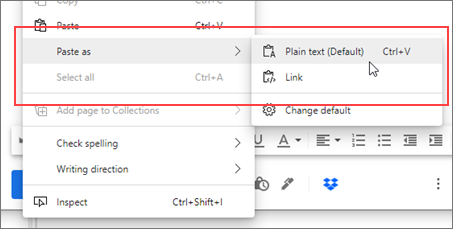
Alternately, you can go to Settings directly:
In the Microsoft Edge address bar, type edge://settings/appearance/browserBehavior, and then press Enter.
Under URL formatting, select Change URL copy and paste format and select one of the below:
- To paste the URL as a hyperlinked title, select Link.
- To paste the URL as a web address, select Plain text.