You can use Microsoft Family Safety to block apps used by family members on Windows, Xbox, Edge, and mobile devices.
Select a tab below for instructions on how to use Microsoft Family Safety to block apps.
Note
Only Family organizers can block or unblock apps.
To block apps for family members at account.microsoft.com/family
Sign in to your Microsoft account at account.microsoft.com.
Select the tile or card of the family member whose apps you want to block.
Choose where you would like to block the app by selecting Windows, Xbox, Edge, or Mobile from the tabs under the child's name.
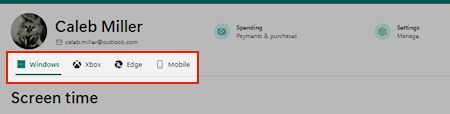
Select the Apps and games tab to show a list of all installed apps.

Select
 on the right of the app you want to block for that member, then select Block app.
To remove the restriction, select
again and then choose Unblock app.
How to block Microsoft Copilot
Sign in to your Microsoft account at account.microsoft.com.
Select the tile or card of the family member whose apps you want to block.
Select the Windows tab under the child's name.
Under Apps and games, find Copilot and any other AI apps and choose Block app.
Block any other web browsers listed.
Select the Edge tab under the child's name.
Under Blocked sites, add copilot.microsoft.com. Other AI sites to consider blocking are chat.openai.com, claude.ai, gemini.google.com, huggingface.co/chat, otter.ai, and www.perplexity.ai
To block apps for family members by using the Microsoft Family Safety app.
- Open Microsoft Family Safety.
- On the List tab, select the family member whose apps you want to block.
- Under the Apps and Games section, tap the app you want to block for that member, then select Block app.
- To unblock, tap on the blocked app and tap Unblock app.
How to block Microsoft Copilot
- Open Microsoft Family Safety.
- Tap the family member whose apps you want to block.
- Under Apps and games, find Copilot and any other AI apps and choose Block app.
- Block any other web browsers listed.
- Under Web and search, tap Content filters.
- Scroll down to Blocked sites, and add copilot.microsoft.com. Other AI sites to consider blocking are chat.openai.com, claude.ai, gemini.google.com, huggingface.co/chat, otter.ai, and www.perplexity.ai
To block apps for family members by using the Microsoft Family Safety app.
- Open Microsoft Family Safety.
- On the List tab, select the family member whose apps you want to block.
- Under the Apps and Games section, tap the app you want to block for that member, then select Block app.
- To unblock, tap on the blocked app and tap Unblock app.
How to block Microsoft Copilot
- Open Microsoft Family Safety.
- Tap the family member whose apps you want to block.
- Under Apps and games, find Copilot and any other AI apps and choose Block app.
- Block any other web browsers listed.
- Under Web and search, tap Content filters.
- Scroll down to Blocked sites, and add copilot.microsoft.com. Other AI sites to consider blocking are chat.openai.com, claude.ai, gemini.google.com, huggingface.co/chat, otter.ai, and www.perplexity.ai
Note
You will need to repeat the process for each app, device/platform, and member you wish to block.
See also
Set app and game limits
Filter websites and searches using Microsoft Family Safety
Microsoft Family group roles, permissions, and data sharing
