
Note
This feature is currently rolling out to OneDrive for Android and OneDrive for iOS apps.
What is optical character recognition in OneDrive?
Optical character recognition is now built into OneDrive for Android and iOS mobile apps to help you reuse information, speed up document workflows, and make content easier to find.
You can already highlight text in printed PDFs, but you can now use optical character recognition in OneDrive to search and copy text in scanned PDFs.
How to select, recognize and copy text in a PDF with OneDrive
- Open the OneDrive mobile app and open the scanned PDF you want to search, highlight or copy.
- Tap and hold (long-press) anywhere on the page.
- When the context menu appears, tap Recognize text.
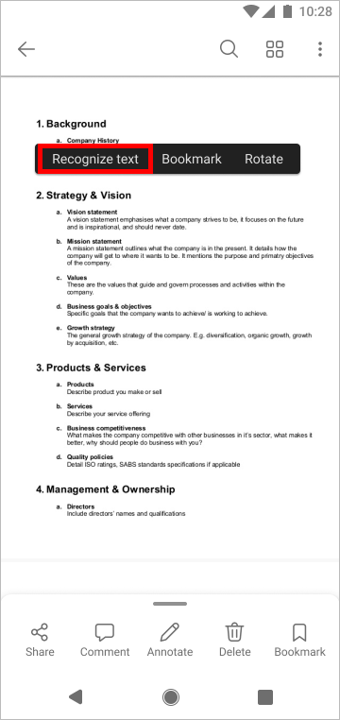
- After optical character recognition finishes, you'll see the message: Text is now selectable.
- Select chosen text to copy to the clipboard.
Need more help?
More help for OneDrive for iOS and Android
Account support. For help with your Microsoft account and subscriptions, visit Account & Billing Help.
Technical support. For technical support, select Contact Microsoft Support below, enter your problem and select Get Help.
Mobile users can contact Support by opening the OneDrive app and gently shaking your device.
Community support. Communities help you ask questions, give feedback, and hear from experts with rich knowledge. Ask the Microsoft Community. Do not disclose personal or sensitive information in public forums.