
Use the Markup tool in OneDrive for Android to add notes, text, pictures or freehand markup to PDF files.
Add markup
Open the OneDrive for Android app, and open the PDF you want to mark up.
Near the bottom of your screen, tap Markup
 .
.On the Markup toolbar (from left to right: Exit, Undo, Redo, Navigate, Pen, Highlight, Note, Text, and Erase), tap the tool that you want to use.

Tap the Navigate icon and then scroll up, down, left, or right to navigate your way through the PDF to the place where you want to make your markups.
Tap and hold the Pen icon to select either the Pen or Highlighter option. This allows you to draw or write freehand, with a Pencil or stylus, or your fingertip.
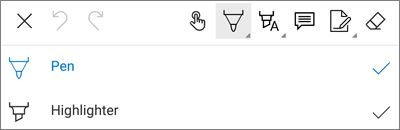
At the bottom of the screen, expand the Styles menu to further customize your selection.
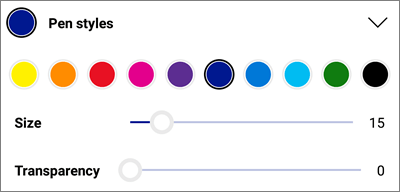
Tip
There are multiple tools on the toolbar allowing the use of styles, so you can have different settings for each one. For example, set one as a pen and one as a highlighter.
To accent text or images, tap and hold the Highlight icon. Select either the Highlight, Underline, or Strikethrough option, then at the bottom of the screen, expand the Styles menu to further customize your selection.
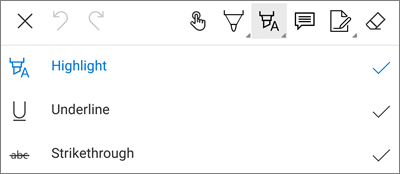
Tap the Note icon to insert a note into the PDF. Tap where you want the comment to go and type into the Note that appears. Tap away from the Note to close it.
To insert an image or other asset into the PDF, tap and hold the Text icon, and select either the Signature, Date, or Image option.
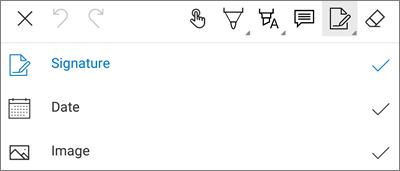
Tap the Eraser icon to erase your freehand markups made with the Pen function.
Change or delete markup
Open the PDF, then tap the Markup icon.
Tap any markup to select it.
A set of tools and commands also appears, with options including Copy and Delete.
Tip
The tools that appear will be different depending on the type of markup you're changing. For example, the tools offered to change freehand markup are different than those for text markup.
Need more help?
Account support. For help with your Microsoft account and subscriptions, visit Account & Billing Help.
Technical support. For technical support, select Contact Microsoft Support below, enter your problem and select Get Help.
Mobile users can contact Support by opening the OneDrive app and gently shaking your device.
Community support. Communities help you ask questions, give feedback, and hear from experts with rich knowledge. Ask the Microsoft Community. Do not disclose personal or sensitive information in public forums.