
If you find that your organization is not using a specific calendar in Project, delete it!
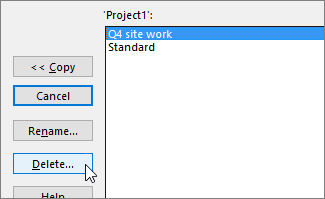
- Click File > Info > Organizer.

- Click the Calendars tab.

- Choose the calendar you want to delete, and then Click Delete.
What else can I do with calendars?
Project enables you to fine-tune scheduling using multiple calendars. If you understand how they all work together, it's easier to plan for how your project's dates will be impacted. Here are a few more articles you might find helpful in building a more accurate picture of the working and nonworking days in your organization.
PROJECTS
Set the general working days and times for a project
Create a new base calendar
Add a holiday to the project calendar
TASKS
Add a calendar to a task
RESOURCES
Set a unique schedule for a specific resource
Add a resource's vacation time
Change resource availability without using a calendar