
If a resource is taking vacation time that you'd like to account for in your scheduling, you can add it to the resource's calendar.
Tip
Don't overdo it! Accounting for every vacation day can make scheduling more challenging than it needs to be. A best practice is to only account for vacation time that will significantly impact your project's schedule. If a resource is just taking a day or two off, don't worry about it!
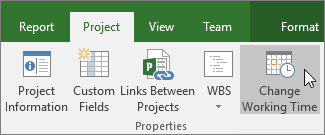
Click Project > Properties > Change Working Time.
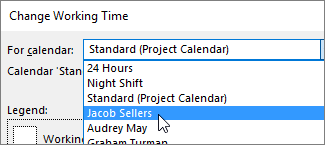
Choose a resource from the For calendar list.
Tip
Need to change the resource's full schedule? You can use the Change Working Time dialog box to adjust the resource's working and nonworking time.
Select the vacation day(s) on the calendar.

On the Exceptions tab, type a Name for the vacation day(s), and then press Enter.

The Start and Finish dates are populated with what you had selected on the calendar, and the vacation is marked as nonworking.Click OK.
Any tasks that this resource is assigned to will now be scheduled around the vacation by, typically, lengthening the number of days it will take to complete the task.
Set up repeating vacation days
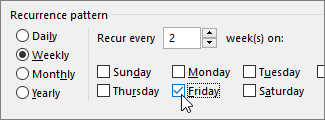
Some resources may have vacation time that regularly repeats during the project. For example, they may want every other Friday off.
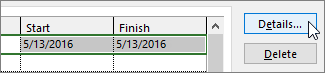
On the Change Working Time dialog box, select the vacation day you want to make recurring, and then click Details.
Under Recurrence pattern, set how often the vacation day will repeat.
Tip
You can also set a Range of recurrence if the vacation happens repeatedly and then stops. For example, if the resource is taking every other Friday off over the summer, but will resume a normal schedule in the fall.
Click OK to return to the Change Working Time dialog box, and then click OK again.
What else can I do with calendars?
Project enables you to fine-tune scheduling using multiple calendars. If you understand how they all work together, it's easier to plan for how your project's dates will be impacted. Here are a few more articles you might find helpful in building a more accurate picture of the working and nonworking days in your organization.
PROJECTS
Set the general working days and times for a project
Create a new base calendar
Add a holiday to the project calendar
TASKS
Create a calendar for a task
RESOURCES
Set a unique schedule for a specific resource
Change resource availability without using a calendar
If you don't need a calendar anymore, delete it!