
First, subscribe to Project Online

|
Start from scratch New to Microsoft 365? Start here!  Add Project Online to Microsoft 365
If you already have an Microsoft 365 account, you may be able to add Project Online to that account by choosing Purchase Services from the left menu on the Microsoft 365 admin center. 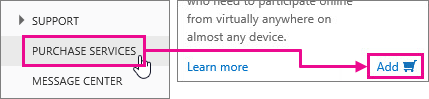
|
|---|
Next, make sure you can get in!

|
After you sign up, the first thing you should do is make sure your account is assigned a Project Online license. Some accounts are and some aren't.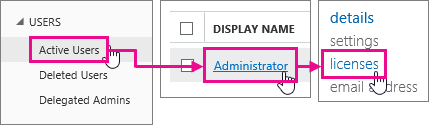
To check if you're assigned a license:
|
|---|
Be patient...

|
It takes a while for Project Online to finish getting set up. Go have a cup of coffee or catch up on email. Setup will generally be done within 30 minutes to an hour, but it can sometimes take longer (or shorter!). Don’t panic if yours is taking longer! When you come back to check on setup, refresh the page. If you see Projects listed on the menu bar, you’re ready to go! 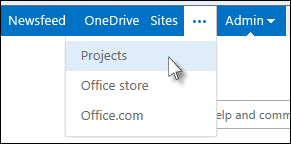
|
|---|
NEXT STEP...
Now you can add people to Project Online.