
Important
After October 2026, Microsoft Publisher will no longer be supported. Microsoft 365 subscribers will no longer have access. Learn more about Publisher retirement.
For anything from a trifold or 3-panel brochure to a flyer, a template is the fastest way to start a new publication. Here's how to choose and customize a brochure template.
On the Start page that appears when you open Publisher, click Brochure (You can get to the Start page anytime by clicking File >New).
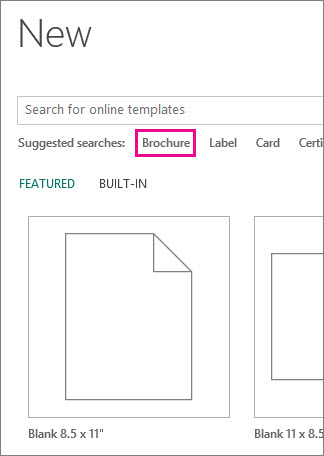
Click a brochure in the gallery of brochure templates and click Create.
Tip
Click the arrows next to More Images to get a better look at the template.
For more about finding brochure templates, see Find brochure templates.
Change your template
Don't like the brochure template you chose? You can change it.
- Click Page Design > Change Template.
- Replace the template text or graphics by right-clicking a text box or graphic and clicking Delete Text or Change Picture.
Customize a template
After you find a template you like, you can customize it.
Click the Page Design tab and experiment with color themes, font, and backgrounds.
When you're happy with the results, click File > Print and choose an option:
- Click Export to find save as PDF or other Pack and Go options for photo or commercial printing.
- Click Print to make copies on your personal printer.
See more
Find more brochure templates on Microsoft Create