
Symptoms
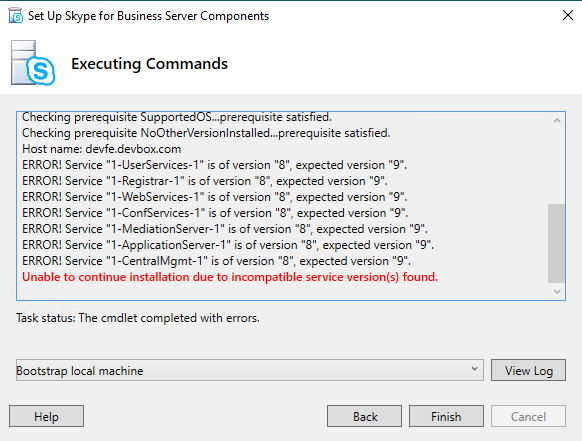
When you try to upgrade your Microsoft Skype for Business (SFB) 2019 pool or server to the SFB Subscription Edition RTM, or when you try to run Install-CsDatabase cmdlet in PowerShell, the following error message is displayed in the Skype for Business Deployment wizard:
Note
Unable to continue installation due to incompatible service version(s) found.
Causes
This behavior is expected if the server is updated by using the Skype for Business SE build, but the pool is not yet upgraded from Skype for Business Server 2019 to Skype for Business Server SE by using Topology Builder and the topology is not yet published.
Resolution
To upgrade a pool or server, follow these steps:
Install the Subscription Edition Update on one of the FE servers:
Stop all Skype for Business services by entering the following command in PowerShell:
Stop-CsWindowsServiceRun SkypeServerUpateInstaller.exe on the FE Server.
Restart the services by entering the following command:
Start-CsWindowsService
Open the topology builder, and migrate the pools that you want to upgrade from SFB 2019 to SFB Subscription Edition:
- To migrate a pool, right-click on the pool, and then select Upgrade to Subscription Edition.
- After the migration finishes, publish the topology.
- In the Publish Topology wizard, on the Next steps page, open the To-do list. The To-Do List provides a list of server FQDNs that have to be updated in step 5.
On the FE server, wait for the topology to get replicated:
Verify the replication status by running the following command:
Get-CsManagementStoreReplicationStatusIf the replication is not finished, you can manually invoke the replication by running the following command:
Invoke-CsManagementStoreReplication
After the topology is replicated, run bootstrapper.exe (located at C:\Program Files\Skype for Business 2019\Deployment). Make sure that the bootstrapper runs successfully without any errors.
Update the servers that were migrated in step 3:
Stop all the services on upgraded servers by running the following command:
Stop-CsWindowsServiceRun SkypeServerUpateInstaller.exe on each server.
Restart services on all upgraded servers:
- For Front End Pool servers, run the following command in PowerShell:
Start-CsPool - On the non-Front End pool servers, restart the services by running the following command:
Start-CsWindowsService
- For Front End Pool servers, run the following command in PowerShell:
Run bootstrapper.exe.
Repeat Steps 1 through 5 for each additional pool that has to be upgraded from Skype for Business Server 2019 to Skype for Business Subscription Edition.
Note
- Note: If these steps are not followed correctly, or if the updated topology doesn't replicate successfully, you might encounter the following error when you run the bootstrapper or deployment wizard, or when you run the
Install-CsDatabasecommand: WARNING: Skipping service "1-CentralMgmt-77" version "8", expected version "9".WARNING: Skipping service "1-CentralMgmtStore-77" version "8", expected version "9".WARNING: Skipping service "1-UserServices-64" version "8", expected version "9".WARNING: Skipping service "1-Registrar-64" version "8", expected version "9".WARNING: Skipping service "1-UserStore-64" version "8", expected version "9".WARNING: Skipping service "1-WebServices-64" version "8", expected version "9".WARNING: Skipping service "1-ConfServices-64" version "8", expected version "9".WARNING: Skipping service "1-MediationServer-64" version "8", expected version "9".WARNING: Skipping service "1-ApplicationServer-64" version "8", expected version "9".WARNING: Skipping service "1-ApplicationStore-64" version "8", expected version "9"
More information
The procedure for upgrading a pool or server from Skype for Business Server 2019 to Skype for Business Server Subscription Edition follows the same in-place upgrade process as the transition from Skype for Business Server 2013 to Skype for Business Server 2015. For more information, see Upgrade to Skype for Business Server 2015.