When you open a file from your OneDrive or SharePoint while signed in with a work or school account, it sometimes opens the file in the browser instead of the desktop app. If you want the file to be opened in a desktop app, you can do it by using the Open in app option.
To open and edit a file in the desktop app while in OneDrive or SharePoint:
- Select a file in My Files in OneDrive or Documents in SharePoint.
- Select the More icon
 , then select Open > Open in app.

Note
- You might encounter unexpected behavior when opening a file that depends on other files. We recommend syncing the containing folder and adding a shortcut to the shared folder in your OneDrive and trying again. For more information, see Add shortcuts to shared folders in OneDrive for work and school.
- The OneDrive sync client must be installed. If the client is not running, selecting Open in app will start the client.
- Open in app requires Files on Demand feature to be enabled.
Choose a default app
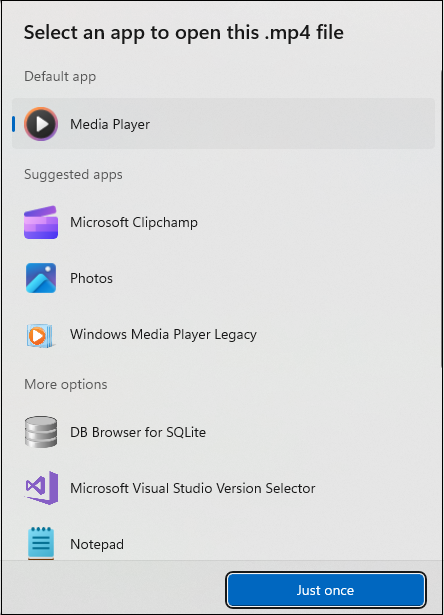
The Open in app feature supports all file types, not just Word, Excel, and PowerPoint. For example, you can open a .pdf or a .mp4 file in the desktop app by selecting the Open in app option.
If there is a default app available to open a file, then the Open in app option automatically chooses the default app to open that file. If the default app is not configured, it asks you to select a default app. Select an app and select Just once to open the file in that app.