
What you see
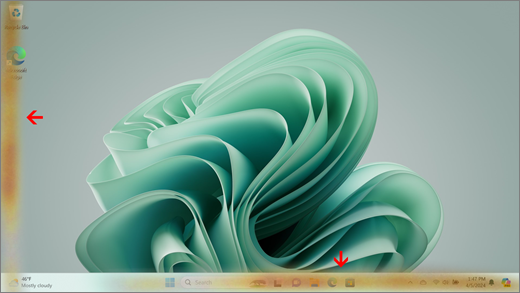
Yellow or brown banding may show on a screen in stripes that run horizontally or vertically. The color may be inconsistent with the surrounding display areas and the stripes might have varying shades and degrees of intensity.
Note
If this isn't what you're seeing, you can find assistance with other display-related problems by visiting What to try if your Surface screen is flickering, distorted, or has other display issues.
What you can do
There are things you can do to troubleshoot your screen and try to get it working again.
Test the screen in the UEFI of your Surface
UEFI settings aren't in Windows, so display issues in UEFI suggest a problem with hardware, rather than with a Windows driver. Here's how to check if the screen issues only happen when you're using Windows:
- Turn off your Surface and wait 10 seconds.
- Press and hold the volume up button
 on your Surface, and at the same time, press and release the power button
 . The logo screen will appear.
 - Continue to hold the volume up button
. Release the button when the UEFI screen appears.
- View the screen and see if the problem is still present. If the screen is working correctly within UEFI, the problem is likely with the software installed on the Surface. You can try reinstalling the OEM panel driver and display adapter.
Troubleshooting when the issue is resolved in UEFI
Reinstall the display adapter and OEM panel driver
Important
The following steps should not be performed on Surface Devices running on Microsoft SQ processors such as Surface Pro X and Surface Pro 9 with 5G. The only way to restore uninstalled drivers is by full system restore.
Some drivers may create display issues. To update your display driver and panel driver, you'll need to uninstall the current drivers and then check for driver updates.
Windows 11
Select and hold (or right-click) Start
 and select Device Manager.
Expand the Monitor section, select and hold (or right-click) the Surface panel driver(s), then select Uninstall device. Read the warning, then select Uninstall and restart your PC.
Expand the Display adapters section, select and hold (or right-click) the listed adapter (Intel and NVIDIA graphics drivers), then select Uninstall device. Confirm by selecting Attempt to remove the driver for this device, then select Uninstall and restart your PC.
After your PC restarts, select Start
> Settings
 .
.From Settings
, select Windows Update
 > Check for updates, and install any available updates.
Windows 10
- In the Search box on the task bar, type Device Manager, then select it in the results.
- Expand the Monitor section, select and hold (or right-click) the Surface panel driver(s), then select Uninstall device. Read the warning, then select Uninstall and restart your PC.
- Expand the Display adapters section, select and hold (or right-click) the listed adapter, then select Uninstall device. Confirm by selecting Delete the driver software for this device, then select Uninstall and restart your PC.
- After your PC restarts, select Start
> Settings
 .
. - From Settings
, select Update & Security
 > Windows Update > Check for updates
, and install any available updates.
> Windows Update > Check for updates
, and install any available updates.
Troubleshooting when the issue is still present in UEFI
Submit a service order
If these solutions didn't help resolve the problem, then self-repair, service order or in-person support may be available to help you. If your Surface is a business device (owned by an organization), see Surface service options for Business and Education.
| Options | |
|---|---|

|
Self-repairTechnically experienced and have the right tools? Microsoft has a range of replaceable components and service guides that enable you to carry out some repairs yourself. |

|
Send to MicrosoftTo send your device in for repair, you'll need to create a service order and print a shipping label. Learn more about how to check your warranty and prepare your device for shipping to Microsoft. |

|
Get in-person supportIn some countries or regions, Microsoft has partnered with Authorized Service Providers offering in-person support and repair. Options may include professional hardware inspection, troubleshooting, and system recovery. |