
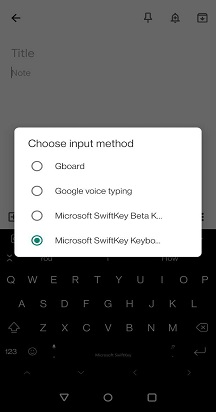
On Android devices with more than one keyboard installed it should be easy to switch between different keyboards.
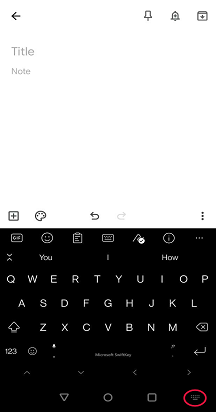
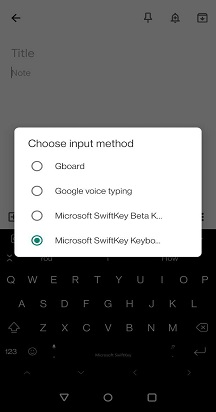
On most Android devices you'll see a tiny keyboard icon in the bottom right hand corner of the screen whenever a keyboard is active. Just tap this to open your keyboard list:
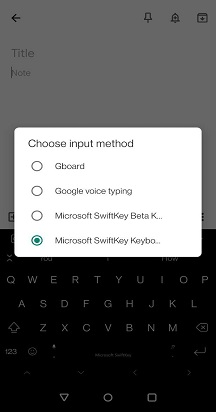
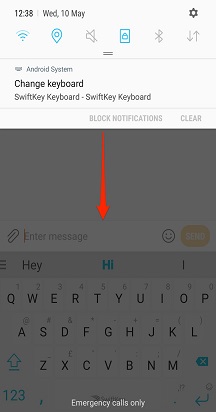
On some devices this icon isn't present, in that case pull down the notification bar whenever a keyboard is active to access the input options.
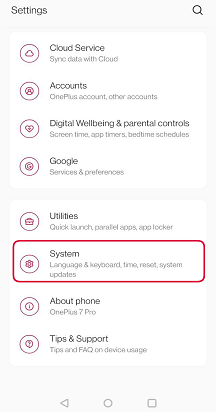
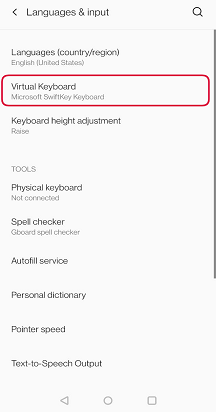
Should you want to disable any of your keyboards (without completely removing them from your device), head to your 'Language & Input' menu*.
Tap 'Virtual keyboard' followed by '+ Manage keyboards'
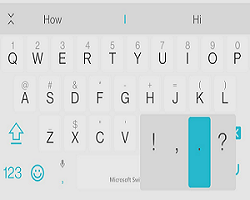
Here you can turn keyboards on and off using the toggles.
*On Samsung Android 7.0 devices you'll find this within the 'General Management' menu.
Note:
If there is a problem, please look at this troubleshooting page.
Contact Us
For more help, Contact Support at Microsoft SwiftKey Support - Contact us