

How to change your keyboard mode on Microsoft SwiftKey for Android
1 - Keyboard modes
You can customize your keyboard mode from your Toolbar.
- Tap the three dots ...
- Tap the 'Modes' option
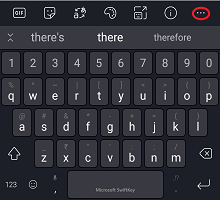
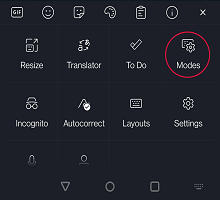
Microsoft SwiftKey offers a variety of different keyboard modes, namely: Full (default), One-handed (compact), Float (undocked mode), Thumb (split keyboard), and Tablet.
The screenshots below provide further detail:
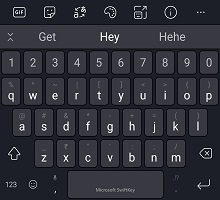
Full (Traditional)
This is set as default and presents a traditional keyboard layout.
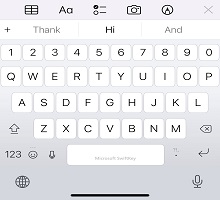
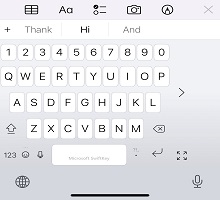
One-handed mode
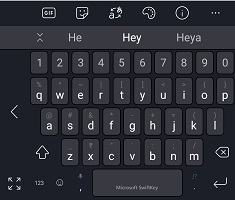
A compact keyboard that squeezes itself into the extremes of your screen. Pressing the arrow icon will snap the keyboard either to the left or right.
Float/undock keyboard
A simple tap and drag is all it takes to 'float' or 'undock' your keyboard and manoeuvre it to where you like.
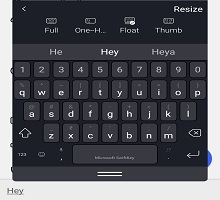
Learn more about float mode/undocking your keyboard
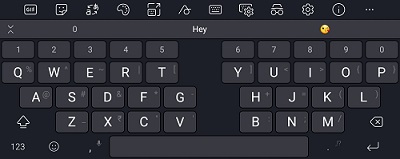
Thumb/split keyboard mode
Thumb mode splits the keyboard in half and is perhaps most useful for typing on larger devices (Surface Duo, Tablets etc.) or in landscape.
Tablet layout
Microsoft SwiftKey offers an extended layout toggle on tablet's used in landscape mode. This option augments your Microsoft SwiftKey Keyboard with left/right arrow keys.
Tablet users can enable the setting by:
- Open the Microsoft SwiftKey app
- Tap 'Layout & keys'
- Tapping to enable 'Extended layout'
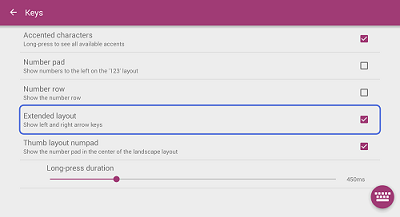
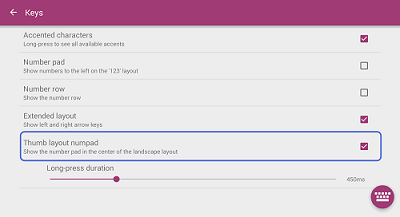
It's also possible to display a central numeric keypad. Just select the option for 'Thumb layout numpad'.
- Looking to change your language layout (QWERTY, QWERTZ, AZERTY) instead? Please see this article.
- Learn how to resize your Microsoft SwiftKey Keyboard
Contact Us
For more help, Contact Support at Microsoft SwiftKey Support - Contact us