
It's easy to chat with your teammates about individual items in a list. The conversation area is attached to the list item, so all the item details are right there, along with the full conversation history.
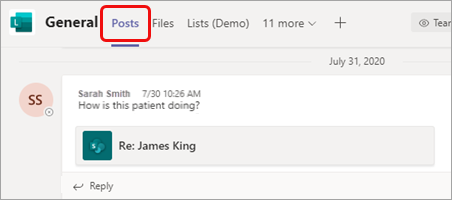
Messages appear on the channel's Posts page so that team members can follow the conversation and easily join in.
Note
This feature is not currently available on mobile.
In this article
Start a conversation about a Lists item
Join a conversation about a Lists item
Share a conversation about a Lists item
Start a conversation about a Lists item
Go to the list that contains the item to discuss.
Select the item and select Edit
 at the top left of the list.
In the item card, select Conversation
 at the top right of the page. The conversation area opens to the right.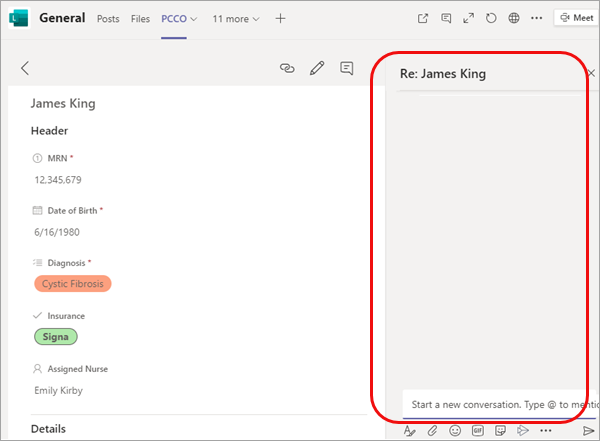
Type your message at the bottom of the conversation area.
Note
All the standard formatting and attachment options are available; for details, see Format a message in Teams.
When you're done, select Send
 .
.
In addition to appearing in the conversation area, your message is also displayed as a post.
Join a conversation about a Lists item
You have the option of joining a conversation directly from a post, or in the conversation area next to the list item. The second option lets you view the details and conversation history before adding your thoughts.
To join from the post
- In the same way you'd respond to any other post, simply select Reply, type your message, and press Enter.
You can also use any of the available reaction icons or add an attachment.
To join from the list item
In the post, select the name of the list item.
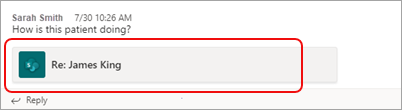
This opens the list item and its conversation area.
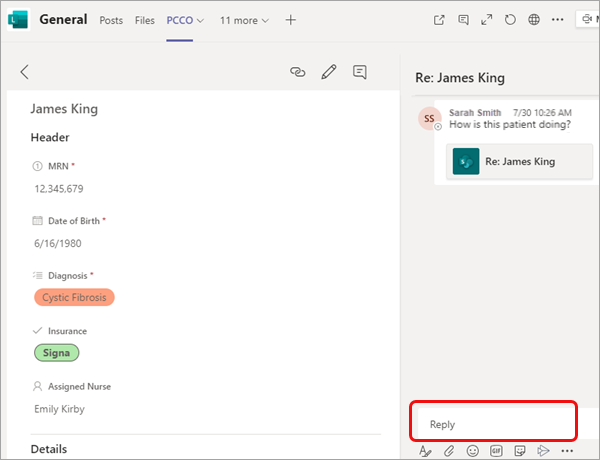
Enter your message in the Reply box and select Send
when you're done.
Share a conversation about a Lists item
To bring team members from other channels into the conversation, or to provide info, add a link to the conversation wherever links are accepted: in a chat, an email, a document, or an Excel workbook, just to name a few.
- Go to the conversation you want to link to and select Copy link
 .
.
Then paste the link where needed.
Want to know more?
For IT admins
Manage the Lists app for your organization in Microsoft Teams