Double-click the header or footer area.
On the Header & Footer tab, select Different First Page.
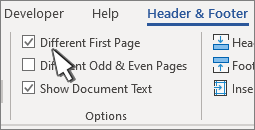
Content of the header or footer on the first page is removed.
Note
Different First Page is a toggle, so be sure you're turning it on.
If you want a header or footer on the first page, add the content now; it won't appear on subsequent pages.
(Optional) If you want the header or footer only on the first page, go to the header or footer on the next page and delete that content.
Select Close Header and Footer or press Esc to exit.
Double-click the header or footer.
Select Different First Page. This automatically removes any header and footer from the first page.
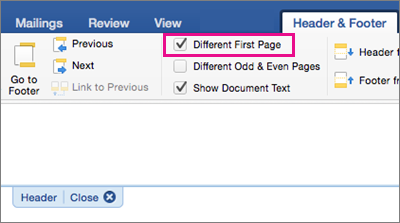
Content of the header or footer on the first page is removed.
Note
Different First Page is a toggle, so be sure you're turning it on.
Delete any header or footer content shown on the first page.
(Optional) If you want the header or footer only on the first page, go to the header or footer on the next page and delete that content.
Select Close Header and Footer or press Esc to exit.
Select Insert > Header & Footer.
At the top of the document, select Options > Different First Page.

Note
Different First Page is a toggle, so be sure you're turning it on.
Delete any header or footer content shown on the first page.
(Optional) If you want the header or footer only on the first page, go to the Other Pages header or footer and delete that content.
Select outside the header or footer to exit.
For more on headers and footers, see Headers and footers in Word.

