
Use the OneDrive app for Android or iOS to automatically upload your camera roll. Choose your device's tab for setup instructions.
Camera backup uploads photos and videos to OneDrive; it doesn't sync them both ways. After photos and videos finish uploading, you can delete them from your device without affecting the copies in OneDrive.
Keep the OneDrive app running in the background. Closing the app can prevent automatic uploads.
Back up your camera roll to OneDrive on Android
Important
You can use camera backup with only one account at a time. If you also use OneDrive for work or school, select the account you want to back up photos to before turning on camera backup.
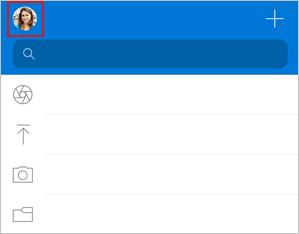
- In the OneDrive app, tap the account image at the top left of the app.
- Tap Turn on below the "Camera backup is off" text.
- Tap Confirm.
- Give OneDrive access to your photos and videos when prompted so camera backup can run continuously in the background.
- To automatically back up videos, tap your account image, then Settings > Camera backup, and turn on Include videos.
Note
- To help preserve your device battery, select the Backup only when charging checkbox in the camera backup settings.
- The OneDrive cloud icon might briefly appear in your Android notifications as part of the normal backup process.
Back up extra photo folders to OneDrive on Android
After you turn on camera backup, you can also back up folders where you save or receive images, such as images from social media and third-party photo editing apps.
- In the OneDrive app, tap the account image at the top of the app.
- Tap Settings
 , then Camera backup.
 - Tap Back up device folders.
- Turn the categorize toggle
 on to keep the original folders, or turn it off to put all images in your Camera Roll folder.
 - Scroll through the list and choose which folders you want to back up.
 , and then tap Get Started.
See also
Troubleshoot camera roll backup issues in OneDrive
Upload HEIF and HEVC photos and videos to OneDrive
Manually upload files or photos to OneDrive in iOS
Manually upload files or photos with OneDrive for Android
Need more help?
Account support. For help with your Microsoft account and subscriptions, visit Account & Billing Help.
Technical support. For technical support, select Contact Microsoft Support below, enter your problem and select Get Help.
Mobile users can contact Support by opening the OneDrive app and gently shaking your device.
Community support. Communities help you ask questions, give feedback, and hear from experts with rich knowledge. Ask the Microsoft Community. Do not disclose personal or sensitive information in public forums.