

Tables are essential objects in a database because they hold all the information, or data. For example, a business database might have a Contacts table that stores supplier names, email addresses, and telephone numbers. Because other database objects depend so heavily on tables, you should start your database design by creating all of its tables. Then create the other objects. Before you create tables in Access, think about your requirements and identify all the tables that you might need. For an introduction to planning and designing a database, see Database design basics.
In this article
- Overview
- Table and field properties
- Data types
- Table relationships
- Keys
- Benefits of using relationships
Overview
A relational database like Access usually has several related tables. In a well-designed database, each table stores data about a particular subject, such as employees or products. A table has records (rows) and fields (columns). Fields hold different types of data, such as text, numbers, dates, and hyperlinks.
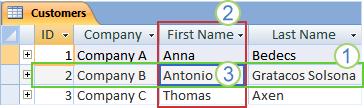
- Record: Contains specific data, such as information about a particular employee or product.
- Field: Contains data about one aspect of the table subject, such as a first name or email address.
- Field value: Each record has a field value, such as
Contoso, Ltd.orsomeone@example.com.
Table and field properties
Tables and fields also have properties that you can set to control their characteristics or behavior.
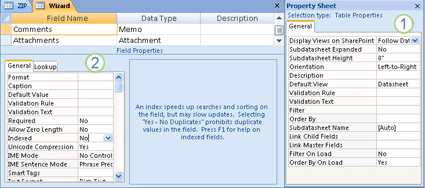
- Table properties
- Field properties
In an Access database, table properties are attributes of a table that affect the appearance or behavior of the table as a whole. Table properties are set in the table's property sheet in Design view. For example, you can set a table's Default View property to specify how the table is displayed by default.
A field property applies to a particular field in a table and defines one of the field's characteristics or an aspect of the field's behavior. You can set some field properties in Datasheet view. You can also set any field property in Design view by using the Field Properties pane.
Data types
Every field has a data type. A field's data type indicates the kind of data that the field stores, such as large amounts of text or attached files.

A data type is a field property, but it differs from other field properties in the following ways:
- You set a field's data type in the table design grid, not in the Field Properties pane.
- A field's data type determines which other properties the field has.
- You must set a field's data type when you create the field.
You can create a new field in Access by entering data in a new column in Datasheet view. When you create a field by entering data in Datasheet view, Access automatically assigns a data type based on the value that you enter. If no other data type is implied by your input, Access sets the data type to Text. If needed, you can change the data type by using the ribbon.
Examples of automatic data type detection
The following table shows how automatic data type detection works in Datasheet view.
| If you enter | Access creates a field with a data type of |
|---|---|
John |
Short Text |
http://www.contoso.com |
Hyperlink |
1 |
Number, Long Integer |
50,000 |
Number, Long Integer |
50,000.99 |
Number, Double |
50000.389 |
Number, Double |
12/67 |
Date/Time |
December 31, 2016 |
Date/Time |
10:50:23 |
Date/Time |
10:50 am |
Date/Time |
17:50 |
Date/Time |
$12.50 |
Currency |
21.75 |
Number, Double |
123.00% |
Number, Double |
3.46E+03 |
Number, Double |
You can use any valid internet protocol prefix, such as http://, https://, or mailto:. Access recognizes date, time, and currency formats based on your user locale.
Table relationships
Although each table stores data about a different subject, tables in an Access database usually store data about subjects that are related to each other. For example, a database might contain:
- A customers table that lists your company's customers and their addresses.
- A products table that lists the products that you sell, including prices and pictures for each item.
- An orders table that tracks customer orders.
Because you store data about different subjects in separate tables, you need a way to tie the data together so that you can easily combine related data from those separate tables. To connect the data stored in different tables, you create relationships. A relationship is a logical connection between two tables that specifies fields that the tables have in common. For more information, see Guide to table relationships.
Keys
Fields that are part of a table relationship are called keys. A key usually consists of one field, but it can consist of more than one field. There are two kinds of keys:
- Primary key: A table can have only one primary key. A primary key consists of one or more fields that uniquely identify each record that you store in the table. Often, there is a unique identification number, such as an ID number, serial number, or code, that serves as a primary key. For example, you might have a Customers table where each customer has a unique customer ID number. The customer ID field is the primary key of the Customers table. When a primary key contains more than one field, it is usually made up of existing fields that together provide unique values. For example, you might use a combination of last name, first name, and birth date as the primary key for a table about people. For more information, see Add or change a table's primary key.
- Foreign key: A table can also have one or more foreign keys. A foreign key contains values that correspond to values in the primary key of another table. For example, you might have an Orders table in which each order has a customer ID number that corresponds to a record in a Customers table. The customer ID field is a foreign key of the Orders table.
The correspondence of values between key fields forms the basis of a table relationship. You use a table relationship to combine data from related tables. For example, suppose that you have a Customers table and an Orders table. In your Customers table, each record is identified by the primary key field, ID.
To associate each order with a customer, you add a foreign key field to the Orders table that corresponds to the ID field of the Customers table, and then create a relationship between the two keys. When you add a record to the Orders table, you use a customer ID value that comes from the Customers table. Whenever you want to view information about an order's customer, you use the relationship to identify which data from the Customers table corresponds to which records in the Orders table.
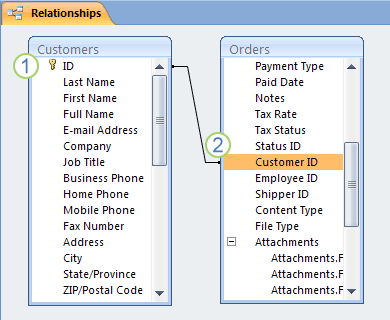
- A primary key, identified by the key icon next to the field name.
- A foreign key, shown without the key icon.
Do not add a field if you expect that each unique entity represented in the table might require more than one value for the field. Continuing the previous example, if you want to start tracking orders placed by your customers, do not add a field to the table because each customer will have more than one order. Instead, create a new table to store orders, and then create a relationship between the two tables.
Benefits of using relationships
Keeping data separated in related tables provides the following benefits:
- Consistency: Because each item of data is recorded only once, in one table, there is less opportunity for ambiguity or inconsistency. For example, you store a customer's name only once in a table about customers instead of storing it repeatedly, and possibly inconsistently, in a table that contains order data.
- Efficiency: Recording data in only one place means that you use less disk space. Also, smaller tables tend to provide data more quickly than larger tables. Finally, if you don't use separate tables for separate subjects, you will introduce null values (the absence of data) and redundancy into your tables. Both of those can waste space and slow performance.
- Comprehensibility: The design of a database is easier to understand when the subjects are properly separated into tables.
Plan your tables with relationships in mind. You can use the Lookup Wizard to create a foreign key field if the table that contains the corresponding primary key already exists. The Lookup Wizard creates the relationship for you. For more information, see Create or delete a lookup field.