
This article is for admins of Microsoft 365 tenants who would like to create and publish centrally managed brand kits for use in the Clipchamp video editor and make them available to larger groups of users in their organization.
Read on to find out more about:
- Distributing brand kits across an organization
- Getting started
- Deciding who can edit the official brand kit
- Editing a brand kit that has already been distributed via OAL
- FAQ
Note that if you are an individual user of Clipchamp editor for work accounts and would like to create a brand kit for your own editing projects to use only yourself or with a few others, please see the Work version tab of the following article: How to use the brand kit tool in Clipchamp.
Before you begin
To complete these steps you will need:
- A SharePoint site where you have owner or member permissions
- SharePoint PowerShell client version >= 24830.12754 (download)
- SharePoint admin credentials for running PowerShell cmdlets
- The Clipchamp video editor (to create and edit brand kits)
Distributing brand kits across an organization
Important
Org-wide brand kits do not currently support multi-geography tenants. If your organization uses multiple geographies, you must create the OAL and populate brand kits separately in each geography. See the FAQ section below for workaround steps.
It is possible to create brand kits such that any user in your organization who opens the Clipchamp video editor with their Microsoft Entra ID (work or school) account has access to corporate branding without having to create a brand kit themselves.
Creating and distributing these "official" brand kits is accomplished through a SharePoint feature called Organization Assets Library (OAL). An OAL is a SharePoint document library that is recognized as hosting the organization's official design assets across the tenant. Using OAL, you can store and distribute as many brand kits as you like.
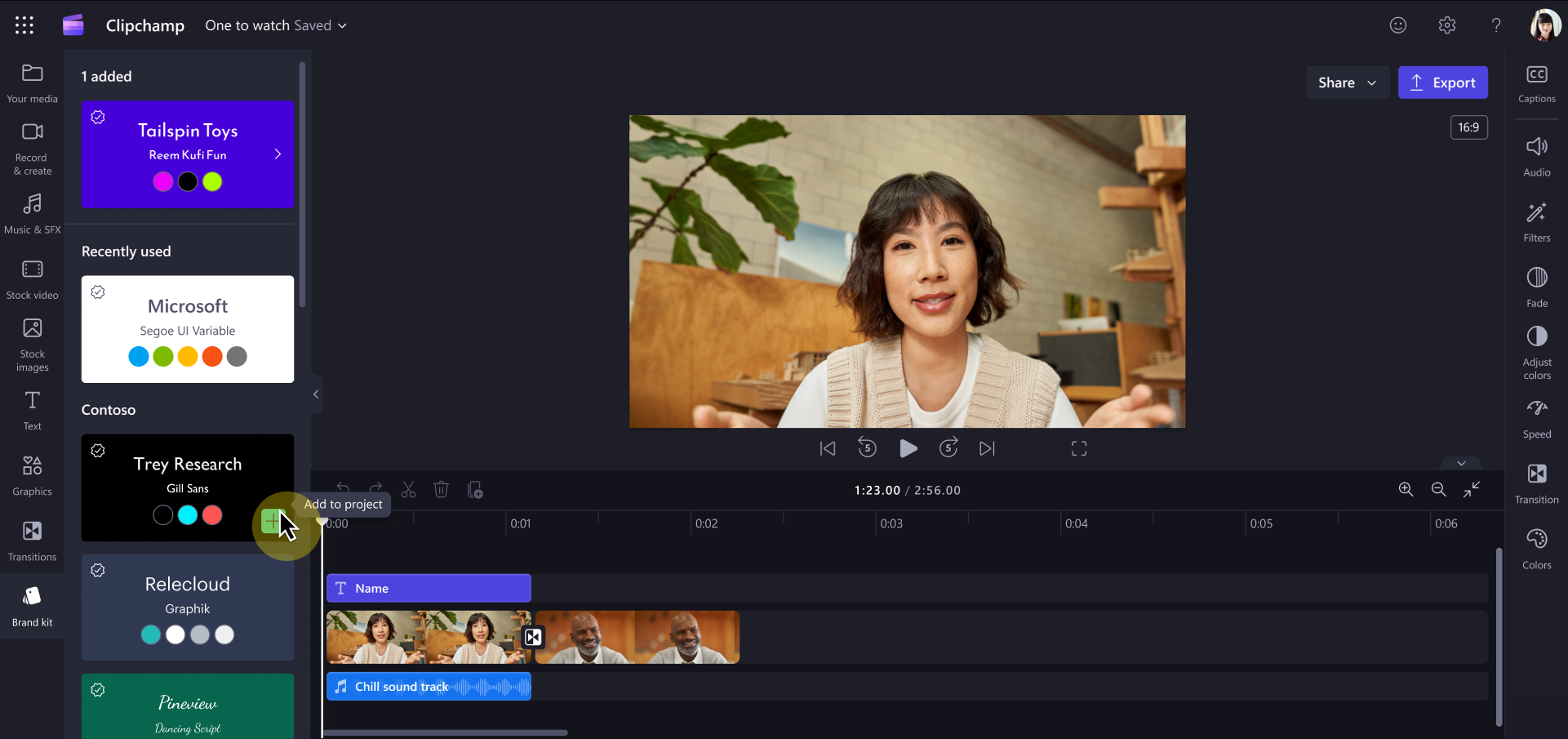
When Clipchamp loads on the user's device, it will check for a brand kit OAL in the tenant and look for any brand kits stored in that library. The libraries that it finds get automatically listed in the Brand kit section of the Clipchamp editor for all users within the tenant who are opening Clipchamp editor for work accounts in the browser or desktop app.
In our example screenshot, the official brand kits that Clipchamp editor found in the Contoso organization's OAL are listed under the Contoso header.
Note
Users will also see a Recently used section at the top of the Brand kit panel, showing brand kits they've recently opened — including both personal and org-wide brand kits.
Getting started
1. Set up the official SharePoint document library to host brand kits
Select an existing SharePoint site or create a new site to host the brand kits. This can be any type of site, such as a communication site, a team site that's connected to a Microsoft 365 Group, or a modern team site that isn't connected to a Microsoft 365 Group.
Set the permissions on the site: Add the people you want to be able to upload files as members or owners of the site or Microsoft 365 Group.
Note: Adding "Everyone except external users" as visitors is required.
2. Use PowerShell to designate the document library as org asset type BrandKitLibrary
Ensure you have PowerShell client versions >= 24830.12754 or download the most recent.
Run the cmdlets in a PowerShell terminal.
Connect-SPOService -Url https://yourorg-admin.sharepoint.com/ -Credential admin@yourorg.onmicrosoft.com
(The parameter -Url points to the admin site.)
Configure the new Document Library as Org Asset Type: BrandKitLibrary
Add-SPOOrgAssetsLibrary -OrgAssetType BrandKitLibrary -LibraryUrl https://yourorg.sharepoint.com/sites/BrandGuide/brandkit
In the above example "BrandGuide" is the SharePoint site and "brandkit" is the document library name.
3. Prepare a brand kit to add to your document library
The Clipchame editor provides access to create and edit brand kits. When doing so, select your designated OAL as the location for a new brand kit.
Within any exiting or new Clipchamp project:
- In the left sidebar, click Brand kit. At the bottom of the panel, click Create brand kit.
- Choose your OAL as the destination to save your brand kit in, for example:
https://yourorg.sharepoint.com/sites/BrandGuide/brandkit. - Begin populating the brand kit with colors, fonts, logos and other types of supported assets you'd like to include.
For all brand kits you create this way, they will automatically show in the brand kit section in Clipchamp video editor for all users in your organization. Each time Clipchamp starts up, it searches for the official asset library and gets a listing of brand kits within the designated document library.
Important
- There can be scenarios where you might want to move a brand kit from the folder you originally created it in, for instance to change the structure of your library of official company brand kits. For each brand kit that you create, the parent folder contains a .brandkit file and an Assets folder.
- When you copy or move a brand kit to a new folder, it will try to load the assets from the original folder. Only if it cannot find them there, will it then look for the files in an Assets folder next to the .brandkit file in the new location.
- This means that after relocating a brand kit, the original Assets folder must be deleted and not restored from the Recycle Bin. If you choose to download the brand kit locally and upload it to a new location, the files must not be edited before uploading to ensure they can be found.
Deciding who can edit the official brand kit
This is governed by which users or members have edit access to your official asset document library in SharePoint. In most cases, this will be users who are part of a corporate brand management team.
Everyone else in your Microsoft 365 organization will not be able to edit official brand kits. They can see them in their video editing projects and add assets from the brand kit to their video.
Editing a brand kit that has already been distributed via OAL
Users who have edit permissions to the official asset document library can edit official brand kits by opening Clipchamp editor (any new or existing project), finding the brand kit in the Brand kit section and making the changes (e.g. adding new logos, removing, updating, renaming) in the Clipchamp interface. For users who have edit permissions to the official asset document library - changes made in this way will be immediately live to the rest of the org but the changes will only apply to new retreival of brand assets into projects. Brand assets added to projects by users previously will remain as they originally were.
Troubleshooting
Brand kits are not appearing for users
If users cannot see org-wide brand kits in the Brand kit section of Clipchamp:
- Verify the OAL is set up correctly. Run
Get-SPOOrgAssetsLibraryin PowerShell and confirm the BrandKitLibrary type is listed. - Check permissions. Ensure "Everyone except external users" has been added as visitors to the SharePoint site hosting the brand kits.
- Allow time for propagation. Changes to OAL can take up to 24 hours to propagate across the tenant.
- Confirm brand kit files exist. The document library must contain at least one
.brandkitfile with its accompanyingAssetsfolder. - Check the user's account type. Org-wide brand kits are only available to users signed in with a work or school (Microsoft Entra ID) account (not personal Microsoft accounts) who already have Clipchamp editor access.
FAQ
Does updating a media asset, such as a logo, in a brand kit update it in all Clipchamp projects where it's used?
No. When a brand asset is in use in a project, that is, has been added to the editing timeline, it is copied into that project and stays with that project. This means when you update a logo in one of your brand kits and now would like to ensure the updated logo is used in existing Clipchamp projects, to achieve an update, you (or your users) have to open the projects and manually replace the old logo on the editing timeline with its new version from the updated official brand kit.
Is it possible to remove an org-wide brand kit?
Removing the brand kit folder from the OAL document library will cause it to cease being shown for users of Clipchamp in your organization. Removing all brand kits from OAL will ensure none are shown to your end-users. The brand kit document library can also be deleted safely without impacting Clipchamp. Projects that have previously implemented brand kit assets will not be affected when reopened.
Do org-wide brand kits support multi-geography tenants?
Not at this stage. Each geography requires its own Organization Assets Library (OAL), and brand kits must be created from scratch in each geography's OAL separately. You cannot copy, move, or shortcut brand kits between geographies — the brand kit assets are tied to the geography where they were created.
For multi-geo tenants:
- Set up an OAL in each geography using
Add-SPOOrgAssetsLibrary(connected to each geo's admin center). - Open Clipchamp editor while connected to each geography and create the brand kit from scratch directly in that geography's OAL.
- When updating brand assets, repeat the changes in each geography's brand kit manually.
Note
This is a known limitation. Automatic synchronisation of brand kits across geographies is not currently supported.