

Note
- Windows desktop versions of Excel, Word, PowerPoint, and Visio (Microsoft 365 and Office 2016 or later) disable ActiveX controls by default because they're a legacy feature.
- In addition to the various Form controls, your computer contains many ActiveX controls that Excel and other programs install, such as Calendar Control 12.0 and Windows Media Player. When you install new ActiveX controls, the Setup program for the controls usually registers each control on your computer, which makes it available to use from Excel. If the control doesn't appear in the list, you must register it manually.
Note
Microsoft 365 and Office 2024 disable ActiveX controls by default. You might need to change Trust Center settings to use or interact with them.
Windows desktop versions of Office support ActiveX controls. Mac and web versions don't support them.
Important
- You can't use all ActiveX controls directly on worksheets. You can use some controls only on Microsoft Visual Basic for Applications (VBA) UserForms. When you work with these controls, Excel displays the message Cannot insert object if you try to add them to a worksheet.
- You need to enable the Developer tab on the ribbon before you can work with ActiveX controls. For more information, see Show the Developer tab.
This article describes a legacy scenario. In many environments, ActiveX controls are blocked by default and you must explicitly enable them before you can add or use them.
For new solutions, consider using Form Controls, Office Add-ins, or other modern features instead of ActiveX controls.
Add an ActiveX control
On the Developer tab, in the Controls group, click Insert. Under ActiveX Controls, select a control. Or, click More Controls to view all the available ActiveX controls, and then select a control.
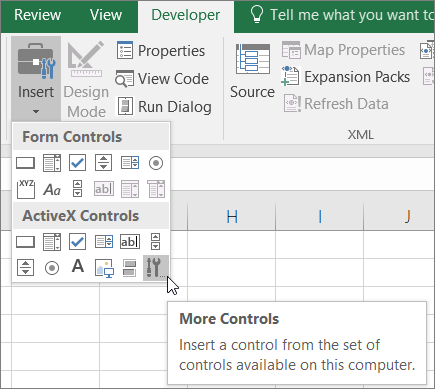
Click the worksheet location where you want the ActiveX control to appear.
To edit the control, make sure that you're in design mode. On the Developer tab, in the Controls group, turn on Design Mode.
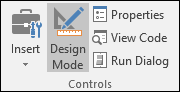
To specify the control properties, on the Developer tab, in the Controls group, click Properties .
Tip
You can also right-click the control, and then click Properties.
The Properties dialog box appears. For detailed information about each property, select the property, and then press F1 to display a Visual Basic Help topic. You can also type the property name in the Visual Basic Help Search box.
Register an ActiveX control
Select the ActiveX control that you want to register.
Make sure that you're in design mode. On the Developer tab, in the Controls group, turn on Design Mode.

On the Developer tab, in the Controls group, click Insert. Under ActiveX Controls, click More Controls.
At the bottom of the More Controls dialog box, click Register Custom.
In the Register Custom Control dialog box, locate the folder that contains the control file (.ocx file name extension) or dynamic link library file (.dll file name extension) for the control that you want to register.
Select the file for your control, and then click Open.
Need more help?
You can always ask an expert in the Excel Tech Community or get support in Communities.
Form controls Add an image control to a worksheet Add a label or text box to a worksheet Overview of forms, Form controls, and ActiveX controls on a worksheet Enable or disable ActiveX settings in Office files