
If you find yourself needing to expand or reduce Excel column widths and row heights, there are several ways to adjust them. If you're working in Page Layout view (View > Workbook Views > Page Layout), you can specify a column width or row height in inches, centimeters, and millimeters. The measurement unit is in inches by default. Go to File > Options > Advanced > Display > select an option from the Ruler Units list. If you switch to Normal view, row heights are displayed in points, and column widths are displayed in a character-based unit (the number of characters of the default font that fit in a cell).
Individual rows and columns can have only one setting. For example, a single column can have a 25-point width, but it can't be 25 points wide for one row, and 10 points for another.
Minimum, maximum, and default sizes for rows and columns
The table below shows the minimum, maximum, and default sizes for columns and rows. Column widths are measured in a character-based unit (the number of characters of the default font that fit in a cell). Row heights are measured in points.
| Type | Min | Max | Default |
|---|---|---|---|
| Column | 0 (hidden) | 255 | 8.43 |
| Row | 0 (hidden) | 409 | 15.00 |
Set a column to a specific width
Select the column or columns that you want to change.
Go to Home > Cells > Format.

Under Cell Size, select Column Width.
In the Column width box, type the value that you want.
Select OK.
Tip
To quickly set the width of a single column, right-click the selected column, select Column Width, type the value that you want, and then select OK.
Change the column width to automatically fit the contents (AutoFit)
Select the column or columns that you want to change.
Go to Home > Cells > Format.
Under Cell Size, select AutoFit Column Width.
Note
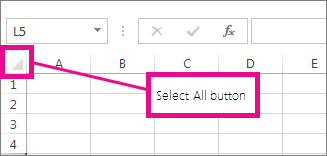
To quickly autofit all columns on the worksheet, select Select All, and then double-click any boundary between two column headings.
Match the column width to another column
Select a cell in the column that has the width that you want to use.
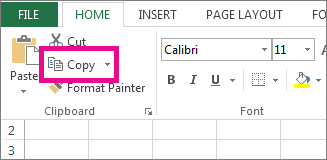
Press Ctrl+C, or go to Home > Clipboard > Copy.
Right-click a cell in the target column, point to Paste Special, and then select Keep Source Columns Widths
 .
.
Change the default width for all columns on a worksheet or workbook
The value for the default column width indicates the average number of characters of the standard font that fit in a cell. You can specify a different number for the default column width for a worksheet or workbook.
Do one of the following:
- To change the default column width for a worksheet, select its sheet tab.
- To change the default column width for the entire workbook, right-click a sheet tab, and then select Select All Sheets on the shortcut menu.

Go to Home > Cells > Format.
Under Cell Size, select Default Width.
In the Standard column width box, type a new measurement, and then select OK.
Tip
If you want to define the default column width for all new workbooks and worksheets, you can create a workbook template or a worksheet template, and then base new workbooks or worksheets on those templates. See the following articles for more information:
Change the width of columns by using the mouse
Do one of the following:
- To change the width of one column, drag the boundary on the right side of the column heading until the column is the width that you want.

- To change the width of multiple columns, select the columns that you want to change, and then drag a boundary to the right of a selected column heading.
- To change the width of columns to fit the contents, select the column or columns that you want to change, and then double-click the boundary to the right of a selected column heading.
- To change the width of all columns on the worksheet, select Select All, and then drag the boundary of any column heading.
Set a row to a specific height
Select the row or rows that you want to change.
Go to Home > Cells > Format.
Under Cell Size, select Row Height.
In the Row height box, type the value that you want, and then select OK.
Change the row height to fit the contents
Select the row or rows that you want to change.
Go to Home > Cells > Format.
Under Cell Size, select AutoFit Row Height.
Tip
To quickly autofit all rows on the worksheet, select Select All, and then double-click the boundary below one of the row headings.
Change the height of rows by using the mouse
Do one of the following:
- To change the row height of one row, drag the boundary below the row heading until the row is the height that you want.
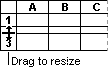
- To change the row height of multiple rows, select the rows that you want to change, and then drag the boundary below one of the selected row headings.
- To change the row height for all rows on the worksheet, select Select All, and then drag the boundary below any row heading.
- To change the row height to fit the contents, double-click the boundary below the row heading.
