
You might come across an Excel worksheet that has merged cells that you don't know about. This situation can be frustrating because Excel doesn't sort data in a column that contains merged cells.
If you're using the desktop version, follow the steps in the following section to find all the merged cells in your worksheet and then unmerge those cells.
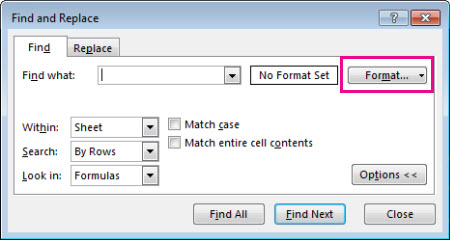
Select Home > Find & Select from the editing group > Find.
Select Format.
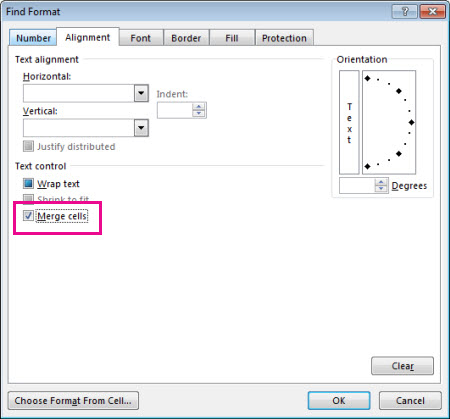
Select Alignment > Merge cells > OK or Close in some versions.
Select Find All to see a list of all merged cells in your worksheet.
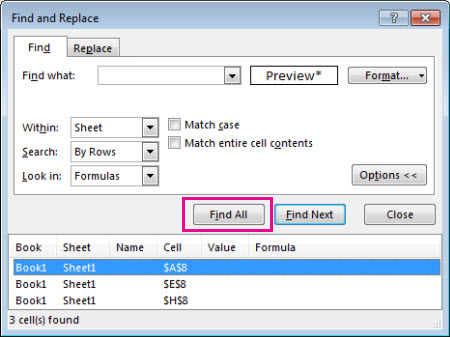
When you select an item in the list, Excel selects the merged cell in your worksheet. You can now unmerge the cells.
Note
In the Excel for the Web version, you can select a cell in your table and then look in the Alignment group to see if Merge and Center is highlighted. If it is, you know that's a merged cell.
Need more help?
You can always ask an expert in the Excel Tech Community or get support in Communities.