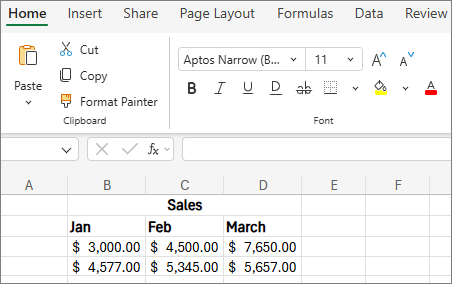
Formatting text or numbers can make them more visible, especially when you have a large worksheet. Changing default formats includes things like changing the font color, style, size, text alignment in a cell, or applying formatting effects. This article shows you how you can apply different formats and also undo them.
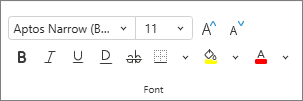
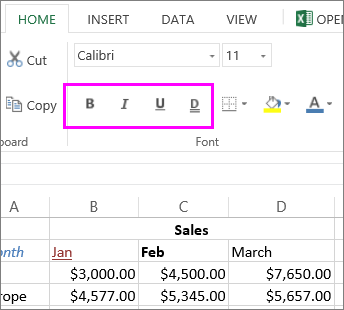
If you want text or numbers in a cell to appear bold, italic, or have a single or double underline, select the cell. On the Home tab, pick the format you want:
Change font style, size, color, or apply effects
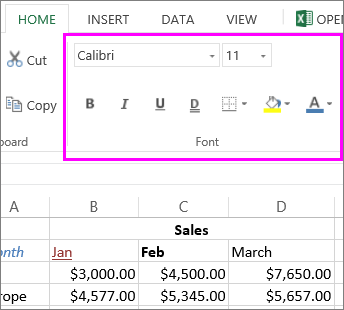
Select Home and:
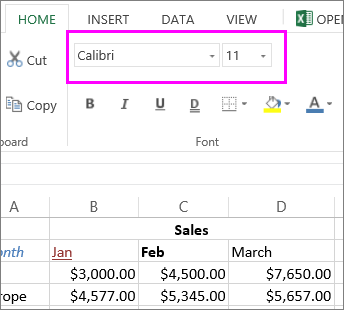
For a different font style, click the arrow next to the default font Aptos Narrow and pick the style you want.
To increase or decrease the font size, click the arrow next to the default size 11 and pick another text size.
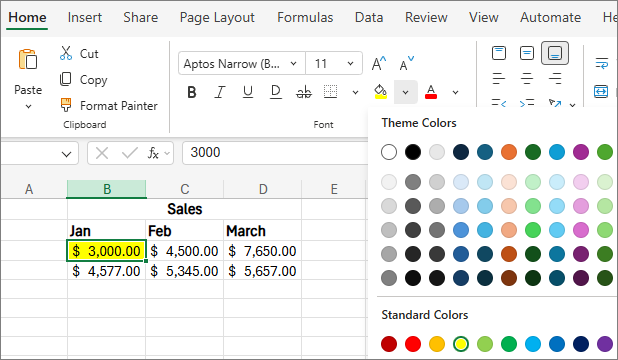
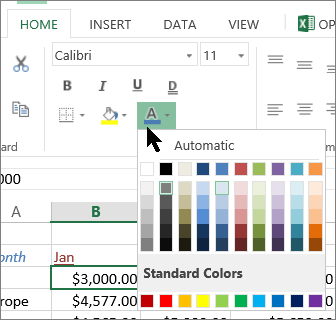
To change the font color, select Font Color and pick a color.
To add a background color, select Fill Color and pick a color.
To apply strikethrough, superscript, or subscript formatting, click the Dialog Box Launcher
 , and select an option under Effects.
Change the text alignment
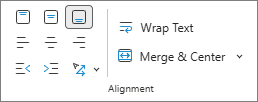
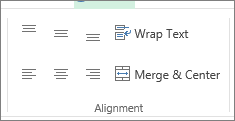
You can position the text within a cell so that it's centered, aligned left, or aligned right. If you have a long line of text, apply Wrap Text so that all the text is visible.
Select the text that you want to align. On the Home tab, choose the alignment option you want.
Clear formatting
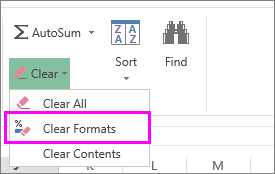
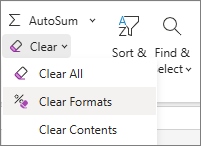
If you change your mind after applying any formatting, select the text to undo it. On the Home tab, in the Editing group, select Clear > Clear Formats.