If a Microsoft 365 application such as Word or Excel isn't working correctly, sometimes restarting it will fix the problem. If that doesn't work, you can try repairing it. When you're done, you might need to restart your computer.
The steps to access the repair tool vary depending on your operating system.
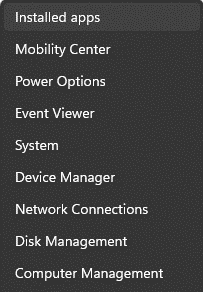
Right-click the Start button
 (lower-left corner) and select Apps and Features on the pop-up menu.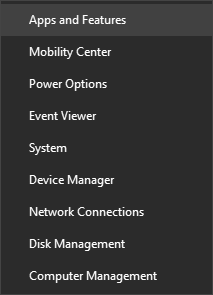
Select the Microsoft 365 or Office product you want to repair and select Modify.
Note
This will repair the entire Office suite even if it's just one application you want to repair such as Word or Excel. If you have a standalone app installed, then search for that application by name.
Depending on your Microsoft 365 or Office installation type (Click-to-run or MSI-based), you'll see the following options to proceed with the repair.
Tip
Click-to-run is the most common installation type.
Follow the steps for your installation type:
Click-to-run
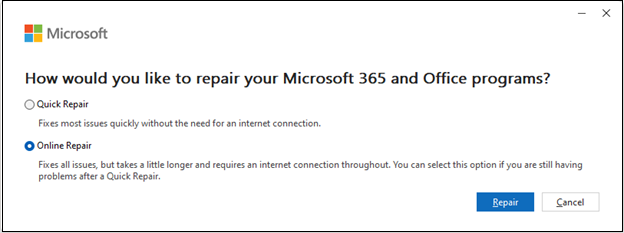
In the window How would you like to repair your Office Programs, select Online Repair > Repair to make sure everything gets fixed. (The faster Quick Repair option is also available, but it only detects and then replaces corrupted files.)
MSI-based
In Change your installation, select Repair and then click Continue.
Follow the instructions on the screen to complete the repair.