The fastest way to create a basic web hyperlink on a PowerPoint slide is to press Enter after you type the address of an existing webpage (such as http://www.contoso.com).
You can link to a webpage, or you can link to a new document or a place in a existing document, or you can begin a message to an email address.
48 seconds
Link to a website
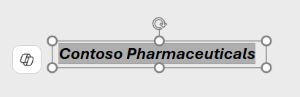
Select the text, shape, or picture that you want to use as a hyperlink.
Select Insert > Link > Insert Link.
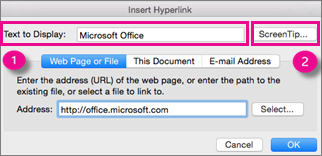
Select Existing File or Web Page, and add the:
- Text to display: Type the text that you want to appear as hyperlink.
- ScreenTip: Type the text that you want to appear when the user hovers over the hyperlink (optional).
- Current Folder, Browsed Pages, or Recent Files: Select where you want to link to.
- Address: If you haven't already selected a location above, insert the URL for the web site you want to link to.
If you link to a file on your computer, and move your PowerPoint presentation to another computer, you'll also need to move any linked files.
Select OK.
Link to a place in a document, new document, or email address
Select the text, shape, or picture that you want to use as a hyperlink.
Select Insert > Link > Insert Link and select an option:
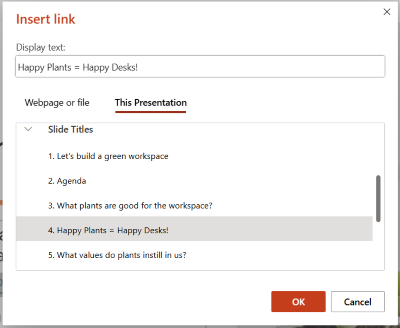
- Place in This Document: Link to a specific slide in your presentation.
- Create New Document: Link from your presentation to another presentation.
- E-mail Address: Link a displayed email address to open up a user's email program.
Fill in the Text to display, ScreenTip, and where you want to link to.
Select OK.
Change the color of a hyperlink
Select the hyperlink you want to re-color.
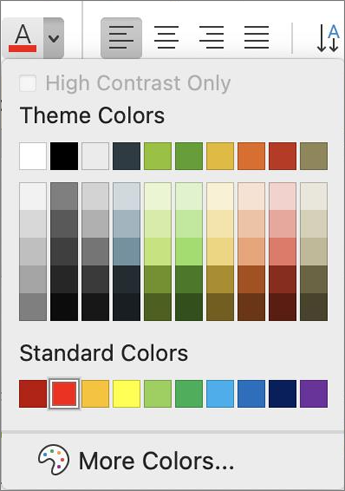
On the Home tab of the ribbon, select down arrow next to the Font Color button to open the menu of colors.
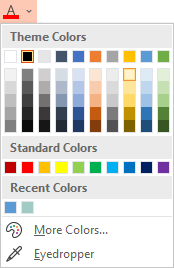
Select the color you want for the hyperlink.
Test the hyperlink
Once you've inserted the link, you can test it (in Normal view) by right-clicking the hyperlink and selecting Open Hyperlink.
Show and return
The Show and return box is grayed out unless you are linking to a Custom Show in your presentation.
If you're a Microsoft 365 subscriber and want to use a feature like show and return, click here to read about linking to another slide by using Zoom for PowerPoint, and see the "Choose to return" feature discussed near the end of that article.
See Also
Remove the underline from hyperlink text
Change the color of hyperlink text throughout a presentation
Bookmark a slide and link to it from elsewhere in the presentation