

You can use Word on your Android tablet, iPad, or Windows tablet to select and format text, change line and paragraph spacing, change indentation, and add lists. You can also use the edit menu to cut, copy, paste, and delete text that you select.
On your Android tablet
Select text
You can select words, sentences, or paragraphs.
- To select a word, double-tap it.
- To select a group of words or a block of text, select the first word and then drag the handles (
 ) to the end of your selection.
 - To select a paragraph, triple-tap it.
Change the font, font size, or font style
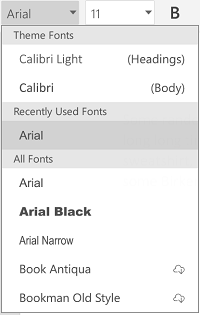
Change the font: Select some text and then tap the font name box. Choose a font from the drop-down list.
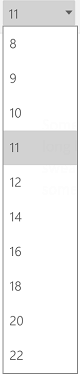
Change the font size: Select some text, tap the font size box, and then choose a size from the drop-down list.
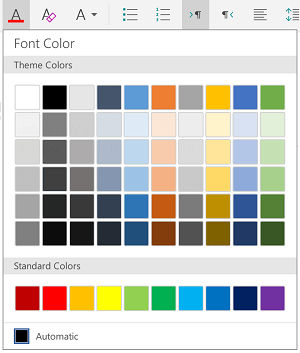
Change the font color: Tap the font color icon, and then choose a color.
Add bold, italics, underlining, or strikethrough: Select some text and then tap the appropriate icon to apply the formatting.

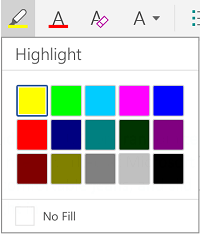
Highlight text: Select some text, tap the highlight icon, and then choose a highlight color.
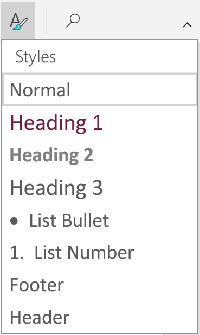
Apply a style: Select some text, tap the style icon, and then select from the list of defined styles.
Note
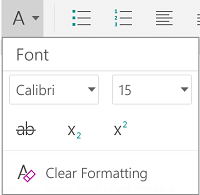
If you are using your device in portrait mode, many of the formatting options will appear on the Font menu.
Format paragraphs
- Remove formatting: Select the text that has the formatting you want to remove, and then tap the clear formatting icon (
 ).
). - Add subscript or superscript: Select the text you want to make subscript or superscript, tap the font icon, and select subscript or superscript.

- Add bullet or numbered lists: Select the text and then tap the bullet or the numbered list icon.
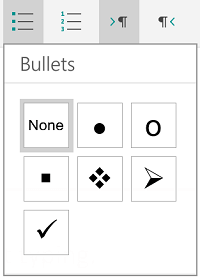
You can select a bullet or numbering style.
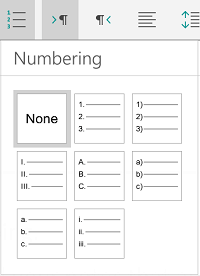
- Indent a paragraph: Tap anywhere in the paragraph, and then tap the indent icon or the negative indent icon.

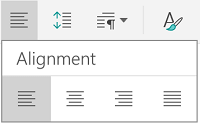
- Align the text: Tap the text and then tap the alignment icon to align the text left, center, right, or justified.
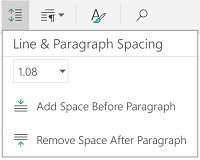
- Line spacing: To add or remove space before or after a line or paragraph, tap your text, tap the spacing icon, and then make your selection.
- Insert or remove tabs: Tap the place where you want the tab to be located, tap the tab icon, and then tap the insert tab or remove tab icon.
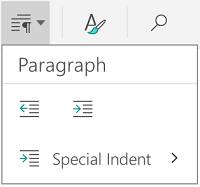
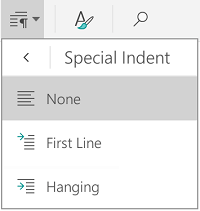
To indent only the first line or use a hanging indent, tap the paragraph tab icon, tap Special Indent, and then make your selection.
Use editing tools
You can also select formatting options from the edit menu.

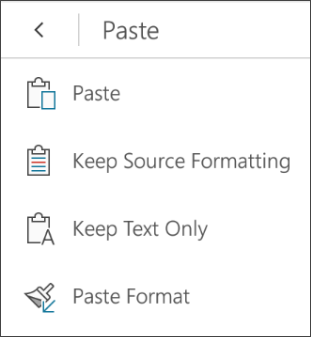
- Cut and paste or copy and paste: Select some text, tap the scissors icon or the copy icon, tap to select a new location, and then tap the clipboard icon. Tap the arrow next to the clipboard to see the Paste menu. You can select Paste, Keep Source Formatting,Keep Text Only or Paste Format.
On your iPad
Select text
You can select words, sentences, or paragraphs.
- To select a word, double-tap it.
- To select a group of words or a block of text, select the first word and then drag the handles (
 ) to the end of your selection.
 - To select a paragraph, triple-tap it.
Change the font, font size, or font style
You can use the formatting options available on the Home tab to format text.
Tip
Use the back and forward arrows on the Home tab to undo or redo a change.
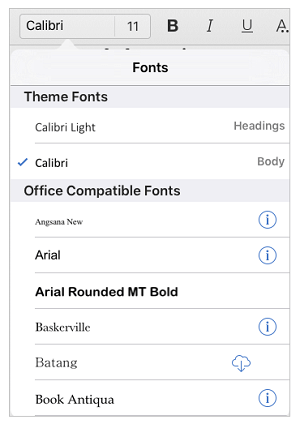
- Change the font: Select some text and then tap the font name box. Choose a font from the drop-down list.
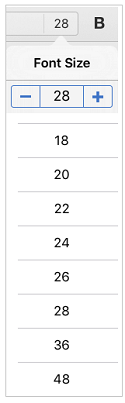
- Change the font size: Select some text, tap the font size box, and then choose a size from the drop-down list.
- Add bold, italics, or underlining: Select some text and then tap the appropriate icon to apply the formatting.
- Add special formatting: To add formatting such as strikethrough or subscript, select some text, and then tap the formatting icon.
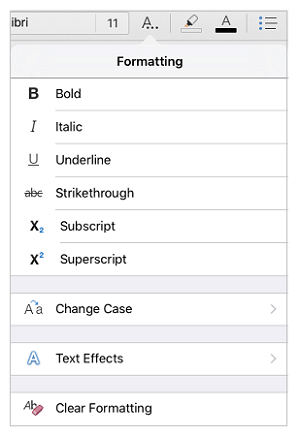
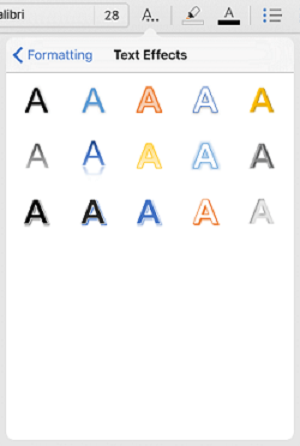
You can also choose from case options or special text effects, and you can clear formatting.
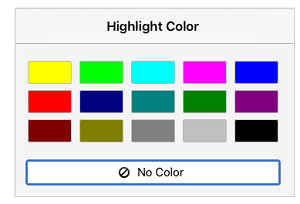
- Highlight text: Select some text, tap the highlight icon, and then choose a highlight color.
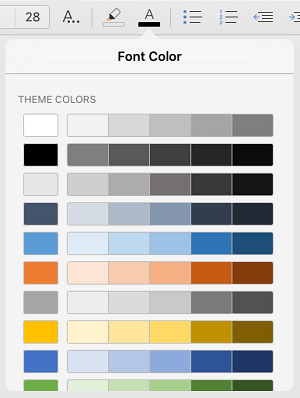
- Change the font color: Tap the font color icon and then choose a color.
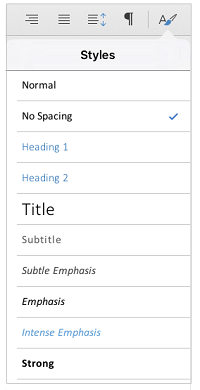
- Apply a style: To select a text style, tap the style icon, and then select from the list of defined styles.
Format paragraphs
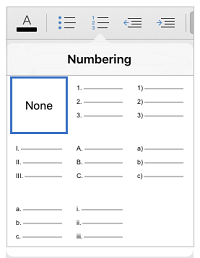
- Add bullet or numbered lists: Tap the text and then tap the bullet or the numbered list icon.
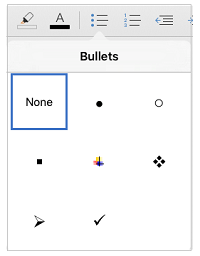
You can select a bullet or numbering style.
- Indent a paragraph: Tap the text, and then tap the indent icon to move the text to the right. Tap the negative indent icon to move the text to the left.
- Align the text: Tap the text and then tap the appropriate icon to align the text left, right, center, or justified.

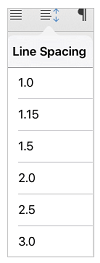
- Change the line spacing: Tap anywhere in the paragraph, and then tap the line spacing icon. Choose a spacing option.
Use editing tools
You can also select formatting options from the edit menu.

- Cut and paste or copy and paste: Select some text, tap Cut or Copy, tap to select a new location, and then tap Paste.
- Copy formatting: Select the text that has the formatting you want to use, tap Copy, select the text that you want to format, and then tap Paste Format.
- Delete text: Select the text that you want to remove, and then tap Delete.
- Look up a definition: Select a word and then tap Define.
- Add a comment: Select the text, tap New Comment, and then type your comment in the comment box.
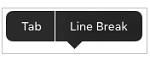
- Add tabs and line breaks: Tap at the location where you want the tab or line break, tap Insert, and then tap Tab or Line Break on the context menu.
On your Windows 10 tablet
Select text
- To select a word, double-tap it.
- To select a group of words or a block of text, select the first word and then drag the handles (
 ) to the end of your selection.
 - To select a paragraph, triple-tap it.
Change the font, font size, or font style
You can use the formatting options available on the Home tab to format text.
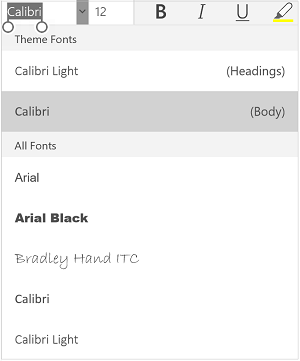
Change the font: Select some text and then tap the font name box. Choose a font from the drop-down list.
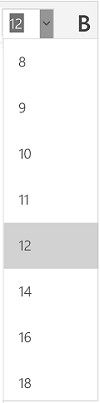
Change the font size: Select some text, tap the font size box, and then choose a size from the drop-down list.
Add bold, italics, or underlining: Select some text and then tap the appropriate icon to apply the formatting.

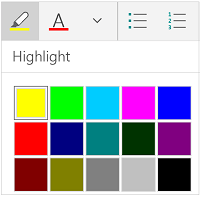
Highlight text: Select some text, tap the highlight icon, and then choose a highlight color.
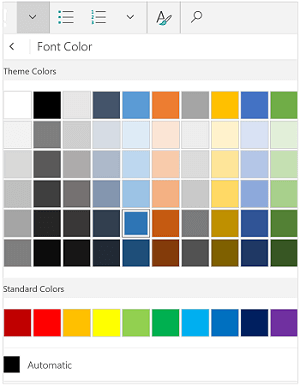
Change the font color: Tap the font color icon, and then choose a color.
Add strikethrough: Select the text, and then tap the down arrow. Tap the strikethrough icon on the Font menu.
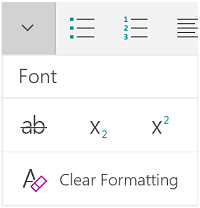
Remove formatting: Select the text that has the formatting you want to remove, and then tap the down arrow. Tap Clear Formatting on the Font menu.
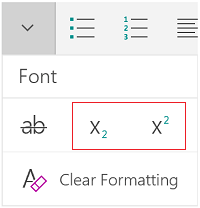
Add subscript or superscript: Select some text, tap the down arrow, and select subscript or superscript on the Font menu
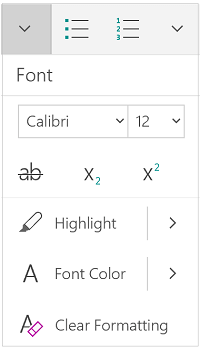
Note
If you are using your device in portrait mode, many of the formatting options will appear on the Font menu.
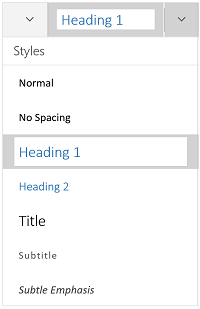
Apply a style: Select some text, tap the style icon, and then select from the list of defined styles.
Format paragraphs
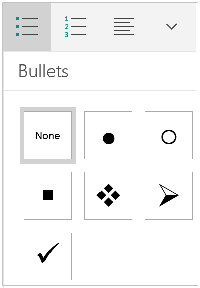
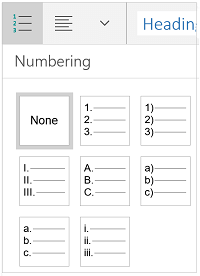
- Add bullet or numbered lists: Select the text and then tap the bullet or the numbered list icon.
You can select a bullet or numbering style.
- Indent a paragraph: Tap anywhere in the paragraph, and then tap the indent icon or the negative indent icon.
- Align the text: Tap the text and then tap the alignment icon to align the text left, center, right, or justified.
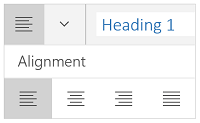
- Line spacing: To add or remove space before or after a line or paragraph, tap the arrow and then select from the spacing options.
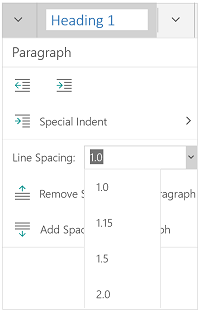
- Insert or remove tabs: Tap the place where you want the tab to be located, tap the paragraph tab icon, and then tap the insert tab or remove tab icon.
To indent only the first line or use a hanging indent, tap the paragraph tab icon, tap Special Indent, and then make your selection.
Use editing tools
You can also select formatting options from the edit menu.

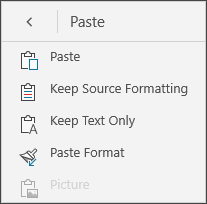
- Cut and paste or copy and paste: Select some text, tap the scissors icon to cut the text or the copy icon to copy the text, tap a new location, and then tap the clipboard icon. Tap the arrow next to the clipboard to see the Paste menu. You can select Paste, Keep Source Formatting,Keep Text Only, or Paste Format.
- Look up a definition: Select a word and then tap Smart Lookup.