
This article explains how to count the data that a query returns in Access. For example, on a form or report, you can count the items in one or more table fields or controls. You can also calculate averages and find the smallest, largest, earliest, and latest values. Access also provides a feature called the Total row, which lets you count data in a datasheet without changing the query design.
What do you want to do?
- Understand ways to count data
- Count data by using a Total row
- Count data by using a totals query
- Aggregate function reference
Understand ways to count data
You can count the number of items in a field, or column of values, by using the Count function. The Count function belongs to a set of functions called aggregate functions. You use aggregate functions to calculate a column of data and return a single value. Access provides several aggregate functions in addition to Count, such as:
Sum, to add a column of numbers.Average, to calculate the average of a column of numbers.Maximum, to find the highest value in a field.Minimum, to find the lowest value in a field.Standard Deviation, to measure how widely values are spread from an average value.Variance, to measure the statistical variance of all values in the column.
Access provides two ways to add Count and other aggregate functions to a query:
- Open your query in Datasheet view and add a Total row. The Total row lets you use an aggregate function in one or more columns of a query result set without changing the query design.
- Create a totals query. A totals query calculates subtotals across groups of records. For example, if you want to subtotal all sales by city or by quarter, you use a totals query to group your records by the category you want and then sum the sales figures. In contrast, a Total row calculates grand totals for one or more columns (fields) of data.
Note
The how-to sections in this article focus on the Count function, but you can also use other aggregate functions in Total rows and queries. For more information, see Aggregate function reference later in this article.
For more information about ways to use the other aggregate functions, see the article Display column totals in a datasheet.
The steps in the following sections explain how to add a Total row and use a totals query to count data. Keep in mind that the Count function works with more data types than other aggregate functions. For example, you can run Count against any field type except one that contains complex, repeating scalar data, such as a field of multivalued lists.
In contrast, many aggregate functions work only on fields that use a specific data type. For example, the Sum function works only with fields set to the Number, Decimal, or Currency data types. For more information about the data types that each function requires, see Aggregate function reference later in this article.
For general information about data types, see the article Modify or change the data type set for a field.
Count data by using a Total row
You add a Total row to a query by opening the query in Datasheet view, adding the row, and then selecting the Count function or another aggregate function, such as Sum, Minimum, Maximum, or Average. The steps in this section explain how to create a basic select query and add a Total row.
Create a basic select query
- On the Create tab, in the Queries group, click Query Design.
- Double-click the table or tables that you want to use in your query, and then click Close.
The selected table or tables appear as windows in the upper section of the query designer. This figure shows a typical table in the query designer:
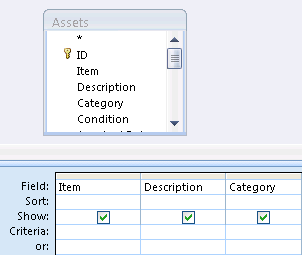
- Double-click the table fields that you want to use in your query. You can include fields that contain descriptive data, such as names and descriptions, but you must include the field that contains the values that you want to count. Each field appears in a column in the query design grid.
- On the Query Design tab, in the Results group, click Run. The results of the query are displayed in Datasheet view.
- Optionally, go back to Design view and adjust your query. To do that, right-click the document tab for the query and select Design View. You can then add or remove table fields as needed. To remove a field, select the column in the design grid and press Delete.
- Optionally, save your query.
Add a Total row
- Open your query in Datasheet view. Right-click the document tab for the query and click Datasheet View. -or- In the Navigation Pane, double-click the query. Doing this runs the query and loads the results into a datasheet.
- On the Home tab, in the Records group, click Totals. A new Total row appears below the last row of data in your datasheet.
- In the Total row, click the field that you want to sum, and then select Count from the list.
Hide a Total row
- On the Home tab, in the Records group, click Totals.
For more information about using a Total row, see the article Display column totals in a datasheet.
Count data by using a totals query
You count data by using a totals query instead of a Total row when you need to count some or all of the records returned by a query. For example, you can count the number of sales transactions, or the number of transactions in a single city.
Typically, you use a totals query instead of a Total row when you need to use the resulting value in another part of your database, such as a report.
Count all the records in a query
- On the Create tab, in the Queries group, click Query Design.
- Double-click the table that you want to use in your query, and then click Close. The table appears in a window in the upper section of the query designer.
- Double-click the fields that you want to use in the query, and make sure you include the field that you want to count. You can count fields of most data types, the exception being fields that contain complex, repeating scalar data, such as a field of multivalued lists.
- On the Query Design tab, in the Show/Hide group, click Totals. The Total row appears in the design grid and Group By appears in the row for each field in the query.
- In the Total row, click the field that you want to count and select Count from the resulting list.
- On the Query Design tab, in the Results group, click Run. The results of the query are displayed in Datasheet view.
- Optionally, save the query.
Count records in a group or category
- On the Create tab, in the Queries group, click Query Design.
- Double-click the table or tables that you want to use in your query, and then click Close. The table or tables appear in a window in the upper section of the query designer.
- Double-click the field that contains your category data, and also the field that contains the values that you want to count. Your query cannot contain other descriptive fields.
- On the Query Design tab, in the Show/Hide group, click Totals. The Total row appears in the design grid and Group By appears in the row for each field in the query.
- In the Total row, click the field that you want to count and select Count from the resulting list.
- On the Query Design tab, in the Results group, click Run. The results of the query are displayed in Datasheet view.
- Optionally, save the query.
Aggregate function reference
The following table lists the aggregate functions that Access provides for use in the Total row and in queries. Access provides more aggregate functions for queries than it does for the Total row.
| Function | Description | Use with the data type(s) |
|---|---|---|
Sum |
Adds the items in a column. Works only on numeric and currency data. | Number, Decimal, Currency |
Average |
Calculates the average value for a column. The column must contain numeric, currency, or date/time data. The function ignores null values. | Number, Decimal, Currency, Date/Time |
Count |
Counts the number of items in a column. | All data types except those containing complex repeating scalar data, such as a column of multivalued lists. For more information about multivalued lists, see Create or delete a multivalued field. |
Maximum |
Returns the item with the highest value. For text data, the highest value is the last alphabetic value, and Access ignores case. The function ignores null values. | Number, Decimal, Currency, Date/Time |
Minimum |
Returns the item with the lowest value. For text data, the lowest value is the first alphabetic value, and Access ignores case. The function ignores null values. | Number, Decimal, Currency, Date/Time |
Standard Deviation |
Measures how widely the values are spread from an average value. For more information about using this function, see Display column totals in a datasheet. | Number, Decimal, Currency |
Variance |
Measures the statistical variance of all values in the column. You can use this function only on numeric and currency data. If the table contains fewer than two rows, Access returns a null value. For more information about variance functions, see Display column totals in a datasheet. | Number, Decimal, Currency |