
You can assign an action or set of actions to a specific key or keyboard shortcut by creating an AutoKeys macro group. Add a submacro for each keyboard shortcut that you want to create. When you press the key or keyboard shortcut, Microsoft Access runs the action.
Note
If you assign an action to a keyboard shortcut that Access already uses, your action replaces the Access key assignment. For example, Ctrl+C is the keyboard shortcut for the Copy command. If you assign that keyboard shortcut to a macro, Access runs the macro instead of the Copy command.
Create the AutoKeys macro with submacros
On the Create tab, in the Macros & Code group, click Macro.
In the Add New Action drop-down list, select Submacro.
In the submacro name box, enter the key or keyboard shortcut that you want to assign to the action or set of actions. The table at the end of this article shows the syntax for keyboard shortcuts.
In the Add New Action drop-down list in the submacro block, select the action that you want the key or keyboard shortcut to perform. For example, you can add a Beep action that causes Access to run the Beep macro action when you press Ctrl+B.
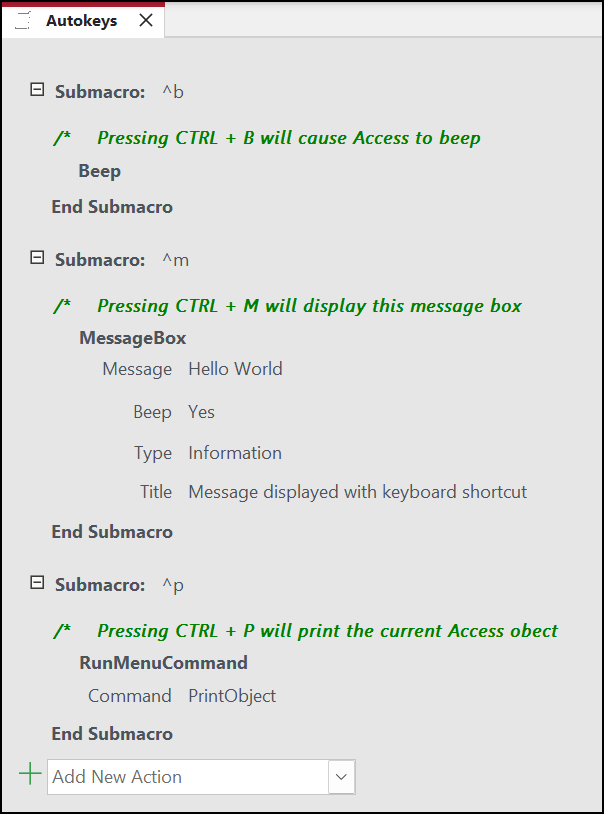
To assign more than one action to the keyboard shortcut, add the other actions below the first action, but keep them in the same submacro block.
To create other key assignments, create more submacros. Then select actions inside each submacro block by using the Add New Action drop-down list. In the screenshot above, three separate submacros define three separate key assignments.
Repeat steps 2 through 5 for any other key assignments that you want to make.
Click Save, or press Ctrl+S.
In the Save As dialog box, under Macro Name, type
AutoKeys.
The new key assignments are available as soon as you save the AutoKeys macro group. They stay in effect each time that you open the database. If you want, you can bypass the key assignments, and many other startup options, by holding down Shift while you start the database.
Important
If the database is not granted trusted status, certain macro actions are disabled. You can enable all macro actions by clicking Options in the message bar, and then selecting Enable this content. This enables all macro actions until you close the database.
Syntax for AutoKeys keyboard shortcuts
The following table shows example keyboard shortcuts that you can enter in the submacro name box to create key assignments in an AutoKeys macro group. These shortcuts are a subset of the syntax that is used in the SendKeys statement in Microsoft Visual Basic.
| Submacro Name | Key or keyboard shortcut |
|---|---|
^A or ^4 |
Ctrl+A or Ctrl+4 |
{F1} |
F1 |
^{F1} |
Ctrl+F1 |
+{F1} |
Shift+F1 |
{INSERT} |
Insert |
^{INSERT} |
Ctrl+Insert |
+{INSERT} |
Shift+Insert |
{DELETE} or {DEL} |
Delete |
^{DELETE} or ^{DEL} |
Ctrl+Delete |
+{DELETE} or +{DEL} |
Shift+Delete |