

By default, Access asks you to confirm when you delete an object from the Navigation Pane or run an action query. You can turn these confirmation messages off if you don't want prompts. If the messages aren't appearing and you want them to, you can turn them back on.
In this article
- Turn off object deletion confirmation messages
- Overview of action query confirmation messages
- Control action query confirmation messages for a computer
- Turn action query confirmation messages off for a database
- Turn action query confirmation messages off for a specific set of tasks
- Use a macro to turn the messages off and back on
Turn off object deletion confirmation messages
Important
If you use this setting to turn object delete confirmation messages off, Access will not display the messages on that computer when you delete objects from the Navigation Pane.
- On the File tab, click Options.
- On the left side of the Access Options dialog box, click Client Settings.
- On the right side of the Access Options dialog box, in the Editing section, under Confirm, clear the Document deletions check box, and then click OK.
Overview of action query confirmation messages
Action queries change the data in your database. An action query can append, delete, or update data, or create a new table by using existing data. Action queries are powerful, but they can also cause unintended data changes. Because of the risk of data loss, Access asks for confirmation by default when you run an action query. This helps reduce the chance of unintended data changes.
Tip
To see which data an action query will affect, before you run the query, on the Home tab, in the Views group, click View, and then click Datasheet View.
If you don't want Access to ask you to confirm action queries, you can turn the messages off. If Access isn't asking for confirmation and you want it to, you can turn the messages on.
- Control action query confirmation messages for a computer You can use a setting in the Access Options dialog box to set the default behavior for Access databases opened on a specific computer. If you use this setting to turn the messages off, Access will not display the messages under any circumstances. If you use this setting to turn the messages on, Access will display the messages unless they are turned off by a macro or by VBA.
- Turn action query confirmation messages off for a database
Choose this method to turn warnings off for a specific database when it opens. You use the
SetWarningsaction inside anAutoExecmacro to turn the messages off. The database file must be trusted for this macro action to work. For more information about trusted databases, see Decide whether to trust a database. - Turn action query confirmation messages off for a specific set of tasks Choose this method to turn warnings off for a specific set of tasks and then turn them back on. For example, you might turn off the messages while a make-table query runs and then turn them back on. You can use the SetWarnings macro action or the DoCmd.SetWarnings VBA method. The database file must be trusted for this macro action to work. For more information about trusted databases, see Decide whether to trust a database.
Control action query confirmation messages for a computer
Important
If you use this setting to turn action query confirmation messages off, Access will not display the messages on that computer even for a database that contains a macro or module that turns the messages on.
- On the File tab, click Options.
- On the left side of the Access Options dialog box, click Client Settings.
- On the right side of the Access Options dialog box, in the Editing section, under Confirm, clear the Action queries check box, and then click OK.
Turn action query confirmation messages off for a database
You can use the SetWarnings action in an AutoExec macro to turn action query confirmation messages off for a database.
Important
If the database that contains the macro isn't trusted, the SetWarnings action won't run. For more information about trust and databases, see Decide whether to trust a database.
Note
If there's already a macro named AutoExec, open that macro in Design view, and then do steps 2 through 4 of the following procedure.
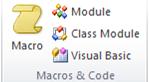
On the Create tab, in the Macros & Code group, click Macro.
In the drop-down list at the top of the Macro Builder, select the SetWarnings action.
- If you do not see the SetWarnings action listed, on the Macro Design tab, in the Show/Hide group, make sure Show All Actions is selected.
Under the SetWarnings action, click the arrow next to Warnings On and select the option that you want.
Click Save.
In the Save As dialog box, type
AutoExec.Click OK and then close the Macro Builder. The new macro will run the next time that you open the database.
For more information about how to create macros, see the article Create a user interface (UI) macro.
Turn action query confirmation messages off for a specific set of tasks
There are two basic ways to turn action query confirmation messages off for a set of tasks: by using a macro or by using a VBA module. In either case, you use code to turn the warnings off, perform the tasks, and then turn the warnings back on. You attach the code to an event, such as the Click event of a command button or the Open event of a form.
You attach a module to an event, and the module runs when the event occurs. For example, you might attach a module to the On Open event for a form. When the form opens, the module runs. The following procedure explains how to use the DoCmd.SetWarnings method in the On Open event of a form.
Open the form in Design view.
If the property sheet isn't visible, press F4 to display it.
Click the square at the top left of the form, just below the form's object tab.
In the property sheet, on the Other tab, make sure Has Module is set to Yes.
On the Event tab, click the On Open event, and then click the build button (the ellipses next to the arrow).
In the Choose Builder dialog box, do one of the following:
- To use a VBA module, double-click Code Builder and follow the remaining steps in this procedure.
- To use a macro, double-click Macro Builder, and then follow the steps in the procedure Use a macro to turn the messages off and back on.
Type
DoCmd.SetWarnings (WarningsOff), and then press Enter.Enter the necessary code to perform the tasks that you want done with confirmation messages turned off.
On a new line, type
DoCmd.SetWarnings (WarningsOn).Close the VBA Editor, and save the form.
Use a macro to turn the messages off and back on
In the drop-down list at the top of the Macro Builder, select the SetWarnings action.
- If you do not see the SetWarnings action listed, on the Macro Design tab, in the Show/Hide group, make sure Show All Actions is selected.
Under the SetWarnings action, click the arrow next to Warnings On and select No.
Enter the necessary macro actions to perform the tasks that you want done with confirmation messages turned off.
Below the last task action, select the SetWarnings action, then click the arrow next to the Warnings On and select Yes.
Close the Macro Builder, save the macro, and then save the form.