
Before you send an Outlook email message or share a Word document, Excel spreadsheet, PowerPoint presentation, or OneNote notebook, run the Accessibility Checker to make your content easier for people to read and edit.
There is a new version of Accessibility Checker available for the Word desktop app and it will be soon available for other Office desktop apps including Outlook, Excel, and PowerPoint.
Note
- To learn more about the new Accessibility Assistant, go to Improve accessibility in your documents with the Accessibility Assistant.
- To learn more about the real-time on-canvas notification of accessibility issues, go to Get real-time notification of accessibility issues while working on Microsoft 365 apps.
In this topic
Use the Accessibility Checker
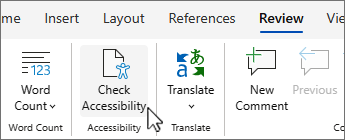
Select the Review tab.
Note
In Outlook, you'll only see the Review tab when writing or replying to messages.
Select
 Check Accessibility to open the Accessibility pane on the right.

Tip
For Word, Excel, and PowerPoint desktops, select the lower half of the Check Accessibility button for more options.
In the Accessibility pane, review and address the findings under Inspection Results.
Apply recommended actions
In the Accessibility pane, you'll see a list of errors and warnings, with how-to-fix recommendations for each.
To quickly correct the issues, apply one of the recommended actions. For more information on how the findings are categorized, see Rules for the Accessibility Checker.
In the Accessibility pane, select an issue under Warnings or Errors. The list will expand and show the items and objects affected by the issue.
Tip
Select the item or object to view the exact location of the affected item or object.
To address the issue, select the down arrow
 button next to it and open the Recommended Actions list.

To apply a fix, select an action from the Recommended Actions list. To view more options, select the right arrow
 button next to the action (if available).
Go through and resolve each issue under Warnings and Errors.
Don't see the Accessibility Checker?
If you don't see
Check Accessibility on the Review tab, you might have an older version of the app. Follow these steps to open the Accessibility Checker:
- Select the File tab and choose Info.
- Select Check for Issues.
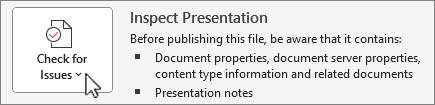
- In the Check for Issues drop-down menu, select
Check Accessibility.

- The Accessibility Checker task pane will appear next to your content and show the inspection results.

- Select an issue under Inspection Results to see why and how to fix an issue. This info appears under Additional Information.

See also
Check accessibility while you work in Office apps
Everything you need to know to write effective alt text
Use a screen reader with the Accessibility Checker
Make your content accessible to everyone
Make your content accessible to everyone with the Accessibility Checker




Technical support for customers with disabilities
Microsoft wants to provide the best possible experience for all our customers. If you have a disability or questions related to accessibility, please contact the Microsoft Disability Answer Desk for technical assistance. The Disability Answer Desk support team is trained in using many popular assistive technologies and can offer assistance in English, Spanish, French, and American Sign Language. Please go to the Microsoft Disability Answer Desk site to find out the contact details for your region.
If you are a government, commercial, or enterprise user, please contact the enterprise Disability Answer Desk.
