
Use custom keyboard shortcuts in Excel, PowerPoint, and Word to invoke Office Add-in functionality. Each Office Add-in you install can change which shortcuts are available for you to use.
Setting shortcut preferences
Sometimes a new Office Add-in will register a shortcut combination that's already in use, by other Office Add-ins, the Office application, or both. The first time you use a shortcut combination that’s registered more than once, the Office application displays a list of registered actions for the shortcut and asks you which one to use. Actions from add-ins show the add-in name in parentheses. The following shows an example in Excel.
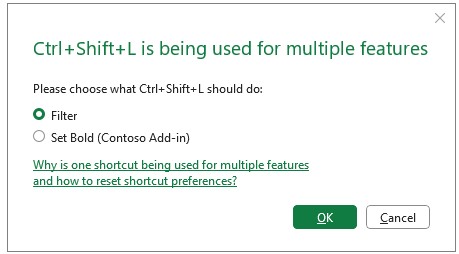
Select your preferred action for the shortcut, then select OK. The Office application runs the action and saves it as your preference for that shortcut. When you use the shortcut again, the Office application performs that action without asking you to confirm.
Reset your shortcut preferences
If you’ve already selected an action in the shortcut conflict dialog box and you want to change the action that a shortcut takes, you can reset all of your add-in shortcut preferences by running the Reset Office Add-in Shortcut Preferences command. This command deletes all your saved add-in shortcut preferences so the next time you try to use a shortcut that has multiple actions, you’ll once again be asked to choose the appropriate action.
Enter Reset Office Add-in Shortcut Preferences in the search box at the top of the application window.
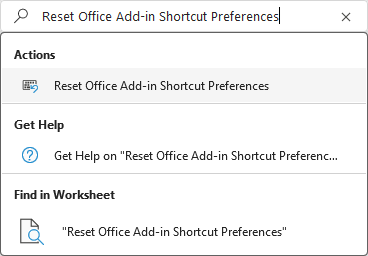
In the list of results, select Reset Office Add-in Shortcut Preferences.
Important
This command clears all your Office shortcut preferences, not the registered shortcut actions. The next time you use a shortcut that has multiple uses, Office will again ask you to choose the action for that shortcut.
