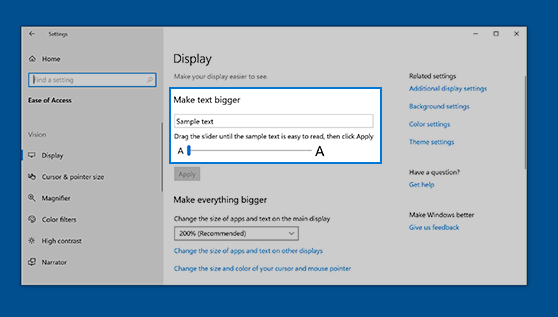
Change the size of text in Windows 11 using Display settings, zoom in or out in Microsoft Edge, or use Magnifier.
Select Start  > Settings
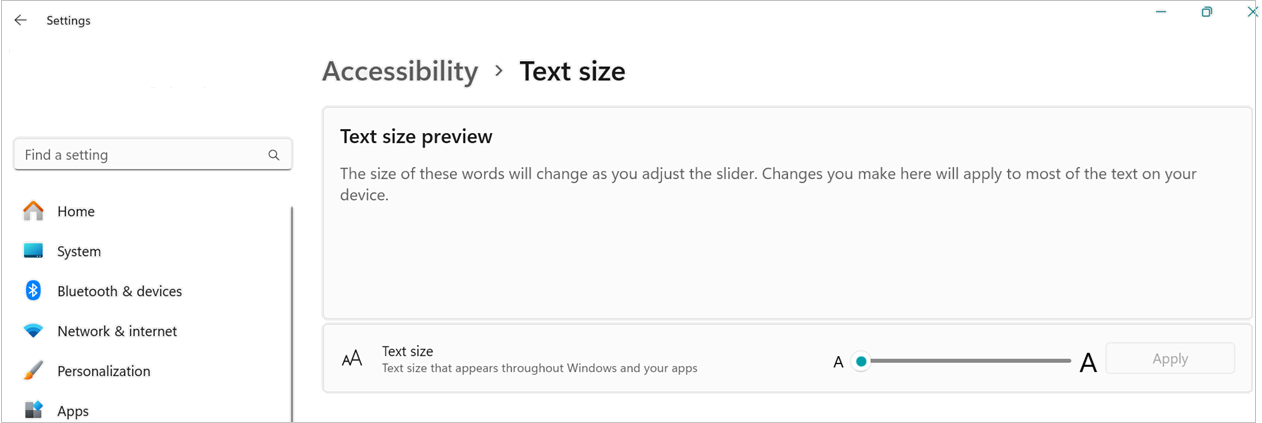
 > Accessibility > Text size . To make just the text on your screen larger, adjust the slider under Text size preview.
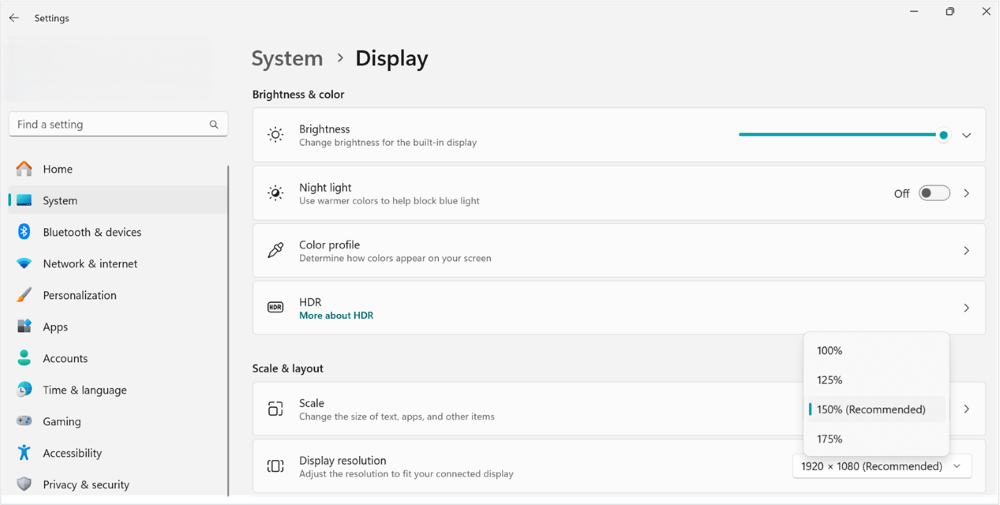
To make everything larger, including images and apps, select the Display button under related setting then choose an option from the drop-down menu next to Scale.
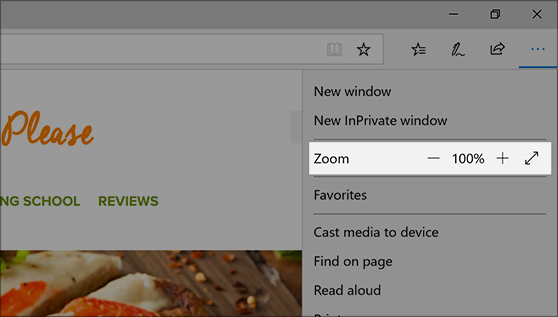
In Microsoft Edge: Select More in the upper-right corner, and then zoom in or out.
Use Magnifier: Magnifier zooms in on parts of your screen to make them easier to see. To open Magnifier, press the Windows logo key
+ Plus sign (+). While Magnifier is open, zoom in and out by pressing Windows logo key
+ Plus sign (+) and Windows logo key
+ Minus sign (-). To close Magnifier, press Windows logo key + Esc.