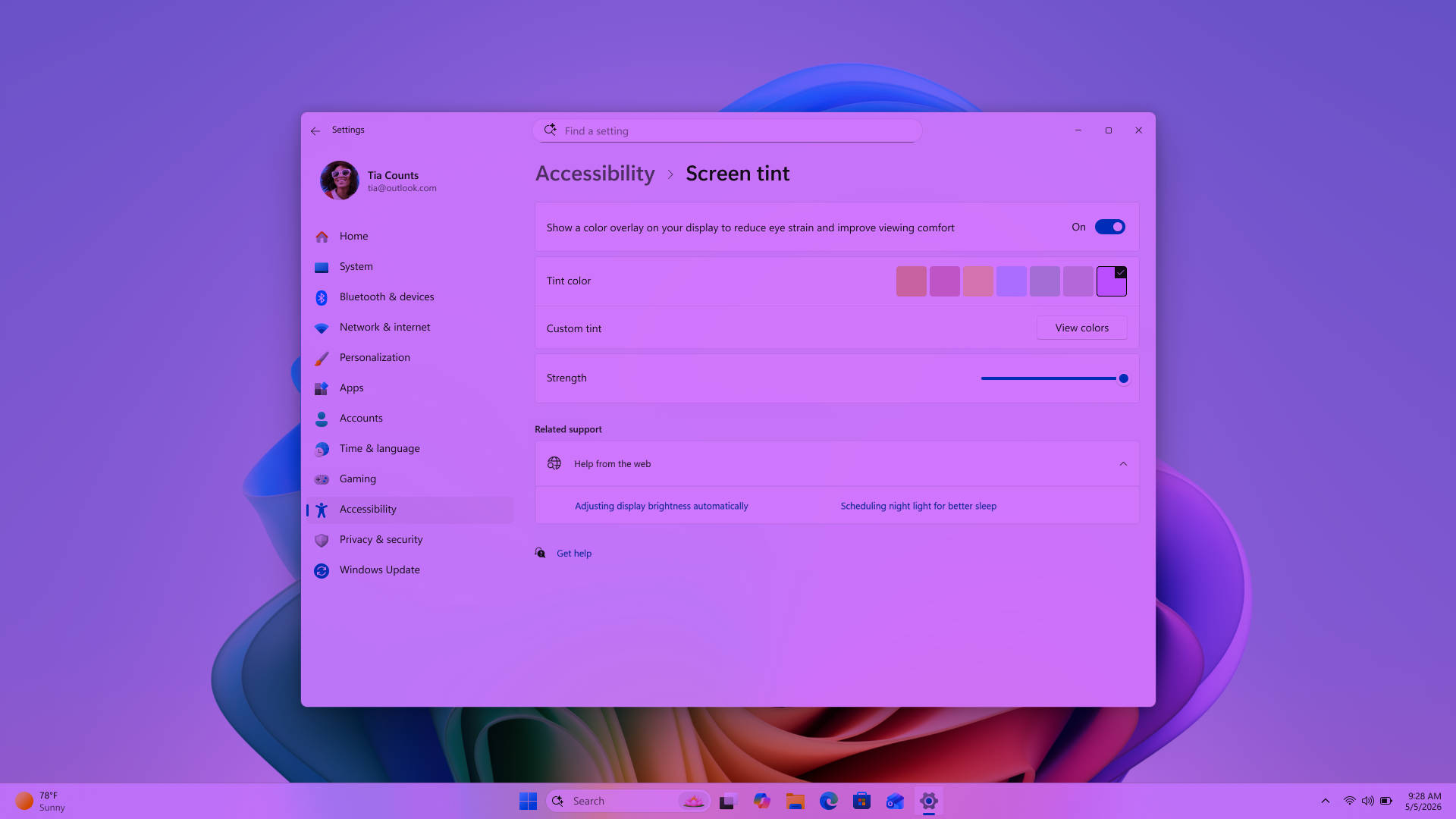
Screen tint is a Windows accessibility feature that applies a single color overlay across your entire display to reduce visual discomfort. It softens the overall intensity of bright screens, making them easier to look at throughout the day, especially during long work sessions when bright screens can leave your eyes feeling tired, strained, or uncomfortable.
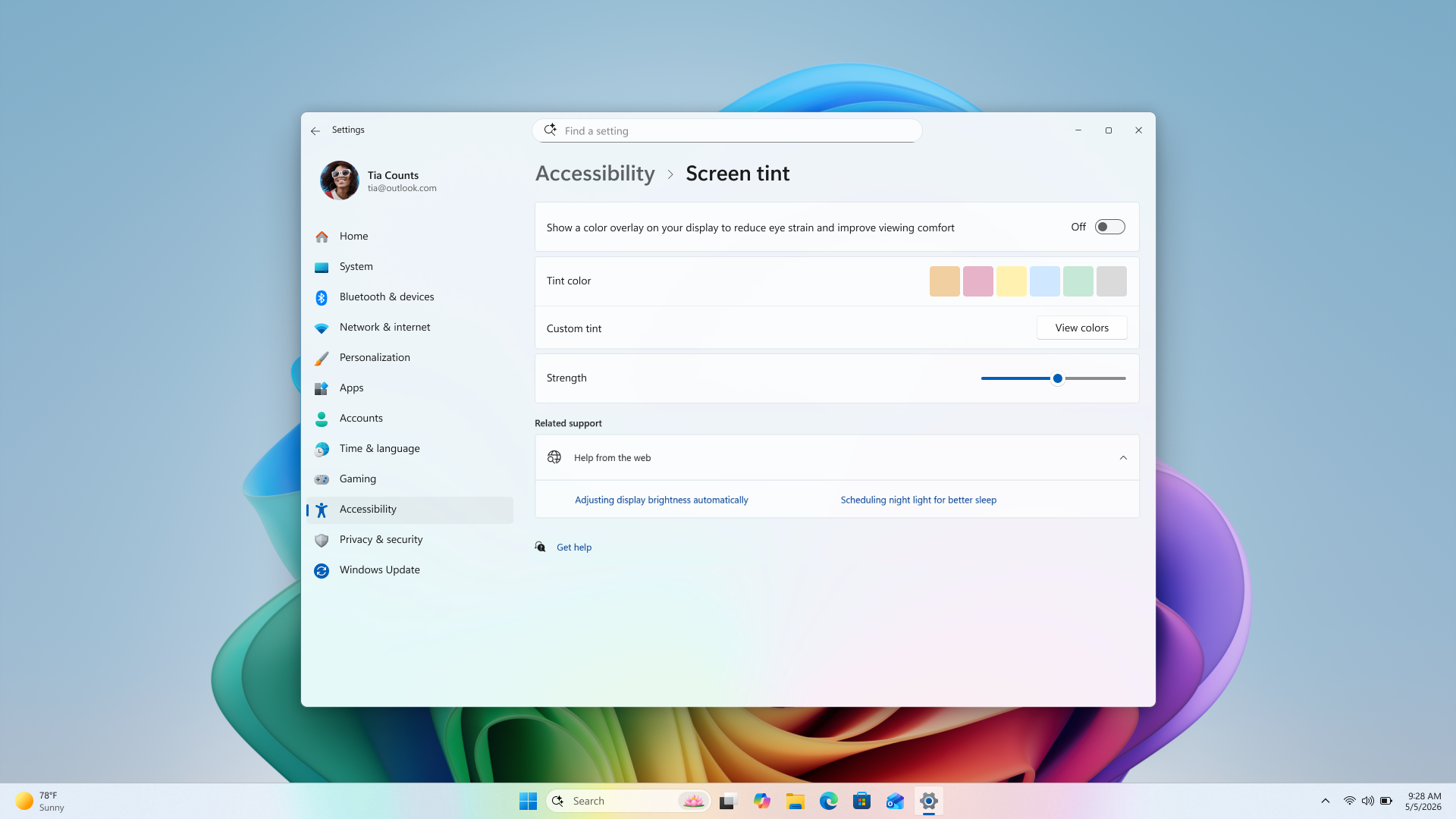
Screen tint is designed for anyone who finds standard screen brightness harsh on their eyes, including people who experience light sensitivity or photosensitivity. You can choose a preset color or create your own, then adjust the tint strength until the screen feels comfortable.
Note
Turning on screen tint disables color filters. Turning on color filters disables screen tint. If you rely on color filters, keep screen tint turned off.
Screen tint compared to night light
Night light and screen tint both help make your screen more comfortable to view, but each works differently and serves a different purpose.
Night light gradually warms your display from bright white to a softer amber tone, reducing the blue light that can interfere with your body's sleep signals. It's helpful when you find it hard to fall asleep after using your screen late at night.
Screen tint applies a single color overlay to reduce the screen's intensity, making it more comfortable to view throughout the day for people prone to light sensitivity or eye fatigue. It's helpful when bright, saturated screens make your eyes feel tired or sensitive by the end of the day.
If your screen is both disrupting your sleep at night and aggravating your eyes during long work sessions, you can use night light and screen tint together. One works on warmth while the other works on intensity.
Accessing screen tint
Screen tint is located in the Vision section of the Accessibility settings in Windows. From there, you can turn on the feature and customize it to your preference.
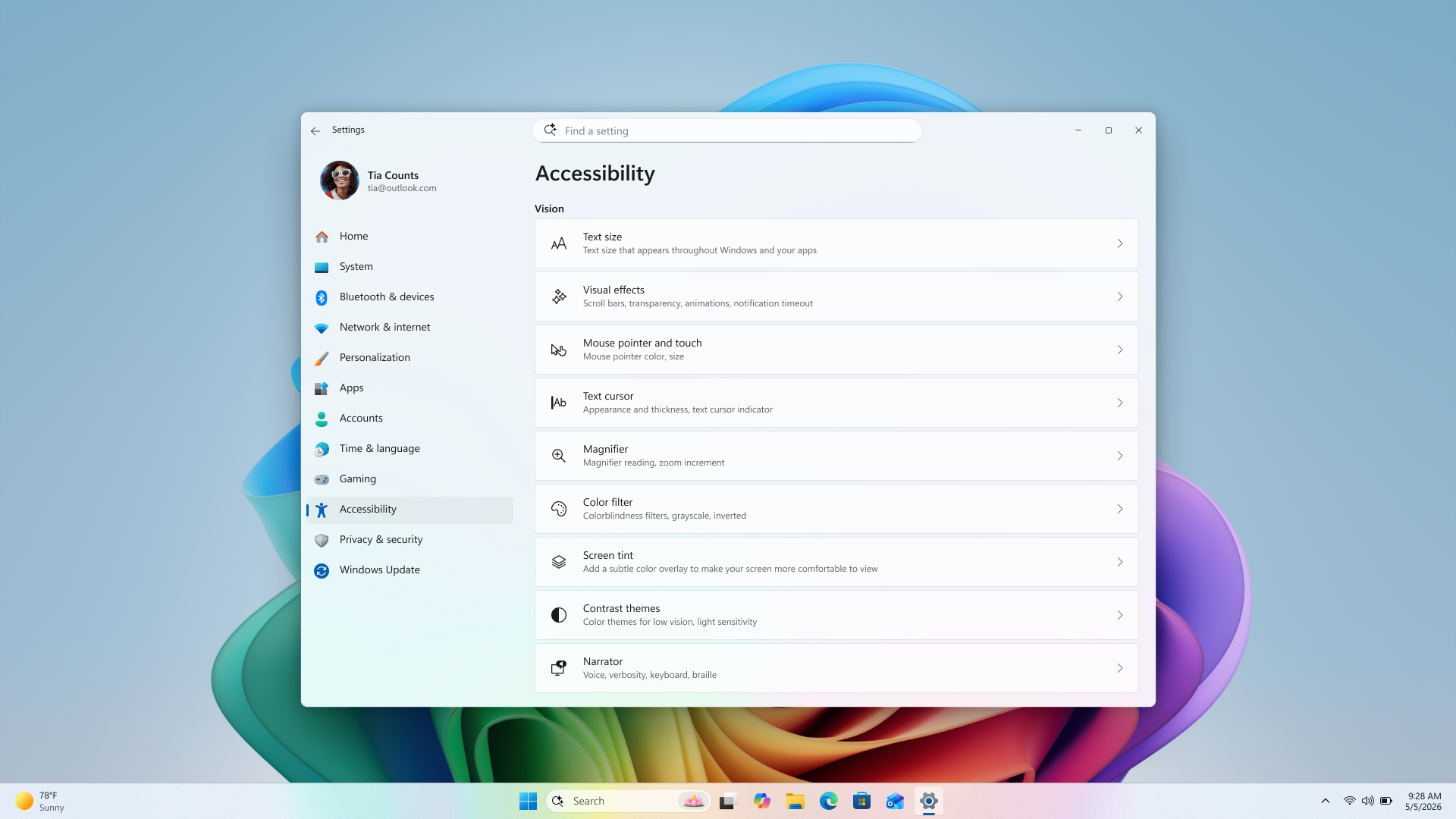
To open Screen tint:
- Open Settings > Accessibility, or press Win+U to go there directly.
- Under the Vision section, select Screen Tint.
Tint color options
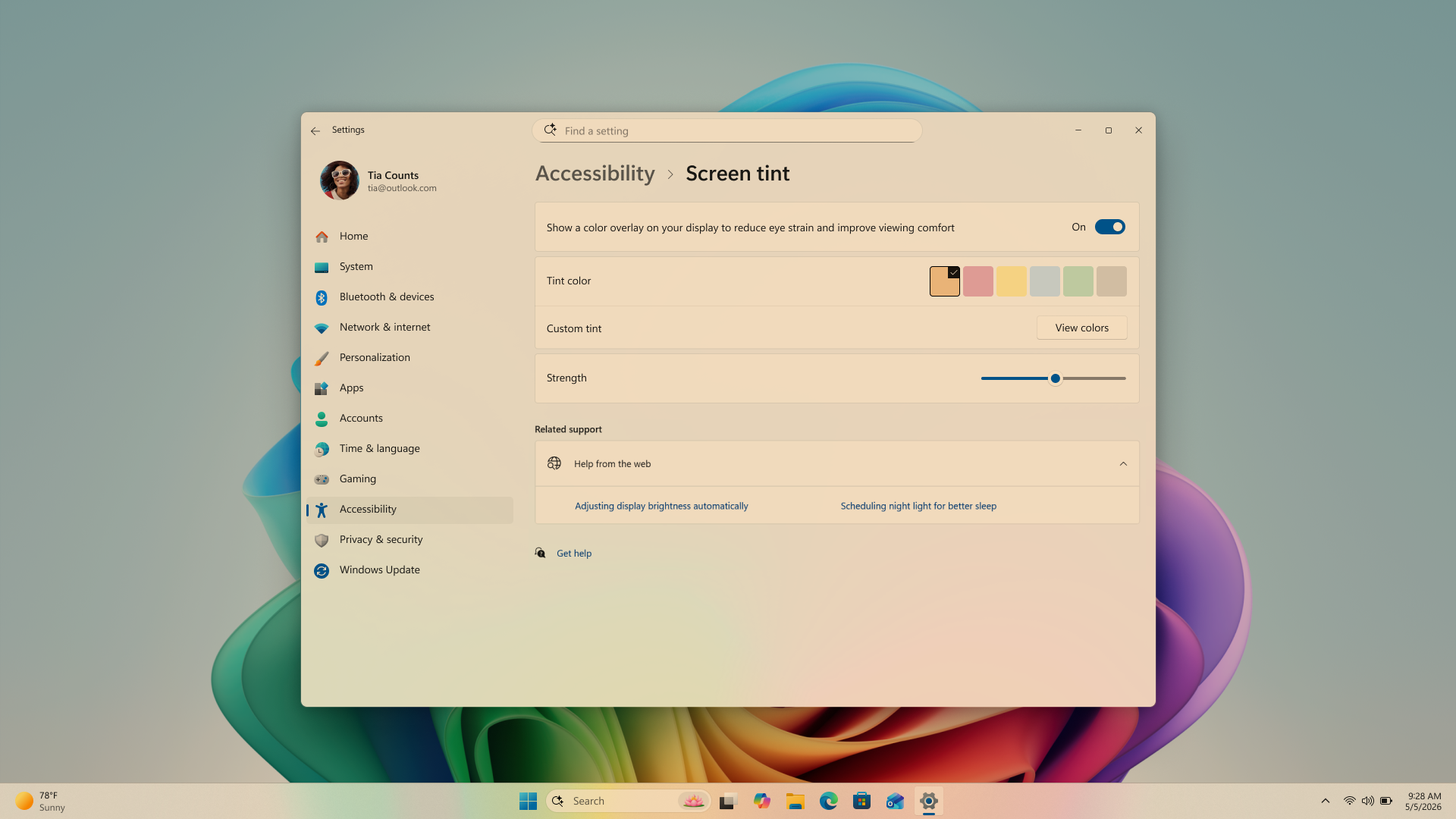
Screen tint provides two ways to set the color of your overlay: preset colors and custom colors.
Preset colors
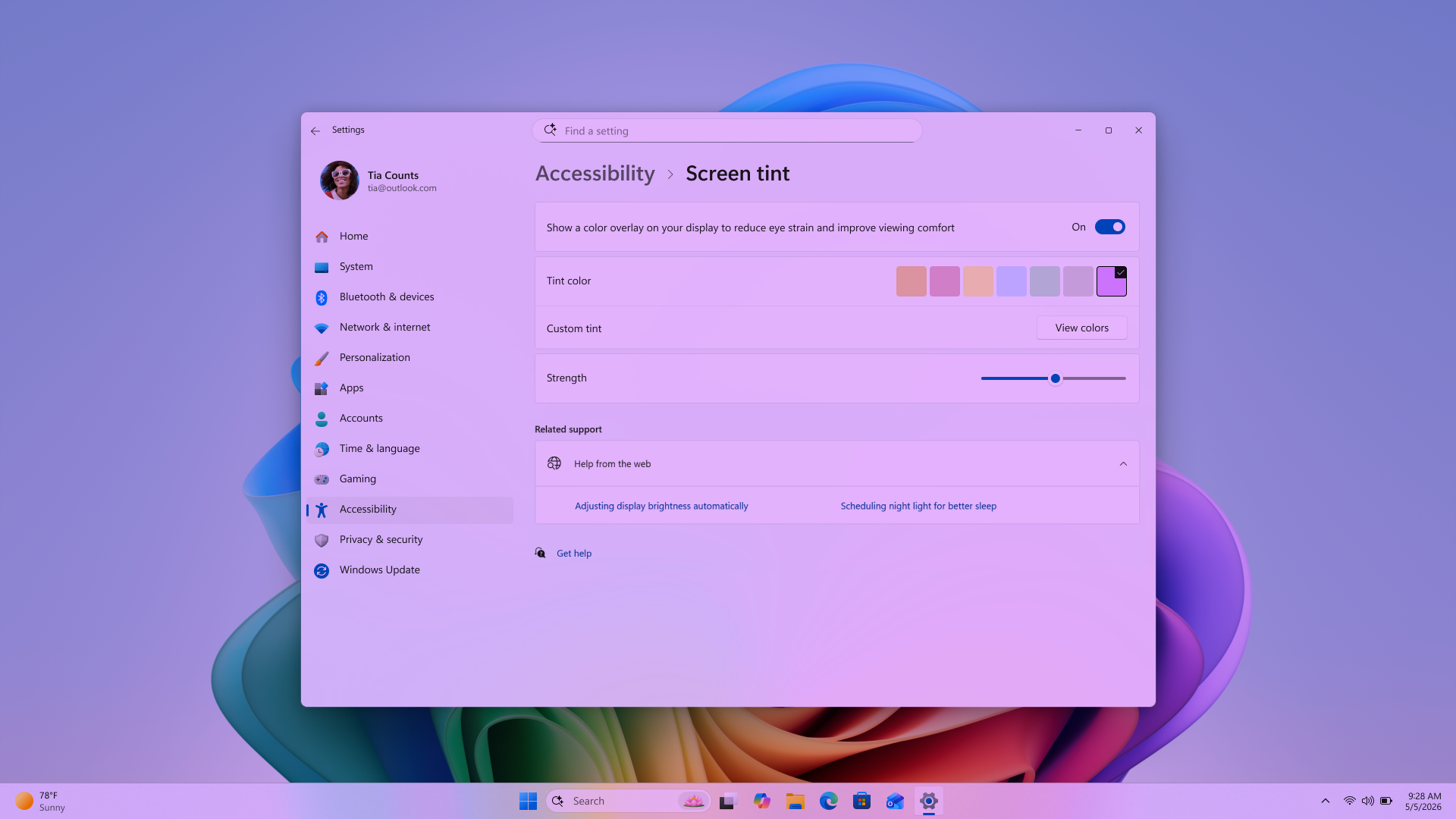
Six preset colors are available, each shown as a color block. Select the one that feels most comfortable for your eyes.
Custom colors
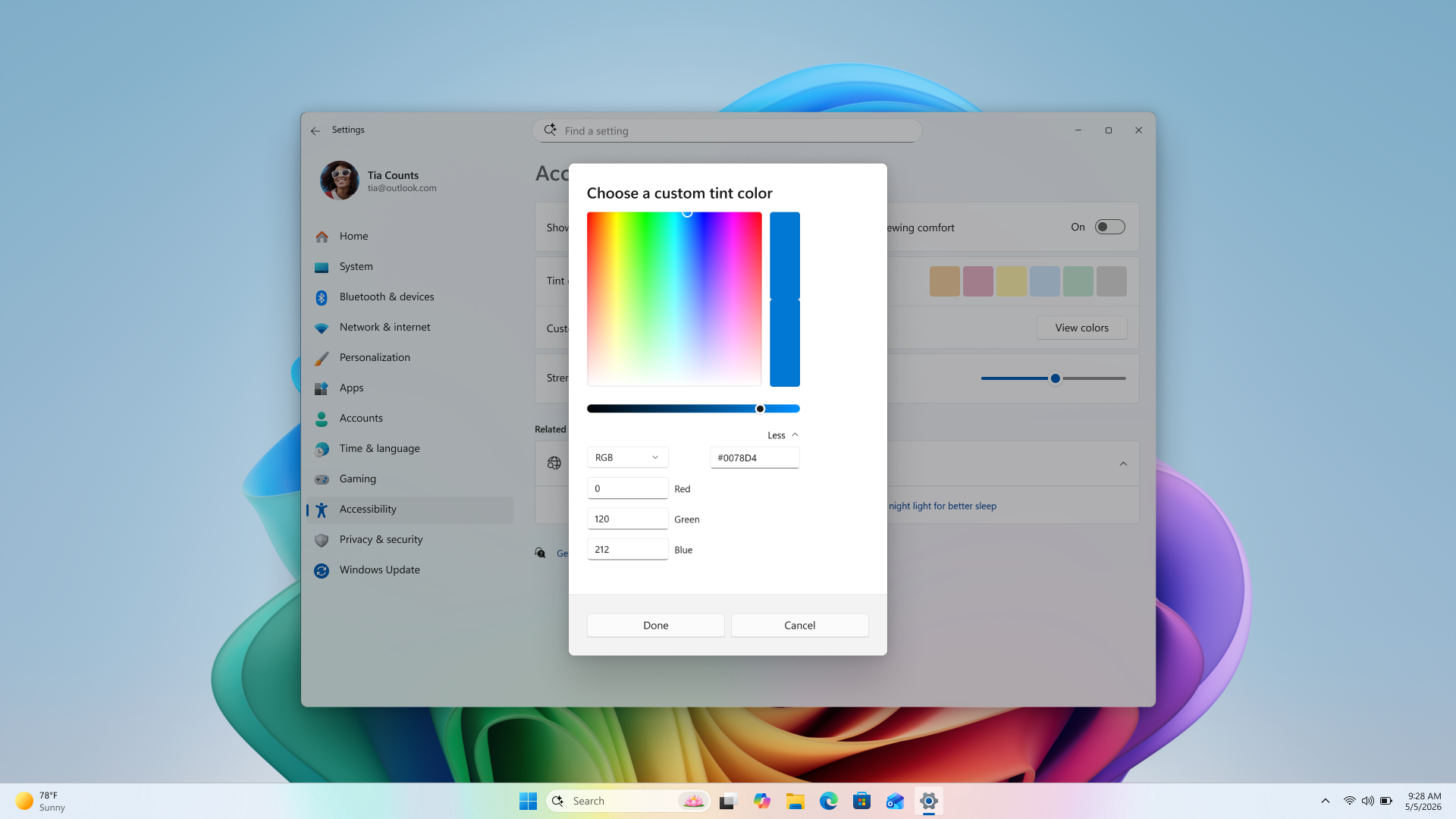
If none of the presets feel right, you can create your own. Select view colors in the Custom tint section to open the color picker, then choose any color you'd like.
Tint strength
The strength slider controls how strong or subtle the overlay appears. You can adjust it from a light wash of color all the way up to maximum intensity until your screen feels right.
Note
The intensity of the tint applied may vary based on your system display hardware.