
Choose a view: full screen, lens, or docked
Magnifier has three views. Each suits a different task, and you can switch between them at any time.
| View | What it does | Best for | Shortcut |
|---|---|---|---|
| Full screen | Magnifies your entire display. You move around by panning. | Reading long content, general use | Ctrl+Alt+F |
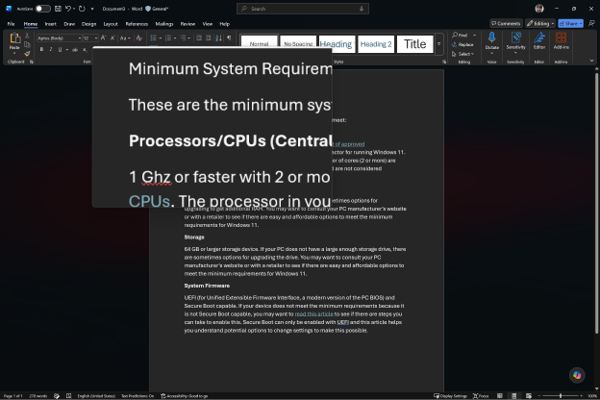
| Lens | A movable magnifying "rectangle" that enlarges whatever is underneath it; the rest of the screen stays at normal size. | Checking one area while keeping context | Ctrl+Alt+L |
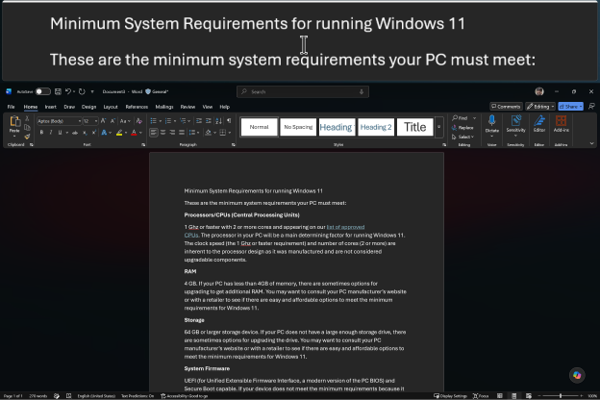
| Docked | Pins a magnified strip to one edge of the screen; the rest stays normal. | Watching a specific region (e.g., a live number) while you work | Ctrl+Alt+D |
- Cycle through the views to compare them quickly: Ctrl+Alt+M.
See each view
The screenshots below show the same document so you can picture how the three views differ.
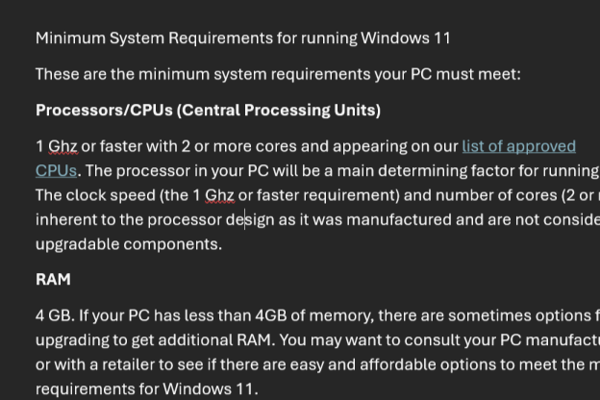
Full screen magnifies your entire display. Everything on screen is enlarged, and you move around by panning.
Lens places a movable magnifying rectangle over the screen. The area under the lens is enlarged while everything around it stays at its normal size.
Docked pins a magnified strip to one edge of the screen (the top edge here). The strip enlarges whatever you point at, while the rest of the screen stays normal.
Fine-tune each view
Each view can be customized further. In Settings > Accessibility > Magnifier, select the View tile to open a detailed settings screen for the view you're currently using.

With Narrator and a keyboard:
- Press Windows
 key+Ctrl+M to open the Magnifier settings.
 - Press Tab until you hear "View," followed by the current view (for example, "Full screen"), then press Enter to open the View settings.
- To switch views, Tab to the View dropdown, press Alt+Down arrow to open it, use the Up arrow or Down arrow key to choose a view, then press Enter. The options below the dropdown change to match the view you picked.
Two things to keep in mind before you start:
All of the per-view options live in one place: Settings > Accessibility > Magnifier > View.
The panel only shows options for the view you're currently in. To configure a different view, switch to it first, either from the View dropdown at the top of the panel or with its shortcut (Ctrl+Alt+F for full screen, Ctrl+Alt+L for lens, Ctrl+Alt+D for docked). The available settings change to match the selected view.
Have Magnifier follow you (full screen and docked)
In both full screen and docked views, you can choose what the magnified view follows as you work. Under Have Magnifier follow my, select or clear any combination of:
- Mouse pointer: The view follows where you move the mouse.
- Keyboard focus: The view jumps to the button, link, or control you Tab to.
- Text cursor: The view follows the blinking insertion point as you type or edit.
- Narrator cursor: The view follows Narrator as it reads.
With Narrator and a keyboard:
- Open the View settings (see the steps above) and make sure Full screen or Docked is selected.
- Press Tab until you hear "Have Magnifier follow my," then keep pressing Tab to move through the checkboxes. Narrator reads each one, for example "Mouse pointer, checkbox, checked."
- Press Spacebar to turn the selected option on or off. Narrator announces "checked" or "unchecked."
All four are turned on by default, so the magnified view moves to keep up with whichever of these is active. Clear the ones you don't use. For example, if you navigate mostly by keyboard, clearing Mouse pointer stops the view from jumping every time the mouse is bumped.
Configure full screen view
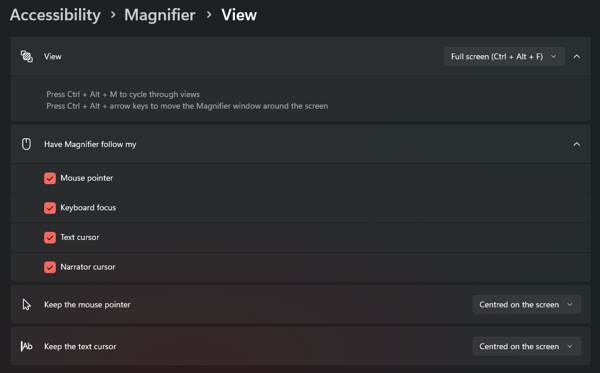
With Full screen selected in the View dropdown, you get two extra options that control how the viewport scrolls to keep your pointer or cursor in sight.
Keep the mouse pointer sets how the magnified viewport moves with your mouse:
- Within the edges of the screen: The viewport stays put until your pointer reaches the edge of the screen. To pan, move your pointer toward an edge and the magnified view scrolls in that direction. This keeps the view steady while you read.
- Centered on the screen: The viewport keeps your pointer in the middle of the magnified view at all times, scrolling the content around it as you move. (When you reach the very edge of the screen, the pointer can travel to the edge while the viewport stays put.)
Keep the text cursor works the same way for the typing (text) cursor, offering the same Within the edges of the screen and Centered on the screen choices.
With Narrator and a keyboard:
- Open the View settings and make sure Full screen is selected.
- Press Tab until you hear "Keep the mouse pointer," followed by the current option (for example, "Within the edges of the screen").
- Press Alt+Down arrow to open the dropdown, use the Up arrow or Down arrow key to choose Within the edges of the screen or Centered on the screen, then press Enter.
- Press Tab to move to Keep the text cursor and repeat step 3 to set it.
Configure docked view
With Docked selected, the View panel offers the same Have Magnifier follow my options as full screen, but no additional settings. Instead, you shape the dock directly on screen:
- Move the dock to another edge: Press Ctrl+Alt+arrow key to snap the dock to that side. For example, Ctrl+Alt+Left arrow pins the dock to the left edge instead of the default top.
- Resize the dock: Drag the dock's inner edge to make the magnified strip larger or smaller.
- Move or undock the dock: Point at the magnified dock, then drag it. Drop it against the left, top, right, or bottom edge to dock it there, or leave it floating in the middle of the screen to keep it undocked, a separate window you can position and resize anywhere.
Configure lens view
With Lens selected, the View panel shows a Change lens size control. Drag the sliders to set the width and height of the lens rectangle, so it covers as much or as little of the screen as you like.
With Narrator and a keyboard:
- Open the View settings and make sure Lens is selected.
- Press Tab to move to the lens width slider and then the height slider. Narrator reads each slider's name and current value.
- Press the Left or Right arrow key to make the lens narrower or wider (or shorter or taller). Narrator announces each new value.
Previous chapter: Chapter 1: Introducing Magnifier
Next chapter: Chapter 3: Zooming and panning
Go back to the Table of Contents