
On a touchscreen device, you control Magnifier with gray touch bars along the edges of the screen.
Turn on touch bars first
Touch bars are off by default, so they don't take up screen space. To use them:
- Select Settings > Accessibility > Magnifier (or press Windows
 key+Ctrl+M).
 - Under Appearance, turn on Show touch bars when using a touchscreen device.
What you'll see
- When Magnifier starts at 100% zoom: Three buttons appear on the gray touch bars: a Plus sign (+) button at the top-left and top-right corners, and an X button just to the left of the top-right Plus sign (+).
- Once you zoom in: Solid gray bars appear along all four edges of the screen, with Plus sign (+) buttons at the top-left and top-right corners and Minus sign (-) buttons at the bottom-left and bottom-right corners.
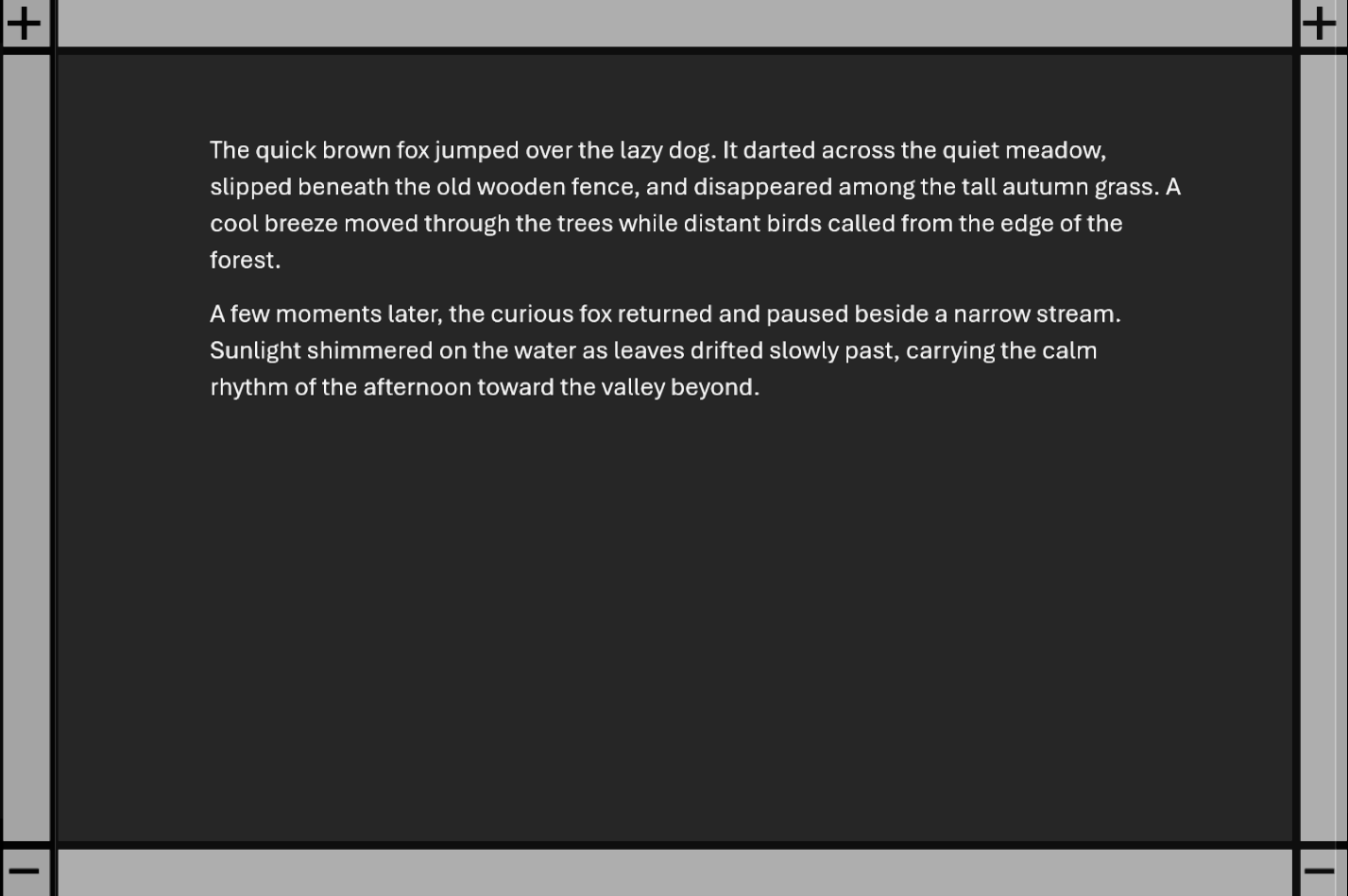
Magnifier touch bars once zoomed in: + buttons at the top corners, − buttons at the bottom corners.
Touch gestures
All of these gestures work on the gray touch bars:
- Zoom in or out: Tap a Plus sign (+) button to zoom in, or a Minus sign (-) button to zoom out.
- Turn Magnifier off: Tap the X button.
- Move around the screen: to pan left or right, touch and drag along the horizontal touch bar at the top or bottom of the screen. To pan up or down, touch and drag along the vertical touch bar at the left or right of the screen.
- Adjust zoom level: place one finger on the left vertical touch bar and one on the right vertical touch bar, then pinch them toward each other to zoom out or stretch them apart to zoom in.
- See where you are on the full screen: tap the touch bars on opposite edges of the screen at the same time to briefly show the whole screen.
Previous chapter: Chapter 6: Reading text aloud
Next chapter: Appendix A: Keyboard shortcuts for Magnifier
Go back to the Table of Contents