

Do tasks quickly without using the mouse by pressing a few keys—no matter where you are in a Microsoft 365 app. You can get to every command on the ribbon by using an access key—usually by pressing two to four keys.
In this topic
- Use KeyTips to access the ribbon
- Keyboard shortcuts for KeyTips
- Change the keyboard focus without using the mouse
- Other useful keyboard shortcuts for the ribbon
Use KeyTips to access the ribbon
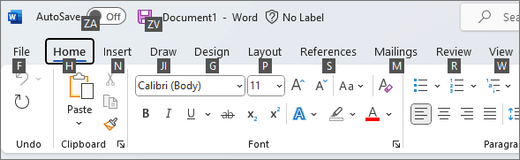
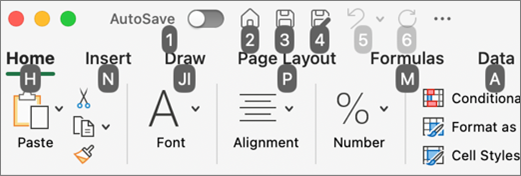
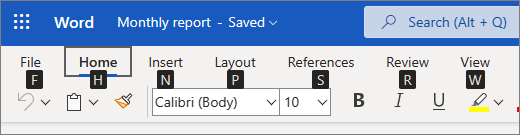
To show the KeyTips and to place the focus on the selected ribbon tab, press the Alt key. KeyTips are shown for the ribbon tabs and for the buttons on the right side and in the header.
Tip
For a list of the most often used keyboard shortcuts that represent the KeyTips, see Keyboard shortcuts for KeyTips.
Press the one or two letters shown in the KeyTip over the command you want to use. Depending on which letter you pressed, you might see additional KeyTips. For example, if the Home tab is active and you pressed N, the Insert tab is displayed, along with the KeyTips for the groups in that tab. If the selected command is a split button (that is, a button that opens a menu of additional options), pressing the KeyTip will open the menu.
Continue pressing letters until you press the letter of the specific command you want to use.
Tip
To cancel the action you're taking and hide the KeyTips, press the Alt key. To go back a step and see the previous KeyTips, press Esc. If you are at the first step, pressing Esc hides the KeyTips and moves the focus back to the document.
Keyboard shortcuts for KeyTips
The keyboard shortcuts in the following table can be used to activate the KeyTips described in Use KeyTips to access the ribbon. The table lists the most often used keyboard shortcuts in a Microsoft 365 app.
| To do this | Press |
|---|---|
| Open the File page. | Alt+F |
| Open the Home tab. | Alt+H |
| Open the Insert tab. | Alt+N |
| Open the Design tab. | Alt+G |
| Open the Transitions tab in PowerPoint. | Alt+K |
| Open the Animations tab in PowerPoint. | Alt+A |
| Open the Slide Show tab in PowerPoint. | Alt+S |
| Open the Review tab. | Alt+R |
| Open the View tab. | Alt+W |
| Open the Search box.Depending on the version of Microsoft 365 you are using, the Search text field at the top of the app window might be called Tell Me instead. Both offer a largely similar experience, but some options and search results can vary. | Alt+Q, and then enter the search term |
Change the keyboard focus without using the mouse
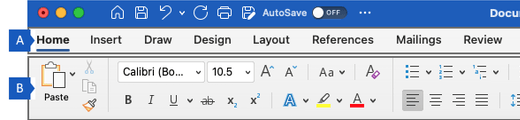
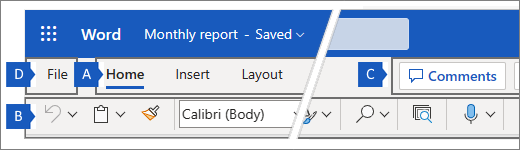
Another way to use the keyboard to work with the ribbon is to move the focus among the tabs and commands until you find the feature you want to use. The following instructions describe how to move between the following main regions in the ribbon:
- Area A: Ribbon tabs
- Area B: Lower ribbon
- Area C: Header
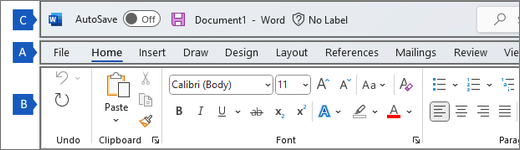
To place the focus on the selected ribbon tab (Area A), press Alt.
To move the focus to and select a different ribbon tab, press the Left or Right arrow key. The focus will also move to the buttons on the right side and loop back to the left side.
To move the focus from the ribbon tabs to the lower ribbon (Area B), press the Tab key until you reach the first button on the lower ribbon.
To move through the commands, press the Tab key or Shift+Tab.
Note
You can also use the arrow keys to move through the commands, but when the focus is on a command that is a text edit field, you need to press the Tab key or Shift+Tab to move the focus to the next or previous command.
Tip
You can press Ctrl+Left or Right arrow key to jump to the previous or next section of the lower ribbon.
To perform a command, press Spacebar or Enter. If the selected command is a split button, press Alt+Down arrow key to expand the dropdown menu.
Tip
To collapse a dropdown menu, press Esc. If no dropdown menu is expanded, pressing Esc will move the focus back to the document.
To move the focus to the header above the ribbon (Area C), with the focus in Area A, press Shift+Tab. To move through the commands in the header, press the Tab key or Shift+Tab.
Note
You can also use the Left and Right arrow keys to move through the commands, but when the focus is on a command that is a text edit field, you need to press the Tab key or Shift+Tab to move the focus to the next or previous command.
Other useful keyboard shortcuts for the ribbon
| To do this | Press |
|---|---|
| Minimize (collapse) or restore the ribbon. | Ctrl+F1 |
| Display the shortcut menu for the selected item. | Shift+F10 or the Windows Menu key |
| Move the focus to select the active tab, document, task pane, or status bar. | F6 |
| Get help on the selected command or control in the ribbon. (If no Help article is associated with the selected command, the Help table of contents for that app is shown instead.) | F1 |
See also
Use keyboard shortcuts to create PowerPoint presentations
Use a keyboard to customize the Quick Access Toolbar
Keyboard shortcuts in Microsoft 365
Keyboard shortcuts for the File menu in Microsoft 365 for Windows
Technical support for customers with disabilities
Microsoft wants to provide the best possible experience for all our customers. If you have a disability or questions related to accessibility, please contact the Microsoft Disability Answer Desk for technical assistance. The Disability Answer Desk support team is trained in using many popular assistive technologies and can offer assistance in English, Spanish, French, and American Sign Language. Please go to the Microsoft Disability Answer Desk site to find out the contact details for your region.
If you are a government, commercial, or enterprise user, please contact the enterprise Disability Answer Desk.