

If you sign in to Windows with a Microsoft account password
Reset a forgotten Microsoft account password when you aren't signed in to Windows
If you forgot your Microsoft account password and need to reset it, your options are:
- At the sign-in screen, select I forgot my password.
- At the sign-in screen, select Sign-in options then select Web sign-in. Follow the prompts to sign in then select Forgot my password.
- From any browser, go to Reset password.
Change a known Microsoft account password when you're already signed in to Windows
You can use the Settings app to change your password.
In the
 Settings app on your Windows device, select Accounts > Sign-in options or use the following shortcut:
Select Password > Change, and then follow the instructions. You will need to enter your old password to create a new one
- If you forgot your password, select Forgot my current password and follow the directions to verify your account and create a new one.
If you sign in to Windows with a PIN
Change a known Microsoft account password when you're already signed in to Windows
You can use the Settings app
If you forgot your Microsoft account password, but know your PIN, you can use the Settings app to change your password.
In the
Settings app on your Windows device, select Accounts > Sign-in options or use the following shortcut:Select Password > Change, and then follow the instructions. You will need to enter your old password to create a new one
- If you forgot your password, select Forgot my current password and follow the directions to verify your account and create a new one.
Change or reset your Local account password in Windows
If you forgot your password and need to reset it, you can do so from the Windows sign-in screen. You’ll need to lock you PC when you’re ready to follow the steps below.
- Select the arrow
 next to the password text field.
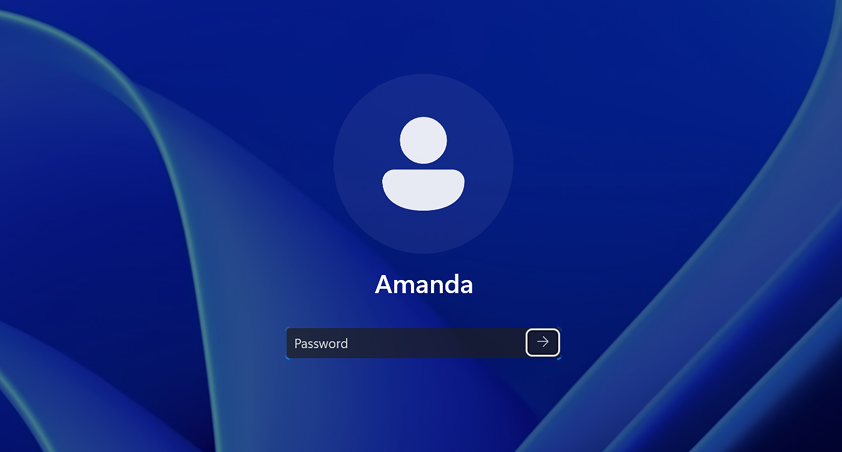
- Select OK then Reset password.
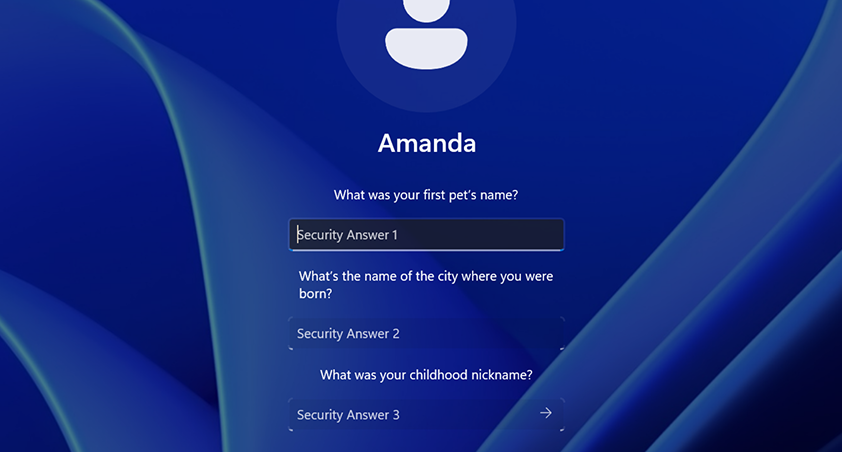
- Answer the security questions you configured when you created the account.
Need more help?
Important
Microsoft accounts, the Windows operating system, and other Microsoft products include passwords to help secure your information. This article provides some options that you can use to reset or recover your password if you forget it. If these options don’t work, Microsoft support cannot help you retrieve or circumvent a lost or forgotten password.
Can't sign in?
If you can't sign into your Microsoft account, most issues can be identified by our sign-in helper tool.
Contact Support
For technical support, go to Contact Microsoft Support, enter your problem and select Get Help. If you still need help, select Contact Support to be routed to the best support option.
Important
To protect your account and its contents, our support agents are not allowed to send password reset links, or access and change account details.