
Extensions or add-ons are tools that can be used to customize your browser and offer you more control over your browsing experience. There are a wide variety of extensions for Microsoft Edge, including AI-enabled extensions and tools that enhance your productivity while browsing.
Visit the Microsoft Edge add-ons store to check out our collection of add-ons.
How do I add an extension in Microsoft Edge?
To add an extension to Microsoft Edge:
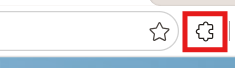
Select Extensions (the puzzle piece icon), located to the right of your browser address bar.
Note
If you don't see Extensions (the puzzle piece icon) to the right of your browser address bar, select Settings and more (...) > Extensions.
Select Get Extensions for Microsoft Edge.
Find the extension you would like to add and select Get.

Select Add extension.

You will see a prompt confirming the extension has been added to Microsoft Edge.
You can also go directly to the Microsoft Edge add-ons store to add extensions.
How do I turn on/off (enable/disable) the extension?
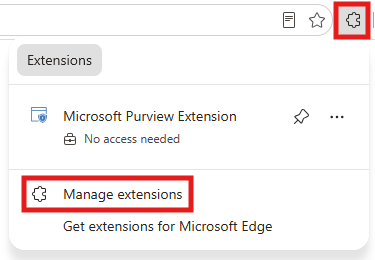
Select the Extensions icon (the puzzle piece icon) next to the address bar and then select Manage Extensions.
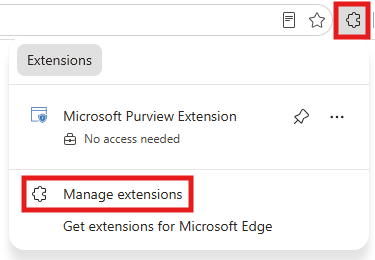
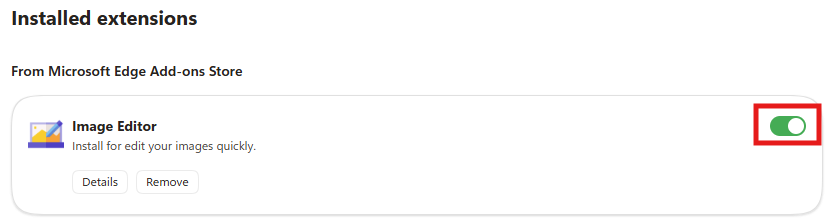
Use the toggle button next to each extension to enable or disable that extension.
How do I remove an extension from Microsoft Edge?
Method 1:
Select the Extensions icon (the puzzle piece icon) to the right of the address bar and select More actions (...) next to the extension you want to remove.
Select Remove from Microsoft Edge.

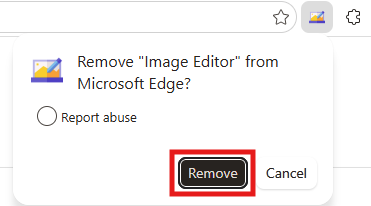
Select the Remove button on the small prompt window. You should then see a small confirmation prompt: "Extension removed".

Method 2:
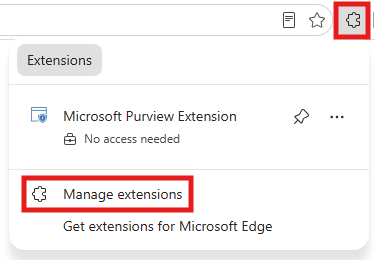
Select the Extensions icon (the puzzle piece icon) to the right of the address bar and select Manage Extensions. This will display all the extensions you've installed on Microsoft Edge.
Under Installed extensions, locate the extension you want to remove and select Remove.

Then select the Remove button on the small prompt window. You should then see a small confirmation prompt: "Extension removed".
I have installed a new extension, but it is not working
- Ensure the extension is turned on.
- Check for updates to the extension.
- Disable and re-enable the extension, and ensure Microsoft Edge is up to date.
- Ensure the extension has the necessary permissions enabled. To adjust permissions:
Select the Extensions icon (the puzzle piece icon) next to the address bar and then select Manage Extensions.
Under Installed extensions, locate the extension and select Details.

Verify that the extension is compatible with your version of Microsoft Edge and check for any updates.
I have installed a new extension, but I cannot see it in the puzzle menu beside the search bar
- Select the Extensions icon (the puzzle piece icon) next to the address bar and then select Manage Extensions.
- Use the toggle button next to the extension to ensure it's enabled.
- If it's still not visible, try restarting Microsoft Edge or reinstalling the extension.
How can I restrict an extension to specific websites?
- Select the Extensions icon (the puzzle piece icon) next to the address bar and then select Manage Extensions.
- Select the Details option under the extension you wish to restrict.
- Under Site access, select On specific sites from the dropdown and enter the URLs of the sites where you want the extension to work.
How can I limit the use of an extension & activate the extension in a click?
- Select the Extensions icon (the puzzle piece icon) next to the address bar and then select Manage Extensions.
- Select the Details option under the extension you wish to restrict.
- Under Site access, select On click from the dropdown and enter the URLs of the sites where you want the extension to work.
How can I remove a pop-up blocking access to a website?
- Check if you've installed any ad-blocking extensions. Try temporarily disabling those extensions.
- Enable Immersive Reader Mode for clutter-free reading by selecting the book icon in the address bar or by pressing the F9 key.
How do I stop pop-ups telling me that my system has found critical viruses?
- Check if you have installed any antivirus extensions. Try temporarily disabling those extensions.
How did my search engine change automatically?
When installed, some extensions might change your default search engine settings. To set your preferred search engine:
- Select Settings and more (...), and then Settings.
- Select Privacy, search, and services from the options panel on the left side.
- Select Search and connected experiences, then select Address bar and search.
- Under Search engine used in address bar, choose your preferred search engine from the dropdown and set it as the default.
You might want to disable or remove any extensions you feel might be changing your browser settings drastically.
How do I resolve problems with the appearance of websites? I'm unable to read websites properly?
When installed, some extensions might change settings that can potentially cause problems with the appearance of websites. To determine if any of your extensions are the cause of these problems:
- Select the Extensions icon (the puzzle piece icon) next to the address bar and then select Manage Extensions.
- Try disabling extensions you feel might be changing the appearance of websites individually to identify the extension causing the problem.
- Use the Immersive Reader Mode for a simplified and consistent reading experience. You can turn on the reader Mode by selecting the book icon in the address bar or by pressing the F9 key.
- Try to adjust the page zoom settings. Select Settings and more (...) > Zoom (Use the +/- option to adjust).
How do I stop my new tab page from changing?
When installed, some extensions might change new tab page (NTP) settings. To change your NTP settings to your preferred options:
- Select Settings and more (...) and then Settings.
- Select Start, home, and new tab page from the options panel on the left side.
- Ensure your preferred new tab setting is selected and disable any extensions that modify it.
How can I check if an extension was downloaded as part of my organization's policies and how can I validate it?
Check Extension Management. To do this:
- Open Edge and type edge://extensions in the address bar.
- Look for any extensions that have Briefcase Logo next to the Enable/Disable button. If you hover your cursor over that logo, it will indicate that the extension is "managed by your organization". This typically means they were installed via group policies.

Review Policies. To do this:
Go to edge://policy to see the policies currently applied to your browser. Look for any entries related to extensions, such as ExtensionSettings or ExtensionInstallForcelist.
Important
- If you find an extension that you believe should not be there, consult your IT department before making any changes, especially if it is managed by organization's policies.
- Always ensure that any extensions you use comply with your organization's security standards to protect sensitive data.
How can I remove an extension that says, “managed by your organization”, but my Edge is not managed by an organization?
Check for malware: Extensions that claim to be managed by an organization can sometimes be malware. Run a full scan with Microsoft Defender or another reputable antivirus program to ensure your system is clean. If you are unable to remove these types of extensions, please report the extension by following these steps:
- Open Microsoft Edge.
- To the right of the address bar, select Settings and more (...).
- Select Help and Feedback and then select Send feedback.
- Type your feedback or provide more details about the issue. If possible, include screenshots.
- Select the Send button.
Advanced tips: If you're a more experienced user, try these advanced troubleshooting steps.
Warning
- Modifying the registry can be risky. Make sure to back up your registry before attempting these changes.
- Always ensure your data is backed up before making significant changes to your system.
- If you are unsure about any step, consult someone with IT experience.
Use the Registry Editor:
Press the Windows key + R, type regedit, and press Enter.
Navigate to:
- HKEY_LOCAL_MACHINE\SOFTWARE\Policies\Microsoft\Edge
- HKEY_CURRENT_USER\SOFTWARE\Policies\Microsoft\Edge
Look for any keys related to the extension you want to remove. Right-click the relevant key and select Delete.
Use PowerShell:
Open PowerShell as an administrator.
Type the following commands to delete the policies. This will remove any policies that might be enforcing the extension.
reg delete HKCU\SOFTWARE\Policies\Microsoft\Edge /f
reg delete HKLM\SOFTWARE\Policies\Microsoft\Edge /f