Summary
Microsoft Edge features aim to make the web more accessible and inclusive for everyone. Reading mode allows users to enter a focused reading surface by removing distractions from supported webpages with helpful tools such as Read aloud, Translate, Summarize, and Copilot all in one easy place. This article explains how to enable Reading mode, use Read Aloud, translate webpages, and access many other Reading mode features in Microsoft Edge.
Reading mode in Microsoft Edge simplifies web page layouts, removes clutter, and helps you customize your reading experience. There are also many amazing learning and accessibility tools within Reading mode that can help improve reading comprehension and enhance learning.
In this article:
Turn on Reading mode
Entering Reading mode will simplify the page you're on by hiding distracting pop-ups and buttons, leaving you with just the important parts: textual and visual content. Once you enter Reading mode, start using tools like Read aloud, Translate, and Chat with Copilot.
To enter Reading mode:
- Select the three dots (
 ) in the top right corner of the toolbar > Settings
  > Appearance > Toolbar.
 - Toggle on Reading mode.
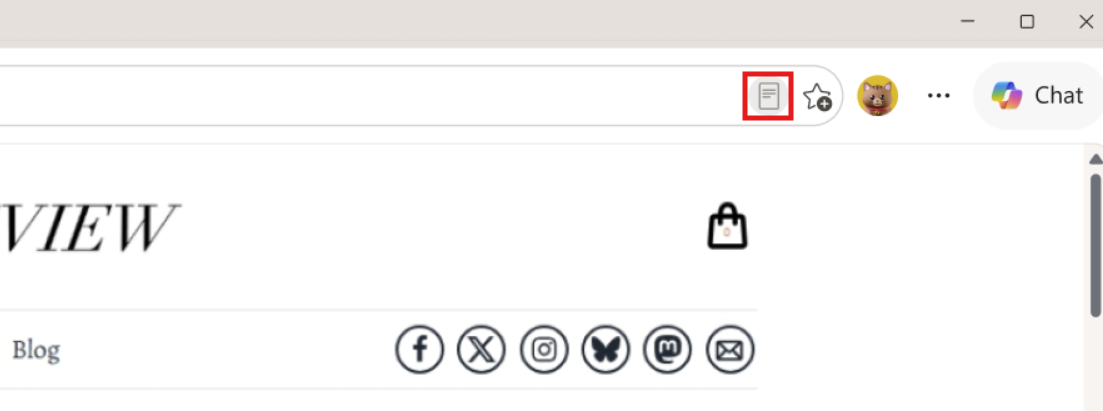
- Once turned on, Reading mode will appear on supported pages in your address bar.
Tip
You can also press F9 to access Reading mode on supported webpages, or if you want to use it for part of the webpage, select the text, right-click and select Open selection in Reading mode.
Access Reading mode features
Read aloud
Read aloud is a simple but powerful tool that reads the text of a webpage audibly. For a hands-free experience, turn on Read aloud in the Reading mode toolbar to hear content spoken in natural sounding voices. You can control playback, adjust speech speed, and follow along as you read or listen. It now incorporates Copilot, so you can also ask questions and engage with the content using your voice. To try the interactive Read aloud feature, make sure your microphone is enabled and volume is turned on.
To access Read aloud:
Select Reading mode in the address bar or use the keyboard shortcut F9.
Select Read aloud on the Reading mode toolbar.

A ribbon toolbar appears at the top of the page after you start Read aloud. The toolbar includes buttons to play audio, skip to the next or previous paragraph, and adjust Voice options.
Voice options allow you to change the reader's voice and slow down or speed up their reading pace.
To stop listening, select the Pause button or the X to close Read aloud.
Tip
Another way to access Read aloud is to select the three dots (
) in the top right corner of the toolbar > More tools > Read aloud.
Translate
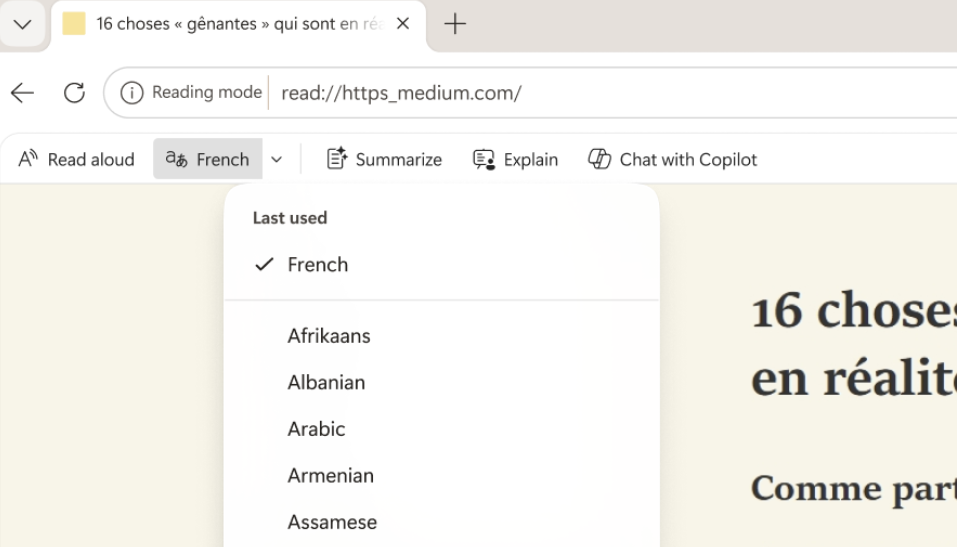
You can translate an entire webpage into another language. Select Translate in the Reading mode toolbar and choose your language from more than 70 options.
Summarize
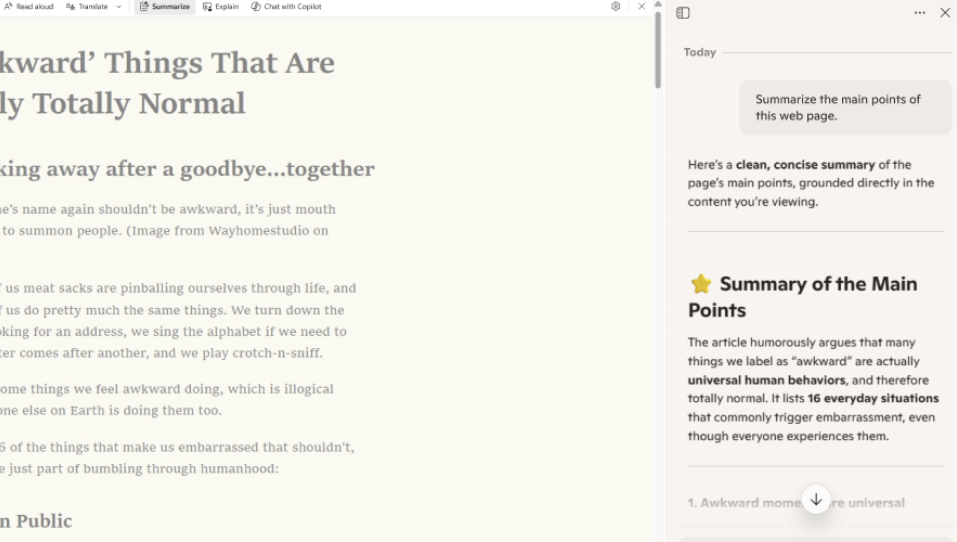
If you want a summary of the content, select Summarize in the Reading mode toolbar to get a quick overview. Copilot opens in the side pane and generates a concise summary of the webpage or supported document you’re viewing.
Explain
For help with understanding complex terms, select Explain in the Reading mode toolbar. Copilot opens in the side pane and breaks down key ideas into simpler, easier to understand language so you can keep learning and move forward.

You can also start a conversation with Copilot about what you’re viewing right from Reading mode by selecting Chat with Copilot.
Customize Reading mode experience
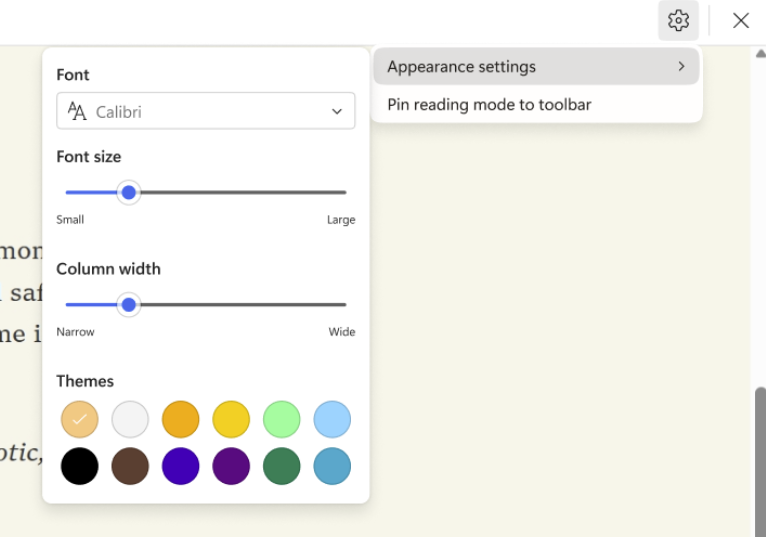
If you want to customize your Reading mode experience, choose from a wide variety of font and color options such as Font, Font size, and Themes.
Font: Select a font of your choice for a more personalized reading experience.
Font size: Move the slider right to make the text larger; move it left to make the text smaller.
Column width: Adjust how wide your page's text column spreads.
Themes: Choose from a variety of page themes and color options, including themes inspired by Irlen Spectral Filters for people with Irlen Syndrome.
To customize Reading mode:
Select the Settings icon in the Reading mode toolbar and then choose Appearance settings.
Choose a Font, adjust Font size (small to large), set Column width (narrow to wide), and choose a Theme to change the background and overall look of the page.