
Use the Math button in OneNote to convert your handwritten equations into a text format. You can also type your equations.
Note
This feature is only available if you have a Microsoft 365 subscription. If you are a Microsoft 365 subscriber, make sure you have the latest version of Office.
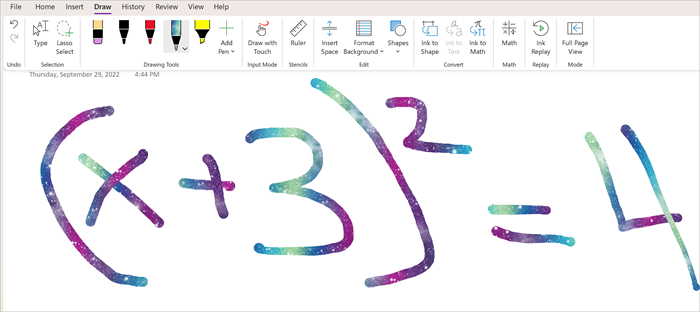
Step 1: Write or type an equation
- In OneNote Online, go to any page and select Draw.
- Select a pen, then select the small arrow that appears next to the pen to choose the stroke width and ink color you want to use.
- Next:
If you’re using a touchscreen device, write your equation with your finger or stylus.
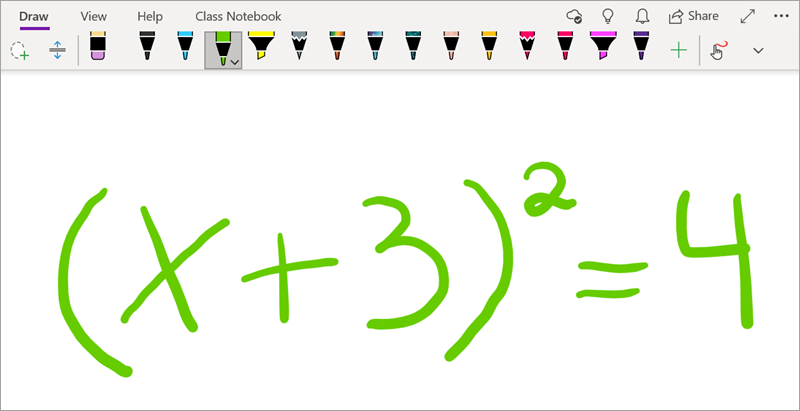
If you’re using a PC with a standard monitor, write your equation with your mouse or pen input tablet, or use your keyboard to type your equation.
Tip
You can type an equation in linear format and then use the steps below to format it. Example: (x^2+4)/(x-3)
Step 2: Select the equation
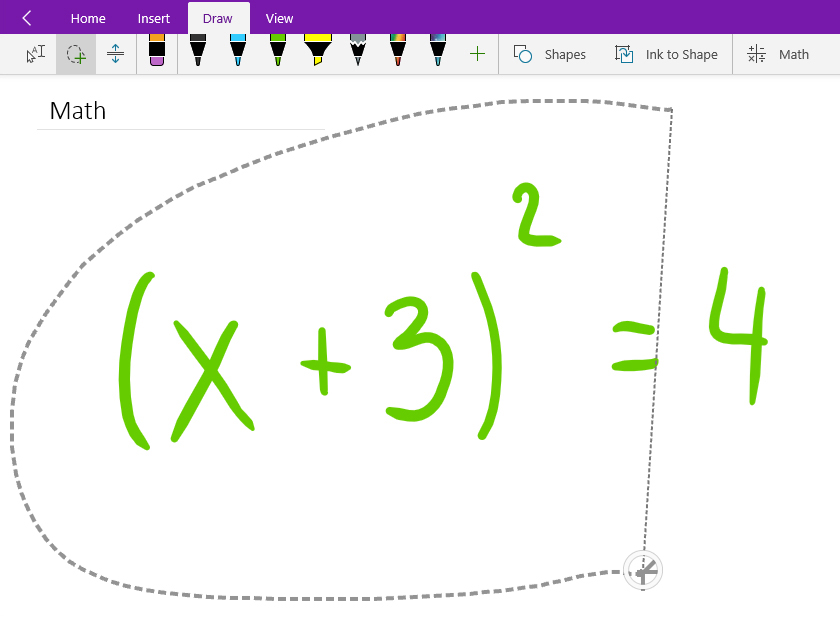
Select the Lasso Select tool.

With your finger or mouse, drag a selection around the equation that you created in Step 1. When you let go, all ink strokes or text in your equation should appear selected.
Tip
If the pen or lasso tool is not responding in OneNote Online, you may need to select Draw with Mouse or Touch.

Step 3: Use the Math button
When your equation is selected, do the following:
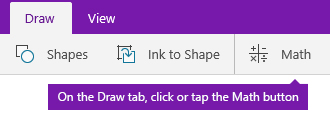
Select Math.
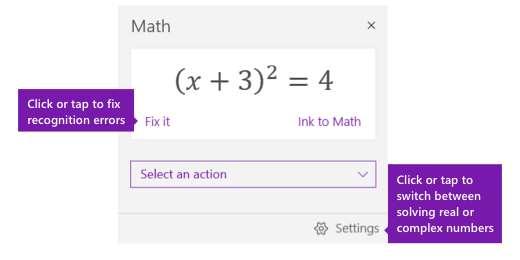
In the Math pane that opens, confirm that OneNote correctly recognized your equation.
If necessary, select Fix it to make any corrections to individual ink strokes. While in Fix it mode, use the Lasso Select tool to select any incorrectly recognized symbol or part of the equation and OneNote will offer alternatives for you to choose from.

Select Ink to Math to convert your original handwritten text to a typed math equation.




More Math Assistant topics
Solve equations with Math Assistant in OneNote
Draw graphs of math functions with Math Assistant