
Advanced settings for the Data Streamer add-in apply to all workbooks that use Data Streamer.
Console tab
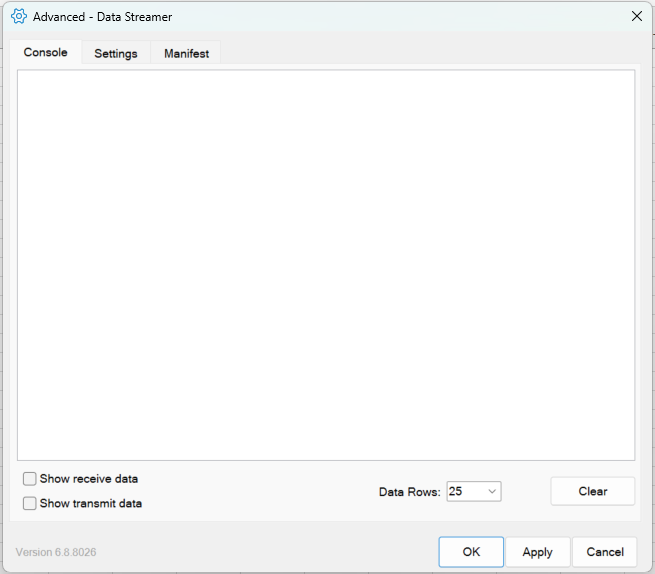
The console displays raw serial data when connected to a device. This information is useful for troubleshooting device connection issues.
Console options:
- Select Show receive data to see received data, and Show transmit data to see transmitted data.
- Select Clear to clear the contents of the console.
- Select the Data Rows dropdown list to choose how many rows to display.
Settings tab
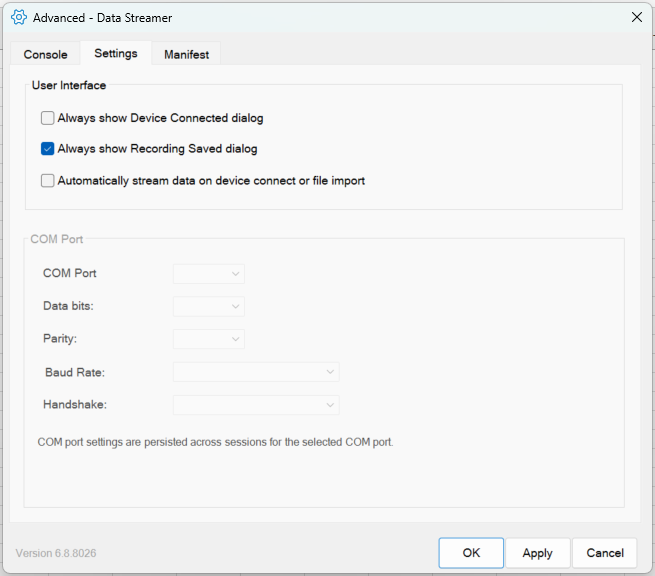
User Interface options:
Contains settings related to the user interface, like adjusting when dialogs appear and streamlining the connection process.
- Always show Device Connected dialog—Sets whether or not you would like to see the Device Connected confirmation dialog, which includes guidance on how to start seeing your data. The default is checked.
- Always show Recording Saved dialog—Sets whether or not you would like to see the Recording Saved confirmation, which includes receiving guidance how to replay that data. The default is checked.
- Automatically stream data on device connect or file import—Do you want to visualize your data faster? Checking this will automatically Start Data from your device, or Play Data from your file after selecting it. The default is unchecked.
COM Port options:
Contains settings related more generally to serial connections. These settings may be necessary if you’re connecting a device which is not compatible with the default settings. Connect a serial device to enable these settings.
You can also adjust the Baud as required by your device. The default is 9600.
Manifest tab
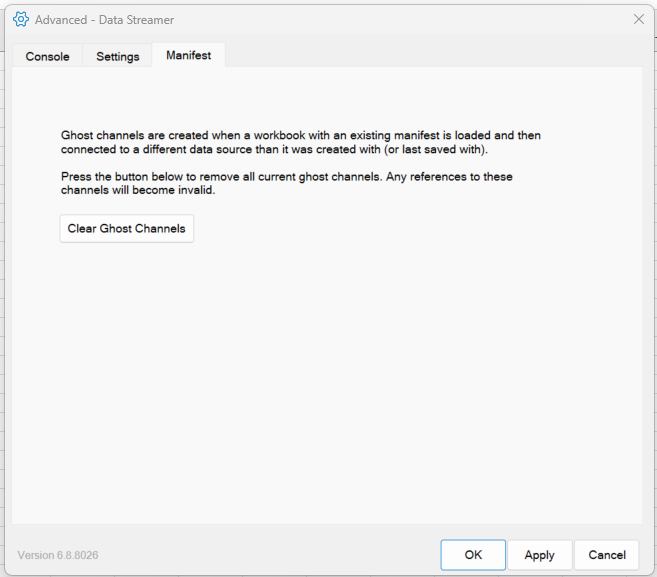
The Manifest tab provides an option to clear ghost channels.
Ghost channels are created when a workbook with an existing manifest is loaded and then connected to a different data source than the one used when the workbook was created or last saved.
Select Clear Ghost Channels to remove all existing ghost channels.
Note
Clearing ghost channels invalidates any references to those channels.
Need more help?
You can always ask an expert in the Excel Tech Community or get support in Communities.
See also
Enable the Data Streamer add-in
Start streaming real-time data with the Data Streamer add-in